
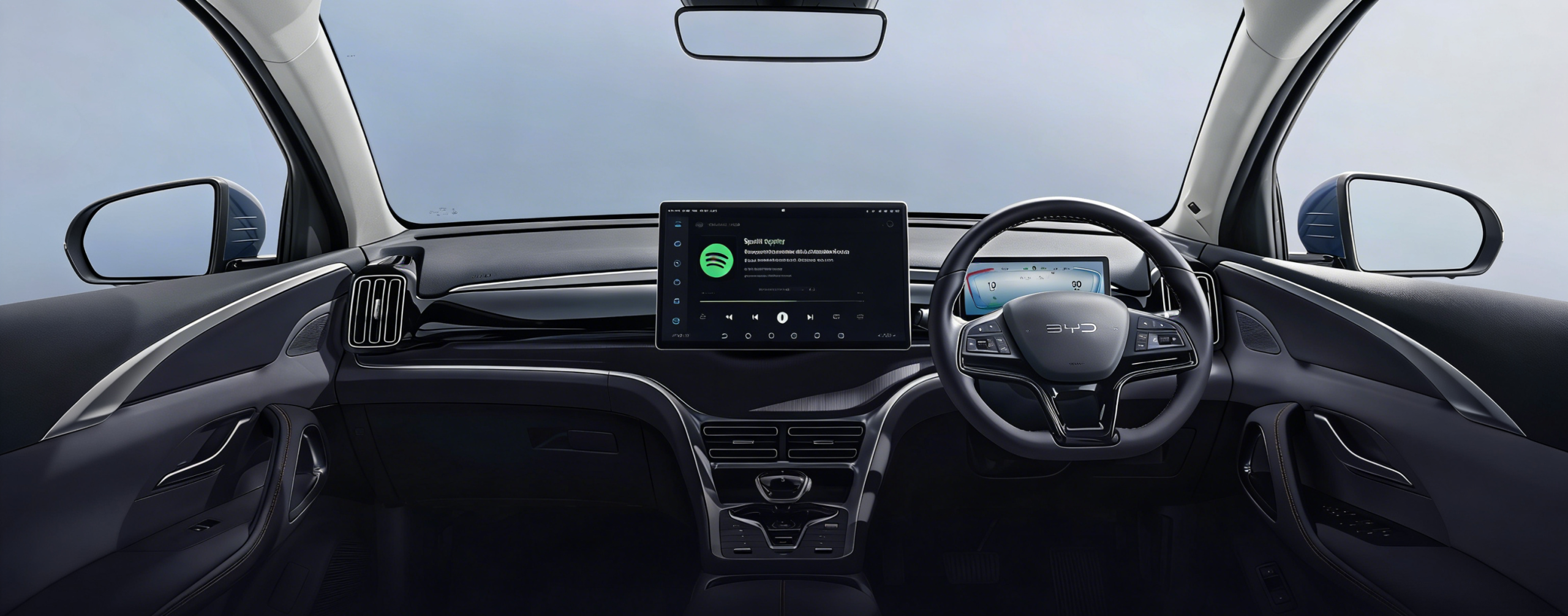
If you have just picked up a BYD in Australia — or you are cross-shopping one — the CarPlay question is rarely a simple yes or no. BYD added Apple CarPlay to several models after they went on sale, and then upgraded it from wired to wireless later again, all through free over-the-air updates. Two cars of the same model can behave differently depending on when they were delivered and whether the owner has run their updates.
This guide sets out exactly which Australian-delivered BYD models have Apple CarPlay in 2026, whether it is wired or wireless, how to check your own car in under a minute, and what you can and cannot add on top of the factory system.
Does BYD Have CarPlay? Model-by-Model Support in Australia (2026)
Short answer: yes — every BYD currently sold new in Australia supports Apple CarPlay, and on most of them it is wireless. The detail matters more than the headline, because the way each model got there is different.
| BYD model | Australian model years | Apple CarPlay | Wired or wireless | Android Auto | How it was delivered |
|---|---|---|---|---|---|
| Atto 3 | 2022 onwards | Yes | Wired from January 2023; wireless from 2 July 2024 | Yes — wired and wireless (added June 2023) | Not fitted at launch. CarPlay, then Android Auto, then wireless CarPlay (software v1.8.0) all arrived as free OTA updates |
| Dolphin | 2023 onwards | Yes | Wired originally; wireless from 2 July 2024 | Yes — wired and wireless | Wireless CarPlay added by the same free OTA update (v1.8.0) |
| Seal | 2023 onwards | Yes | Wired originally; wireless from 2 July 2024 | Yes — wired and wireless | Wireless CarPlay added by the same free OTA update (v1.8.0) |
| Sealion 6 | 2024 onwards | Yes | Wireless | Yes — wireless | Factory-fitted. Rotating screen is 12.8 inches on Essential, 15.6 inches on Dynamic and above |
| Sealion 7 | 2025 onwards | Yes | Wireless, standard across the range | Yes — wireless | Factory-fitted with the 15.6-inch rotating touchscreen |
| Shark 6 | 2025 onwards | Yes | Both wired and wireless | Yes — wired and wireless | Factory-fitted with the 15.6-inch rotating touchscreen |
| Atto 1 | 2026 onwards | Yes | Both wired and wireless | Yes — wired and wireless | Factory-fitted with a 10.1-inch fixed screen |
| Atto 2 | 2026 onwards | Yes | Wireless | Yes — wireless | Factory-fitted. Rotating screen is 10.1 inches on Dynamic, 12.8 inches on Premium |
| Seal 6 | 2026 onwards | Yes | Wireless | Yes — wireless | Factory-fitted. Australian cars get a 12.8-inch fixed screen, not the overseas rotating unit |
| Sealion 5 | 2026 onwards | Yes | Wireless | Yes — wireless | Factory-fitted with a 12.8-inch screen that does not rotate |
| Sealion 8 | 2026 onwards | Yes | Wireless | Yes — wireless | Factory-fitted with the 15.6-inch touchscreen |
← swipe the table sideways to see every column →
Two things this table cannot tell you. First, software rolls out in stages, so two cars of the same model and year can differ by build date and by whether the owner has installed pending updates — the 60-second check below is the only reliable answer for your specific car.
Second, the Han and Tang are not part of BYD's Australian range, so if you have read about those models on an overseas forum, none of it applies to a car delivered here.
Check Your Car in 60 Seconds

- Start the car and let the DiLink screen finish booting.
- Open Settings, then Connectivity — on older DiLink layouts it may be labelled Phone Connection.
- Look for Apple CarPlay in the list. If you can switch it on and pair without plugging anything in, you have wireless CarPlay.
- If CarPlay only appears once an iPhone is plugged in, you have the wired version. Use the data-enabled USB port, not the charge-only one sitting beside it — on most BYDs the data port is the one marked with a phone or smartphone icon.
- If CarPlay is missing entirely, go to Settings → About, note your software version, then check for a pending OTA update. On the Atto 3, Dolphin and Seal, wireless CarPlay only appears once the car is on v1.8.0 or later.
BYD Model Screen Upgrades & Video Playback
Factory CarPlay covers navigation, music, calls and messages. What it deliberately does not cover is video. Apple does not permit streaming apps such as Netflix, YouTube or Stan inside CarPlay, so no software update from BYD will ever add them — the limit is Apple's, not BYD's.
That gap is what a multimedia AI box fills. It plugs into the same factory USB port your CarPlay connection already uses and runs a second Android environment alongside DiLink, on the same screen. Nothing is cut, spliced or permanently modified, and the factory interface stays exactly where it was — you switch between the two on screen.
What it adds:
- Streaming and Google Play apps on the factory screen, which CarPlay cannot run.
- Its own 4G connection via a SIM card, so video does not depend on your phone's data or battery.
- Wireless CarPlay and Android Auto through the box, plus split-screen use of both environments.
- Control over scaling on the rotating screens fitted to the Atto 2, Atto 3, Sealion 6, Sealion 7 and Shark 6, where a generic device often renders stretched.
What it cannot do, and it is worth being clear about:
- It cannot add CarPlay to a car that does not already have factory wireless CarPlay. The box works through the existing connection, so if your car has never had wireless CarPlay activated, run your OTA updates first.
- It does not change your factory screen, resolution or speakers, and it does not unlock vehicle functions such as climate or drive modes — those stay with DiLink.
Video is for when you are parked. Under Australian Road Rule 299, a driver must not operate a visual display unit that is visible from the normal driving position while the vehicle is moving, or stationary but not parked. Navigation and reversing displays are exempted as driver's aids; entertainment video is not. A vehicle still counts as parked with the engine running, which is why charging stops are the sensible use case — not the drive home.
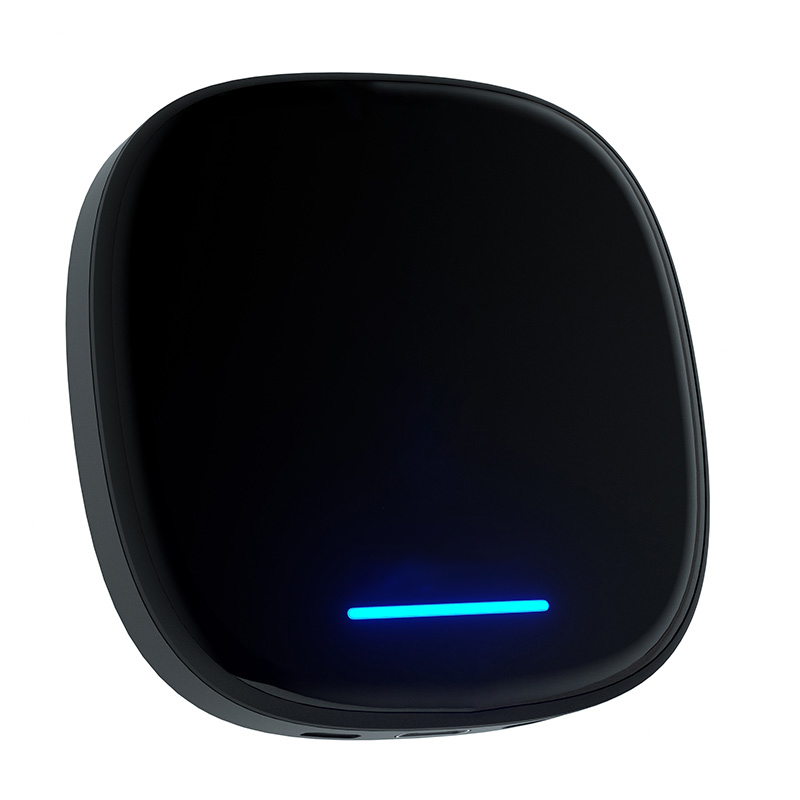
Multimedia Android & iOS AI Box for BYD
$368.99 AUDAndroid 13, 8-core Qualcomm processor, 8 GB RAM and 128 GB storage (expandable to 256 GB via microSD), 4G LTE with SIM slot. Listed as compatible with Atto 1, Atto 2, Atto 3, Dolphin, Seal, Sealion 5, Sealion 6, Sealion 7 and Shark 6 models that have factory wireless CarPlay. Two-year warranty, 30-day money-back guarantee, free express shipping.
View the BYD multimedia AI boxInstallation and pairing, start to finish:
- Park the car safely and start it, letting the DiLink screen boot fully before you plug anything in.
- Plug the box into the factory USB port you use for CarPlay — the data port, not the charge-only port next to it. Booting failures on first use are almost always the wrong port.
- Wait for the box to power up from the port and appear on screen.
- On your iPhone, turn Wi-Fi on and connect to the box's network when the pairing prompt appears. If no prompt appears, unplug the box, wait ten seconds and reinsert it to reset the handshake.
- Pair once — it reconnects on its own from then on.
- Open the box's settings and select Landscape mode if your screen rotates, then adjust DPI if icons look stretched. Carlinkit's recommended starting point is 290 on the Atto 3 and Seal, with most other models sitting between 280 and 300.
- Insert a nano-SIM or connect the box to your phone's hotspot. Streaming apps need their own internet — CarPlay's data connection does not carry across to the Android side.

Wired vs Wireless CarPlay on a BYD
Both give you the same CarPlay interface. The difference is what the connection costs you in convenience and stability.
| Factor | Wired CarPlay | Wireless CarPlay |
|---|---|---|
| Starting a trip | Plug the phone in every time | Connects on its own within seconds of start-up |
| Wireless charging pad | Occupied cable, so the pad goes unused | Phone can sit on the pad and run CarPlay at once |
| Connection stability | Very stable; a worn cable is the usual failure | Generally solid, though occasional stutters are reported |
| Phone battery | Charges while connected | Drains unless the phone is on the pad |
| Which BYDs have it | Atto 3, Dolphin and Seal before July 2024; Atto 1 and Shark 6 support both | Every current model; Atto 3, Dolphin and Seal after software v1.8.0 |
Do You Actually Need a Multimedia Box?

Worth it if you spend real time parked at DC chargers and want something to watch, want an internet connection that is independent of your phone, run a rotating screen and find the native scaling awkward, or want Android apps that CarPlay will never allow.
Probably skip it if you only use Maps and Spotify and are happy with factory CarPlay, rarely charge in public, or have not yet confirmed that your car has factory wireless CarPlay — in which case the free OTA update is the first step, not a purchase.
One thing worth saying plainly: a generic CarPlay dongle sold for "any car" is not the same product. BYD's DiLink implementation has its own connection behaviour and its own screen scaling, and a device that has not been built around it can disconnect, lag or simply never activate. If you are buying for a BYD, buy something specified for a BYD.
Troubleshooting the First Setup
- Nothing happens on first boot. Almost always the port. BYD's dash has a data-enabled CarPlay port and a charge-only port close together; the box only powers up from the data port.
- Icons look stretched or blurry. A DPI mismatch on the rotating screen, not a fault. Switch to landscape mode first, then set DPI — 290 is the recommended starting point on Atto 3 and Seal.
- The Wi-Fi pairing prompt never appears. Check the phone's Wi-Fi is on and set to join new networks. If it still does not show, unplug for ten seconds and reinsert to reset the handshake.
- Streaming apps will not load. The Android side needs its own connection. Confirm a nano-SIM is inserted or a phone hotspot is linked in the box's settings.