
If your Apple CarPlay is not working, the cause almost always sits in one of four places: the cable or USB port, a setting on your iPhone, a pairing that broke after an iOS update, or the car's own software. The fix depends on which one it is — and you can usually tell within a couple of minutes.
This guide covers the common causes of Apple CarPlay not working, ordered the way a technician would work: quick checks first, then fixes by symptom, and only then a trip to the dealer. It's written for Australian drivers using factory CarPlay (wired or wireless) or a plug-in wireless adapter.

Just updated your iPhone? iOS 27 rolled out on 14 September 2026, and some owners have had to re-pair their car afterwards. If CarPlay broke right after an update, jump straight to the iOS update section.
Why Is Apple CarPlay Not Working? Match Your Symptom to the Fix
Most cases of Apple CarPlay not working fit one of these symptoms. Find the row that sounds like your car, then start with the first step listed.
| What you see | Most likely cause | Try this first |
|---|---|---|
| iPhone charges, but CarPlay never starts | Charge-only cable, wrong USB port, or CarPlay restricted | Swap to a data cable in the CarPlay port |
| Car says "No device connected" | Old pairing, Siri off, or phone locked | Forget the car and pair again |
| Stopped working after an iOS update | Pairing or permissions reset by the update | Re-pair, then check Screen Time |
| Wireless won't connect, wired works | Wi-Fi or Bluetooth off, auto-join disabled | Turn both on, check the car's Wi-Fi network |
| Connects, then black screen or freezing | Head unit glitch or outdated firmware | Fully restart the car's system |
| Connects, but no sound | Audio routed to another device | Check the audio source and Bluetooth devices |
| Problem started with an adapter or AI box | Adapter power, firmware, or car compatibility | Test with a cable, no adapter |
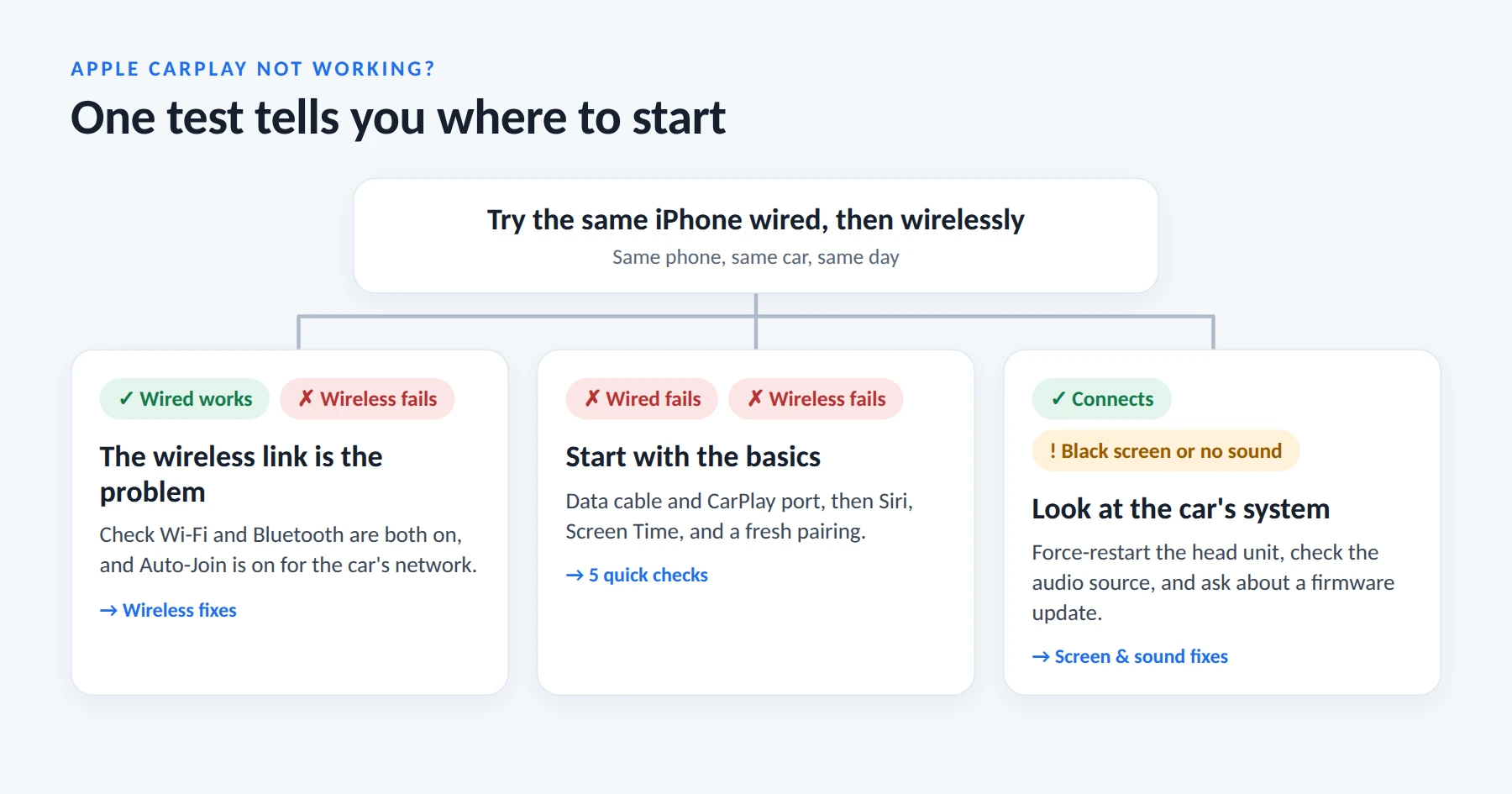
One test narrows it down fast. Try the same iPhone both wired and wirelessly. If wired works but wireless doesn't, the problem is in the wireless link. If neither works, start with the cable and your iPhone settings.
Start Here: 5 Quick Checks to Try First
Do these in order. Try CarPlay again after each one — there's no point doing all five if the first one fixes it.
1Check the cable and the port
A cable that charges your phone is not always a cable that carries data. Cheap charge-only cables, frayed cables and very long cables are the usual suspects.
- Use an Apple cable or a quality data cable (USB-C or Lightning, to suit your iPhone).
- Plug into the port marked with a CarPlay or phone icon. Many cars have charge-only ports that won't run CarPlay.
- Shine a torch into your iPhone's port. Lint builds up fast in a pocket. Clear it gently with a plastic toothpick — never anything metal.
2Make sure Siri is on
CarPlay won't load without Siri. On iOS 27, go to Settings > Siri. On iOS 26, the same menu is called Apple Intelligence & Siri on models that support Apple Intelligence. If Siri is already on, toggle it off and back on.
3Check Screen Time restrictions
This one hides in plain sight. Go to Settings > Screen Time > Content & Privacy Restrictions > Allowed Apps and make sure CarPlay is switched on.
Some owners have found this switch turned off after a major iOS update, even though they never touched it.
4Unlock your phone — or allow CarPlay while locked
By default, you need to unlock your iPhone once per drive before CarPlay starts. If your phone sits face-down in the console, CarPlay can look broken when it's simply waiting.
To skip this, go to Settings > General > CarPlay, tap your car, and turn on Allow CarPlay While Locked. The trade-off: anyone with your car and phone can then use CarPlay without your passcode.
5Restart both the iPhone and the car
Restart your iPhone. Then switch the car off, wait 20–30 seconds, and start it again. Many head units keep running for a while after you switch off, so a quick off-on doesn't always reset them.
CarPlay Stopped Working After an iOS Update (iOS 27)
Was CarPlay fine until you updated? Then the update most likely reset a pairing or a permission. These steps target exactly that.
Confirm the update actually finished
Go to Settings > General > Software Update. If it shows "Update Paused", or your phone restarted halfway through, let it finish properly on Wi-Fi. A half-installed update causes strange behaviour everywhere, CarPlay included.
Forget the car and pair it again
This is the most thorough fix for problems that start after an update.
- On your iPhone: Settings > General > CarPlay, tap your car, then Forget This Car.
- On the car's screen: open the phone or device list and delete your iPhone there too.
- Pair from scratch, as if it were a new phone.
Want screenshots for each side? Here's how to remove phone from CarPlay step by step.
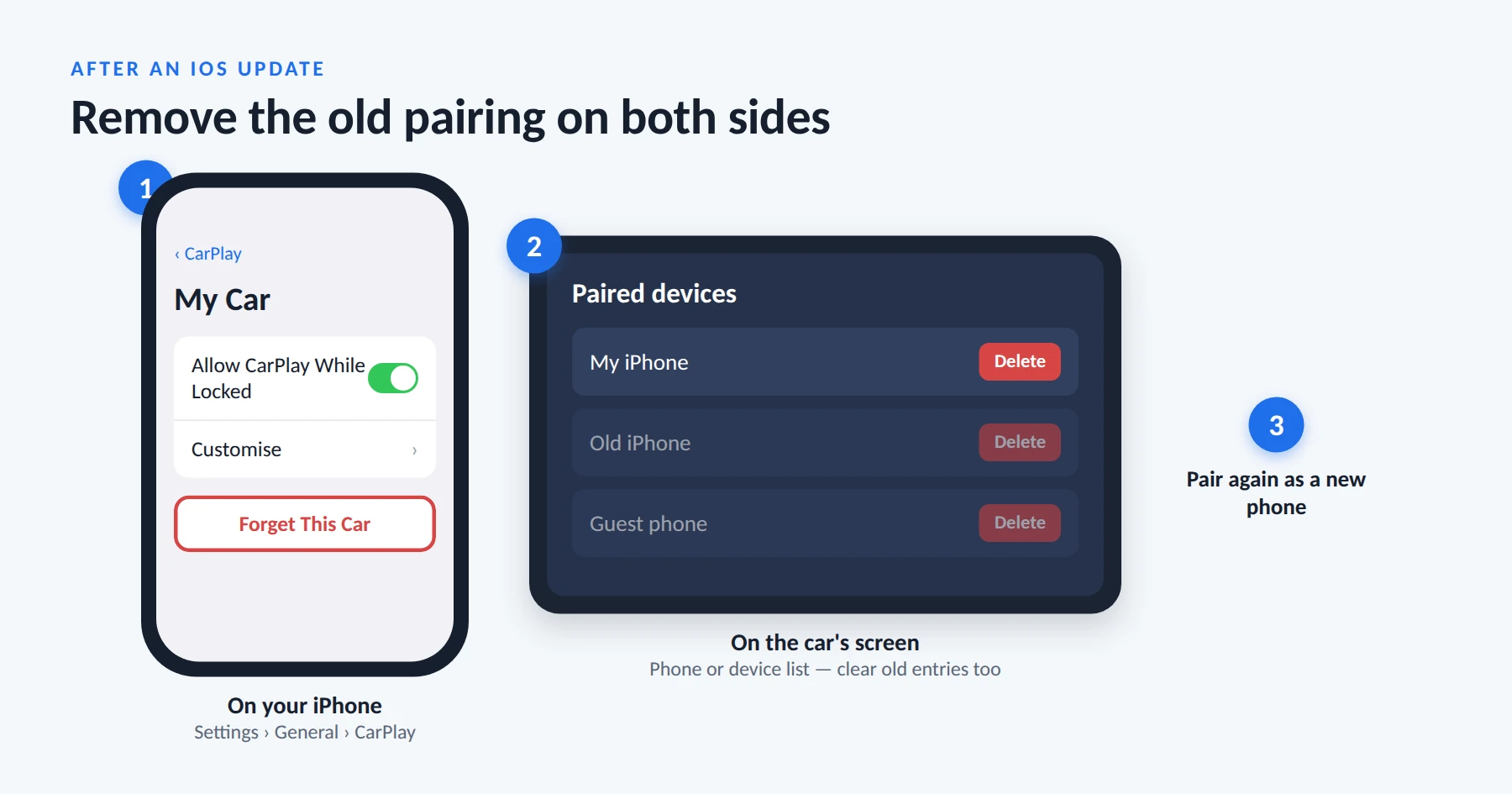
Don't skip step 2. If the car still holds the old pairing, it can keep trying to connect to a phone profile that no longer exists. Owners have reported that deleting every old device in the car's list — not just their current phone — was what finally worked.
Allow wired accessories
If your iPhone keeps asking whether to allow a USB accessory, and tapping Allow does nothing, go to Settings > Privacy & Security, scroll down to Security and tap Wired Accessories. Owners on recent iOS versions have fixed the endless prompt by setting it to Always Allow. The trade-off: any USB accessory can then connect without asking, so switch it back to the default (Automatically Allow When Unlocked) once CarPlay works, if you'd rather keep that protection.
Wait for the next point release — use a cable meanwhile
Some update bugs can't be fixed on your end. During iOS 26, for example, Apple's own engineers confirmed on the developer forums that a CarPlay bug was fixed in iOS 26.2 — a later point release.
If you've tried everything above, keep your iPhone updated and use a data cable for wired CarPlay until the next update lands.
Wireless CarPlay Won't Connect (But Wired Works)
If wired CarPlay works fine but wireless won't, the problem is in the wireless link, not CarPlay itself.
How wireless CarPlay actually connects
Wireless Apple CarPlay uses two radios. Bluetooth handles the first handshake. Wi-Fi then carries the maps, music and calls.
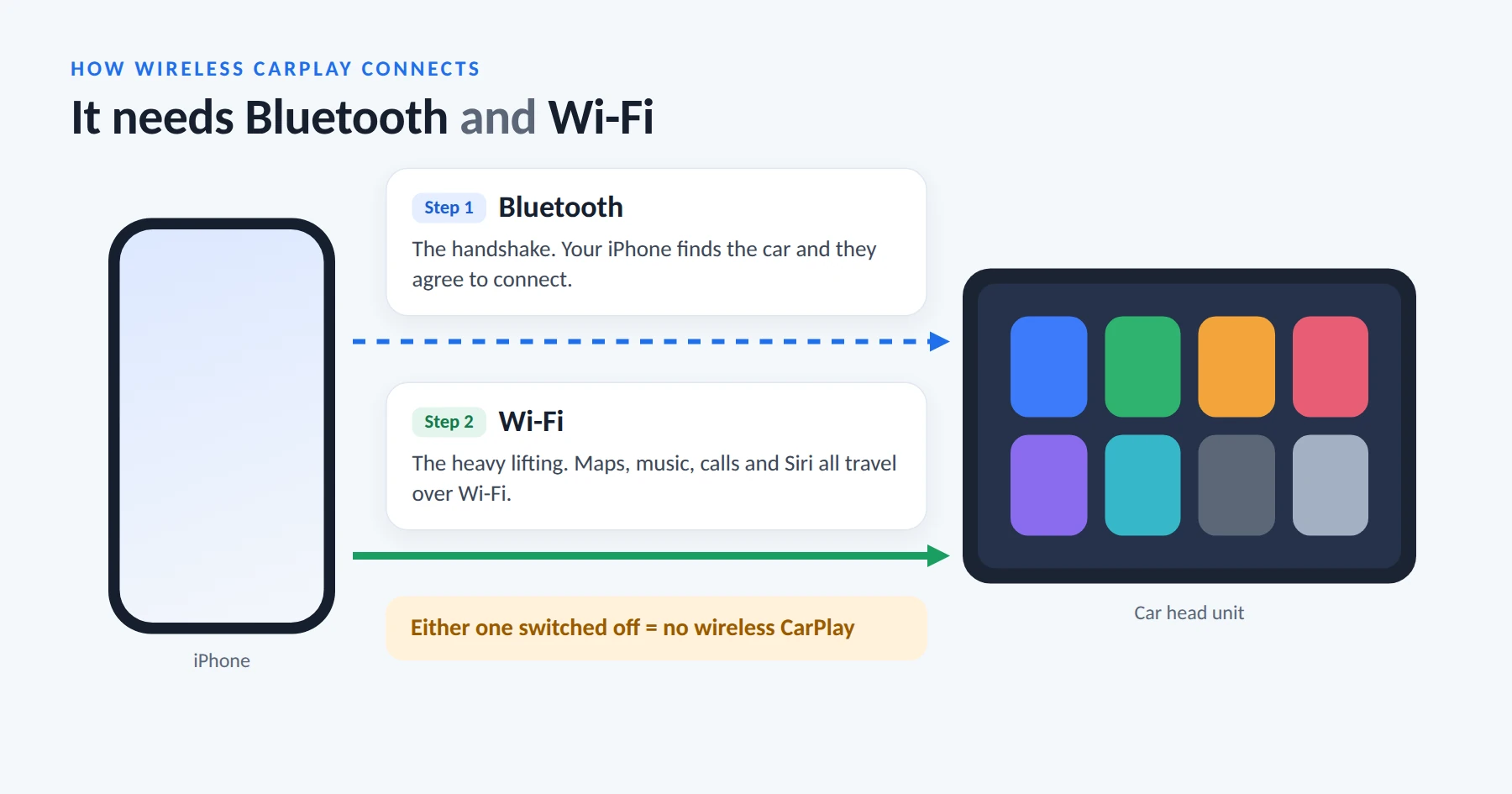
That's why turning off either one breaks it. Open Settings > Wi-Fi and Settings > Bluetooth and check that both are switched on.
Check auto-join for the car's network
Go to Settings > Wi-Fi and tap the network your car created (it often carries the car's brand or model name). Make sure Auto-Join is on.
Stop your phone joining other hotspots
If your iPhone is set to auto-join public or carrier Wi-Fi hotspots, it can grab one of those instead of your car — especially in car parks and shopping centres. In Settings > Wi-Fi, turn off Auto-Join for public networks you don't need.
Reset Network Settings (last resort)
Go to Settings > General > Transfer or Reset iPhone > Reset > Reset Network Settings.
Know the cost first: this wipes every saved Wi-Fi password and every Bluetooth pairing — your car, headphones and watch included. Use it only after the steps above have failed.
If it connects but keeps dropping out
Drop-outs mid-drive are usually a separate problem: heat, a thick phone case, or interference from other wireless devices. We cover them in detail in our guide to why CarPlay keeps disconnecting.
Connected but Black Screen, Lag or No Sound
Black or frozen screen
If CarPlay connects but the screen stays black or freezes, the head unit itself has usually hung.
- Many cars let you force-restart the infotainment system by holding the power button or volume knob for several seconds. The exact method varies by make and model, so check your owner's manual.
- If it happens often, ask your dealer whether a head unit firmware update is available. Up-to-date car firmware is one of the steps in Apple's own CarPlay troubleshooting guide.
No sound, or no sound on calls
- Check the car's audio source is set to CarPlay, not radio or Bluetooth audio.
- Disconnect other Bluetooth devices, such as earbuds or a smartwatch, which can pull the audio away from the car.
- Turn the volume up on the car, not just on the phone.
Apps missing from the CarPlay screen
If an app doesn't appear, the developer may not have built it for CarPlay. You can rearrange and add supported apps in Settings > General > CarPlay > [your car] > Customise.
Using a Wireless Adapter or AI Box? Check These First
Plug-in adapters add a third device between your phone and your car. That means one more thing to check.
The adapter needs working wired CarPlay first
A wireless CarPlay adapter doesn't add CarPlay to a car that doesn't have it. It converts your car's existing wired CarPlay (or wired Android Auto) i