
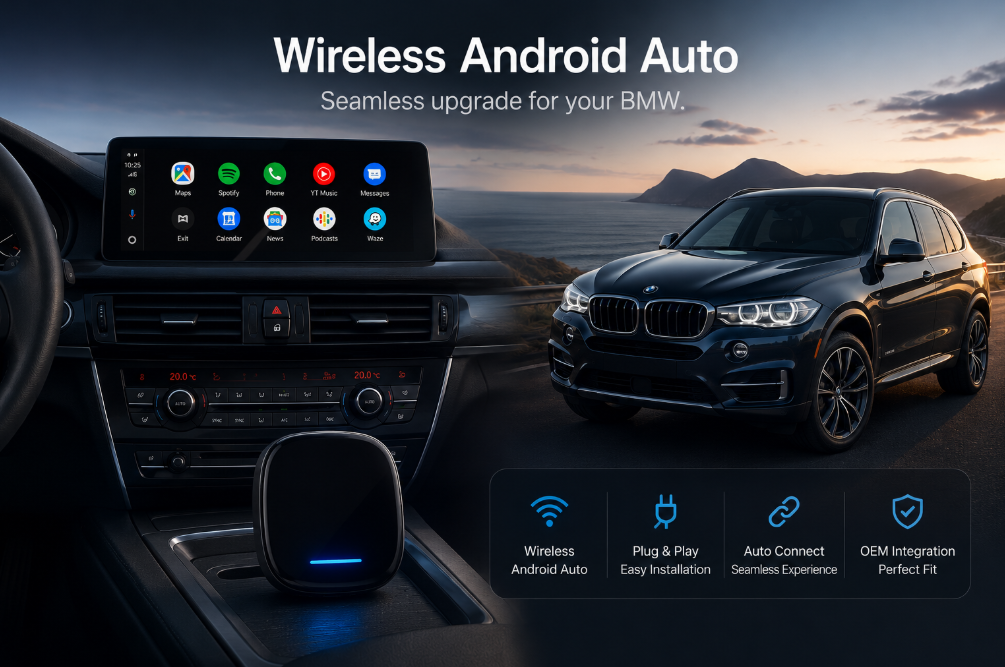
Add Wireless Android Auto
to Your 2016 BMW X5
Your NBT iDrive system is solid — but it was never designed for Android. Here's exactly how to add wireless Android Auto in 2026, with the right solution for your specific setup.
Why Your 2016 X5 Doesn't Have Android Auto — And What You Can Do About It
The 2016 BMW X5 (F15) came fitted with BMW's NBT infotainment platform. It's a capable system — well-built, responsive, and genuinely premium. But it was designed before Android Auto existed as a standard feature, which means there's no native support for Google Maps on the big screen, no Spotify streaming, and no voice commands via Android.
If you're an Android user, the gap between what your phone can do and what your car's screen shows is frustrating every single day. The good news: there are proven retrofit solutions available right now that fix this permanently — no cutting wires, no voiding warranties, no trips to a dealership.
🔍 How to Check Your iDrive Version (2 minutes)
- Start your car and open the iDrive menu via the central controller.
- Navigate to Settings → Software Update → Show Current Version (or Settings → System → About).
- If the version string begins with "NBT" — your car has the older NBT system, likely without factory CarPlay. The MMI Decoder is your solution.
- If your version shows "NBT EVO" or your car has a factory wireless CarPlay option already active — you may be eligible for the BMW AI Box (TBox). Contact Carlinkit AU to confirm with your VIN.
The Three Ways to Add Android Auto to a 2016 BMW X5
There's no universal answer — the right solution depends on your iDrive variant and how you want to use Android Auto. Here's an honest breakdown of all three options.
🔌 Carlinkit MMI Decoder
Installs behind your screen to add wireless Android Auto and CarPlay from scratch. Designed specifically for older BMW NBT systems without factory CarPlay. Most 2016 X5 owners will need this.
📦 BMW TBox / AI Box
A full standalone Android 13 computer that streams Netflix, YouTube, and more independently. Requires factory wireless CarPlay to activate. Not suitable for standard NBT without CarPlay.
🖥 Aftermarket Android Screen
Replaces the original 6.5" or 8.8" display with a larger touchscreen running full Android. Maximum upgrade, but involves professional installation and is the most expensive path.
Solution Comparison at a Glance
| Feature | MMI Decoder | BMW TBox (AI Box) | Android Screen |
|---|---|---|---|
| Works on standard NBT (no CarPlay) | ✔ Yes | ✘ No* | ✔ Yes |
| Installation complexity | DIY-friendly (1 hr) | Plug-and-play (15 min) | Professional required |
| Wireless Android Auto | ✔ | ✔ | ✔ |
| Wireless Apple CarPlay | ✔ | ✔ | ✔ |
| Independent Android OS (no phone needed) | ✘ | ✔ Android 13 | ✔ |
| Netflix / YouTube streaming | ✘ | ✔ (parked) | ✔ (parked) |
| Original iDrive / reverse camera retained | ✔ | ✔ | ✔ |
| Steering wheel controls | ✔ | ✔ | ✔ |
| Relative cost | $ Mid-range | $$ Mid-high | $$$ Premium |
*The TBox requires factory wireless CarPlay to activate. If your 2016 X5 has no factory CarPlay, the MMI Decoder is the correct product.
Installation Guide: Carlinkit MMI Decoder on a 2016 X5
For most 2016 BMW X5 owners with a standard NBT system, the MMI Decoder is the recommended path. Here's how the installation works.
Before You Start
Confirm your iDrive version (NBT vs NBT EVO) using the steps above. Have your Carlinkit device and the included cables ready. If your X5 is in direct sunlight, let it cool first — extreme heat during initial setup can cause calibration issues.
- 1
Locate the USB data port
Find the USB port in the centre console or armrest compartment. Use the data port — not a charge-only port. These look identical, so if you're unsure, check your owner's manual for the CarPlay/m