
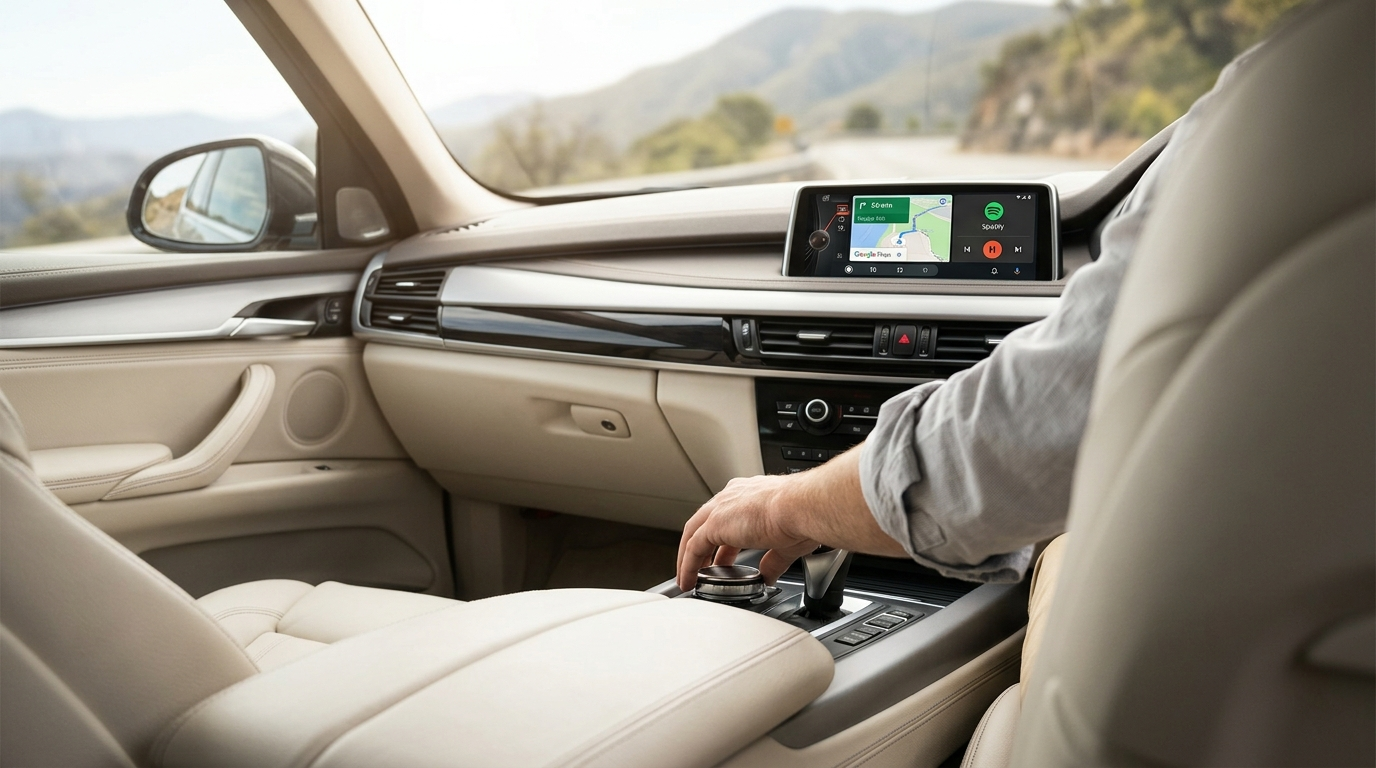
How to Install Android Auto on Your 2017 BMW X5 (F15)
Your complete retrofit guide — no dashboard dismantling, no voided warranty, and no iOS required.
The 2017 BMW X5 (F15 chassis) remains a benchmark for driving dynamics and cabin refinement — but when it comes to smartphone integration, it sits in an awkward pocket of automotive history. The F15 was built in an era when BMW favoured Apple exclusively, which means there is no factory Android Auto on the 2017 X5, and BMW has confirmed it will never release a software update to change that.
If you are an Android user, your only native option is a USB cable connection with limited app support on the screen. The iDrive display will not show Google Maps, Waze, or Spotify the way they are meant to be used. The good news is that proven retrofit solutions exist that add full Android Auto to your F15 without cutting a single wire or visiting a dealership.
Why Does the 2017 BMW X5 Have No Android Auto?
The short answer is timing and partnership. During the F15 production window (2014–2018), BMW had a close commercial relationship with Apple. CarPlay was available on NBT EVO-equipped vehicles as an optional paid feature, and BMW briefly experimented with a subscription model that charged owners to use it. Android Auto, by contrast, was simply not part of BMW's roadmap at that time.
BMW's native Android Auto support only began with the iDrive 7 platform, which launched around 2019–2020. Owners of F15 vehicles with the older NBT or NBT EVO systems have received no backward-compatible firmware update from BMW, and none is coming.
Step 0: Check Your iDrive Version First
Before choosing a retrofit method, take 30 seconds to identify what you are working with. All three methods below depend on this information.
If CarPlay is listed, note whether it says Wireless or requires a cable. If there is no CarPlay option at all, you will need Method 2 (MMI Decoder) below.
The 3 Best Methods to Add Android Auto to the F15
Depending on your iDrive version, CarPlay status, and how involved you want the installation to be, one of these three approaches will suit your situation.
AI Box (TBox) — Plug and Play
The Carlinkit TBox is a compact Android 13 computer that plugs directly into your car's USB port. It uses your BMW's existing wireless Apple CarPlay channel as its entry point and replaces it with a full Android environment — including wireless Android Auto, Google Maps, Spotify, YouTube, Netflix, and any app from the Play Store.
Because nothing is physically modified, it can be unplugged before a service appointment with no trace left behind. Your original iDrive, reverse camera, parking sensors, and steering wheel controls all continue to work exactly as before.
I had wireless CarPlay on my 2017 X5 but never used it because I have an Android phone. Plugging in the TBox took about eight minutes