

In this guide
If you've ever needed to know how to remove a phone from CarPlay — whether you're selling the car, handing back a rental, or just tidying up a long list of paired devices — the process takes under a minute once you know where to look. This guide covers deleting, forgetting, and disconnecting a phone from both CarPlay and Android Auto, plus the one extra step most people miss before returning a rental car.
Remove & Forget a Phone from CarPlay (iPhone)
This is the standard way to permanently remove a phone from CarPlay on any car — "forgetting" the device deletes it from the paired list entirely, so it stops showing up and stops auto-connecting.
- 1Open Settings on your iPhone's home screen.
- 2Scroll down and tap General.
- 3Tap CarPlay.
- 4Select the car you want to remove from the list.
- 5Tap Forget This Car and confirm.
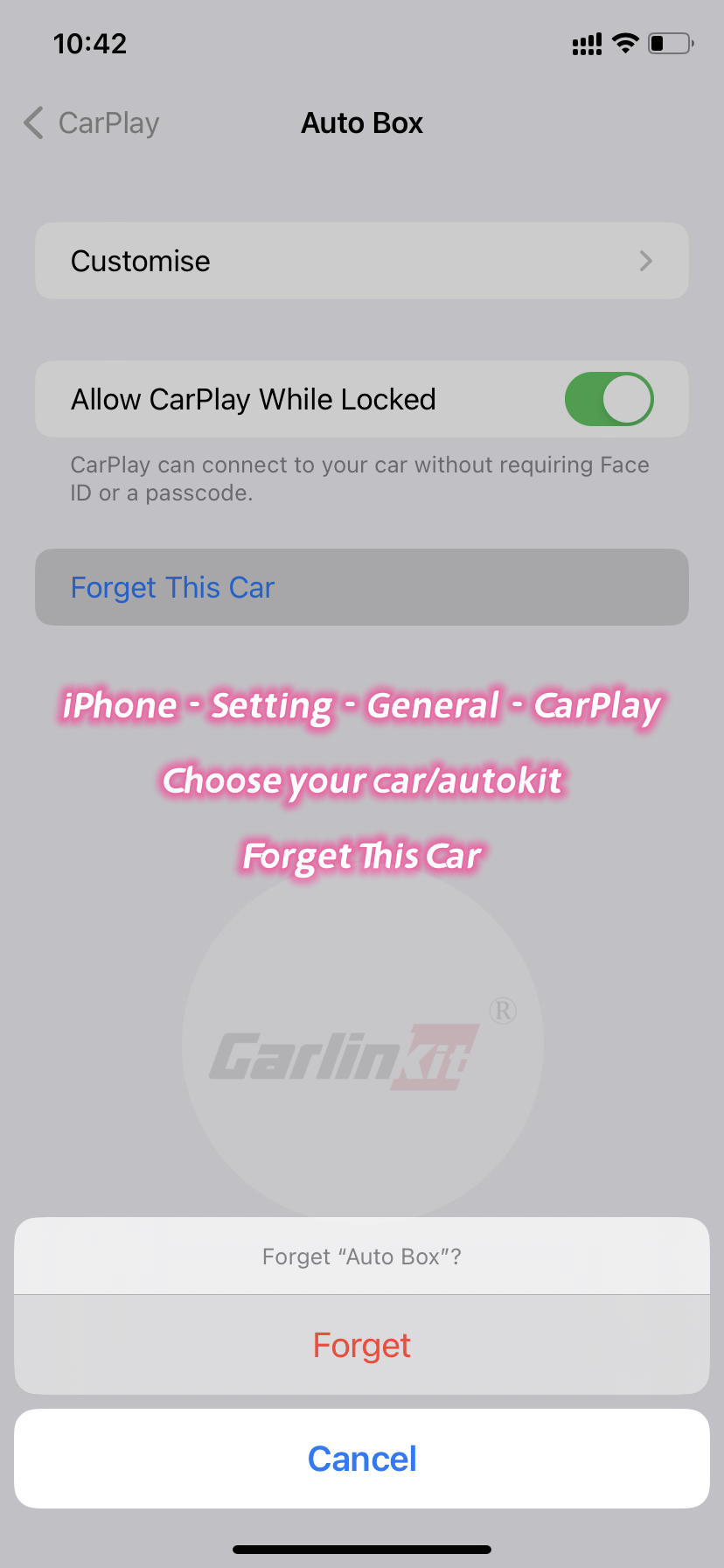
That's it — the car is deleted from your CarPlay history immediately. This is the same process whether you're removing your own vehicle, a friend's car, or a rental (though for a rental, there's one more step worth doing — see the rental section below).
Remove an Android Auto Connection
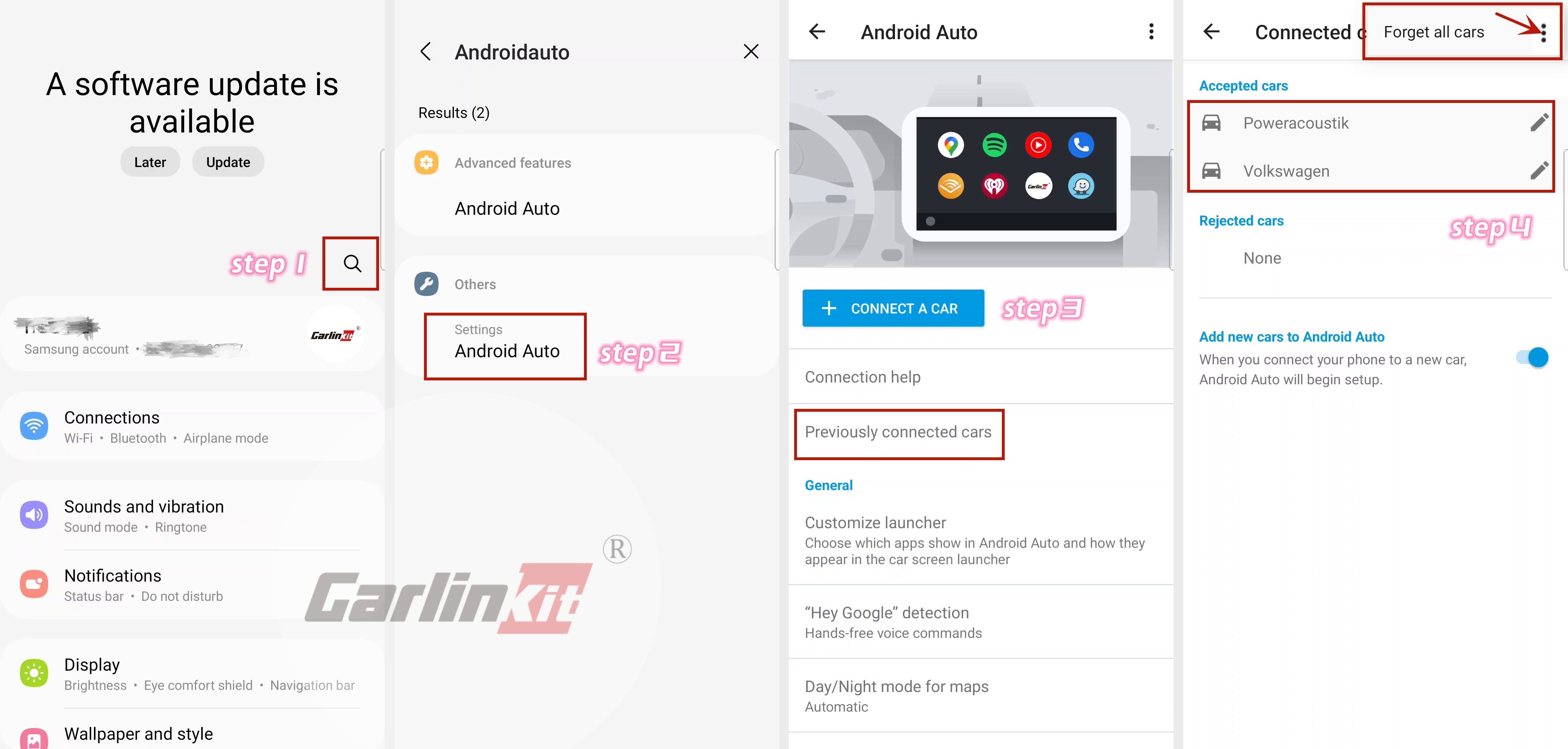
Android phones store paired-car history separately, inside the Android Auto app itself rather than Bluetooth settings.
- 1Open Settings on your Android phone.
- 2Search for Android Auto in the settings search bar.
- 3Open Android Auto settings.
- 4Tap Previously connected cars.
- 5Tap the menu icon in the top right and select Forget all cars — or tap an individual car to remove just that one.
Rental Car: Remove Your Phone & Wipe Your Data
This is the step most guides skip — and the one that actually matters if you've been using CarPlay or Android Auto in a rental car. Simply removing the pairing isn't the same as removing your personal data. Rental cars sync contacts, call history, and sometimes text messages the moment you connect, and that data can sit in the car's system long after you've driven off.
Do this before you hand back the keys, not after — once you're not in possession of the vehicle, you have no way to complete these steps.
- Remove the CarPlay/Android Auto pairing using the steps above — this is step one, not the whole job.
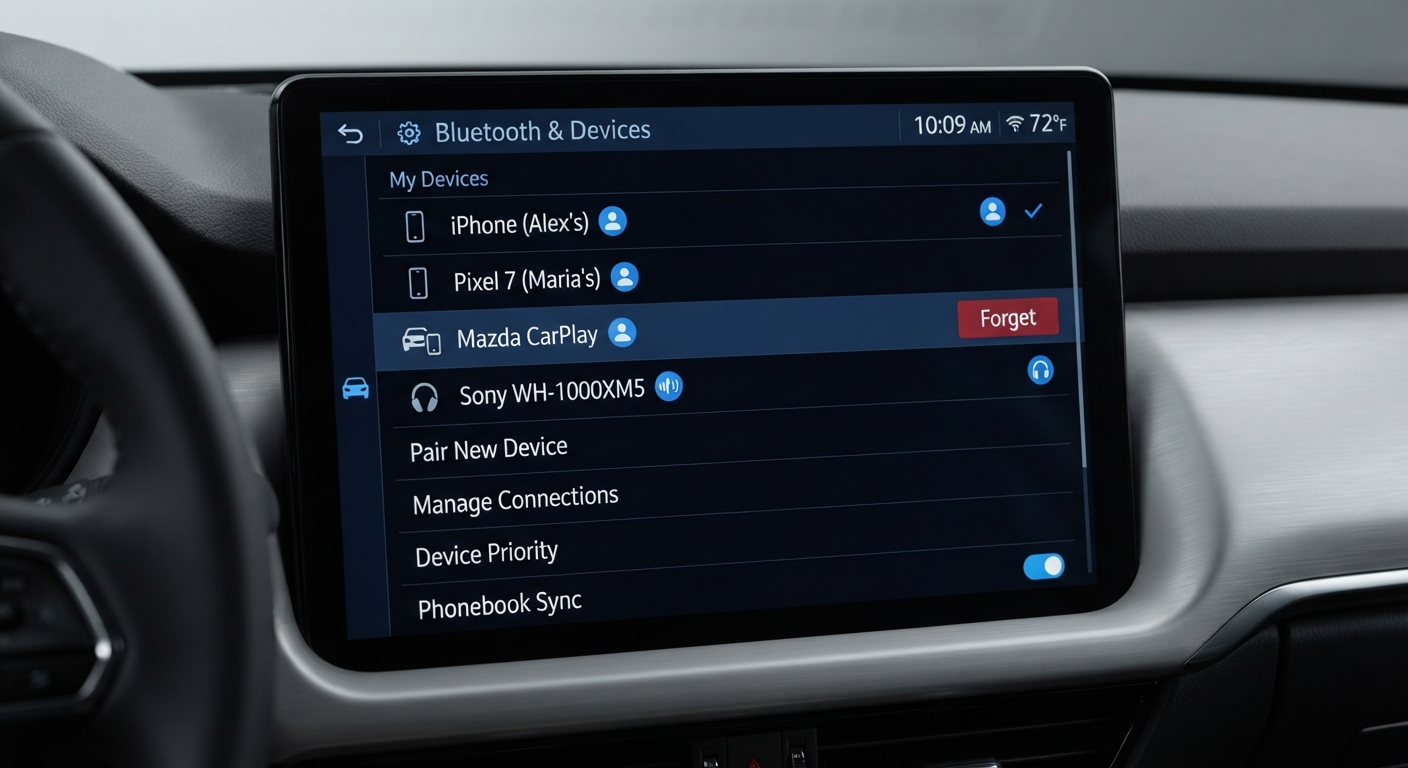
- Check the car's own infotainment system for a separate "paired phones" or "Bluetooth devices" list — many rental fleets sync contacts to the head unit itself, independent of CarPlay. Delete your entry there too.
- Clear synced contacts and call history from the car's Bluetooth/phone menu if the system shows them — look for a "Delete all contacts" or "Clear phonebook" option, usually under the car's own phone or Bluetooth settings, not on your iPhone or Android device.
- Forget the car's Wi-Fi network on your phone if the vehicle offered an in-car hotspot you connected to.
- Check for a factory reset option on the infotainment system itself if you were the primary or only driver during the rental — some rental companies expect this, others handle it between renters, so check your rental agreement if unsure.
Left-behind contact lists and call logs are a genuine privacy exposure — the next renter (or the fleet company's own logs) can potentially see who you called and your saved contacts if the sync isn't cleared. It takes an extra two minutes at drop-off; worth doing every time.
Stop a Phone from Automatically Connecting to CarPlay
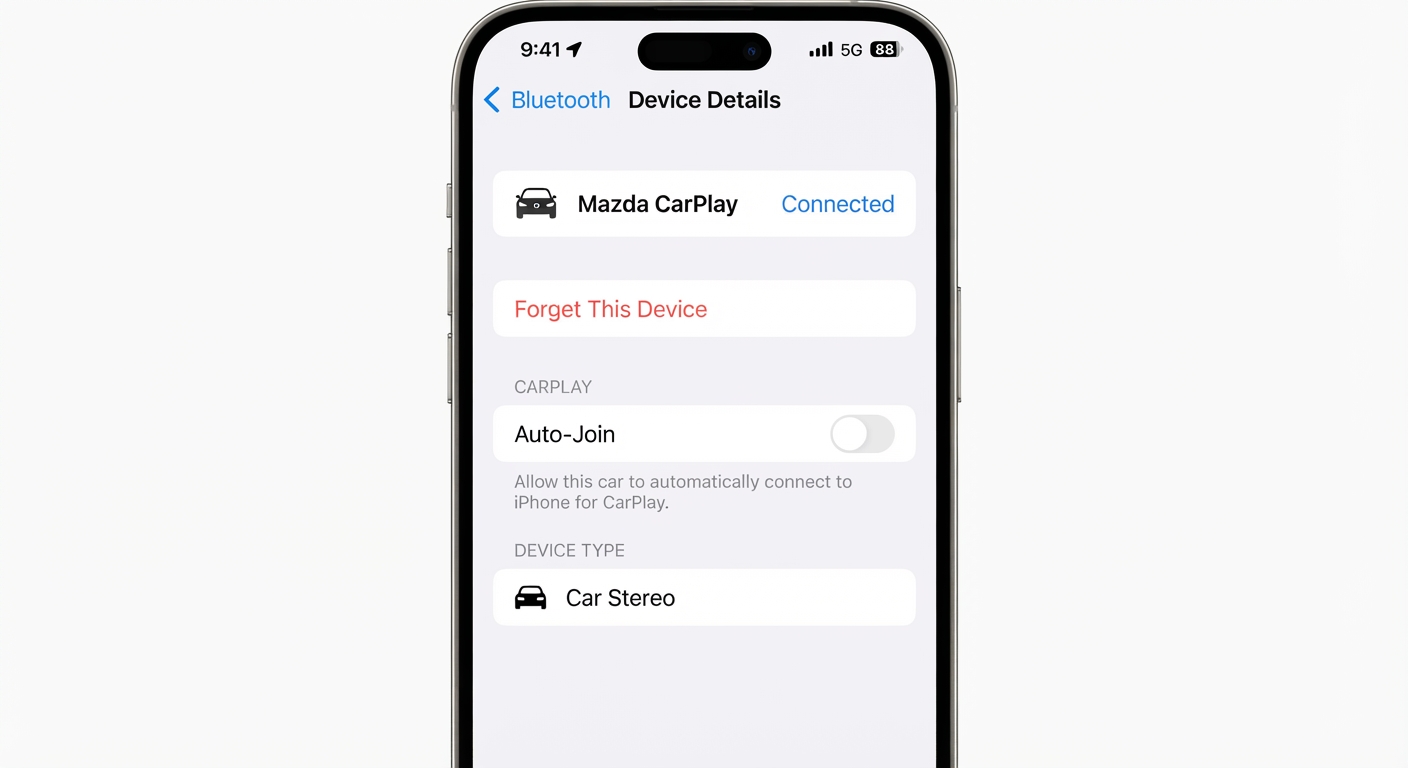
If you don't want to fully forget a car but just want to stop it connecting automatically every time you're nearby:
- 1Go to Bluetooth settings on your phone.
- 2Find the CarPlay system in your list of paired devices.
- 3Tap the "i" info icon next to it.
- 4Toggle off Auto-Join.
Vehicle-Specific Instructions
The core steps above cover the vast majority of cars, but a few manufacturers route the same action through their own menu structure. Here's how it looks on some common vehicles:
Honda Civic
- 1Connect your iPhone to the Civic using a Lightning cable.
- 2Tap the CarPlay icon on the display.
- 3Select the device you want to remove.
- 4Tap and hold the device icon until a menu appears.
- 5Select Remove.
Toyota
- 1Press and hold the voice command button on the steering wheel.
- 2Say "Disconnect from CarPlay."
- 3Wait for the system to confirm the disconnection.
BMW
- 1Connect your iPhone to the BMW using a Lightning cable.
- 2Tap the CarPlay icon on the display.
- 3Select the device you want to unsync.
- 4Tap and hold the device icon until a menu appears.
- 5Select Unsync.
Frequently Asked Questions
Does forgetting a car delete anything from my phone besides the pairing?
No — "Forget This Car" or "Forget all cars" only removes the connection record. Your contacts, messages, and app data on your own phone are untouched. It's the car's system that may still hold synced data, which is why the rental section above covers checking the vehicle's own settings too.
Can I remove just one car without forgetting all of them?
Yes, on both platforms. On iPhone, select the specific car under Settings → General → CarPlay and tap Forget This Car. On Android, tap the individual car under Previously connected cars rather than using the "Forget all cars" option.
Will removing a car stop it from showing up in search or recent connections?
Yes — once forgotten, the car no longer appears in your paired devices list and won't attempt to auto-connect. If you drive that same car again later, you'll need to pair it fresh.
Do I need to do anything different for a rental car versus my own car?
The removal steps are identical. The difference is what happens afterward: on your own car, there's no next user to worry about. On a rental, check the car's own infotainment menu for synced contacts and call history before you return it — see the rental section above.