
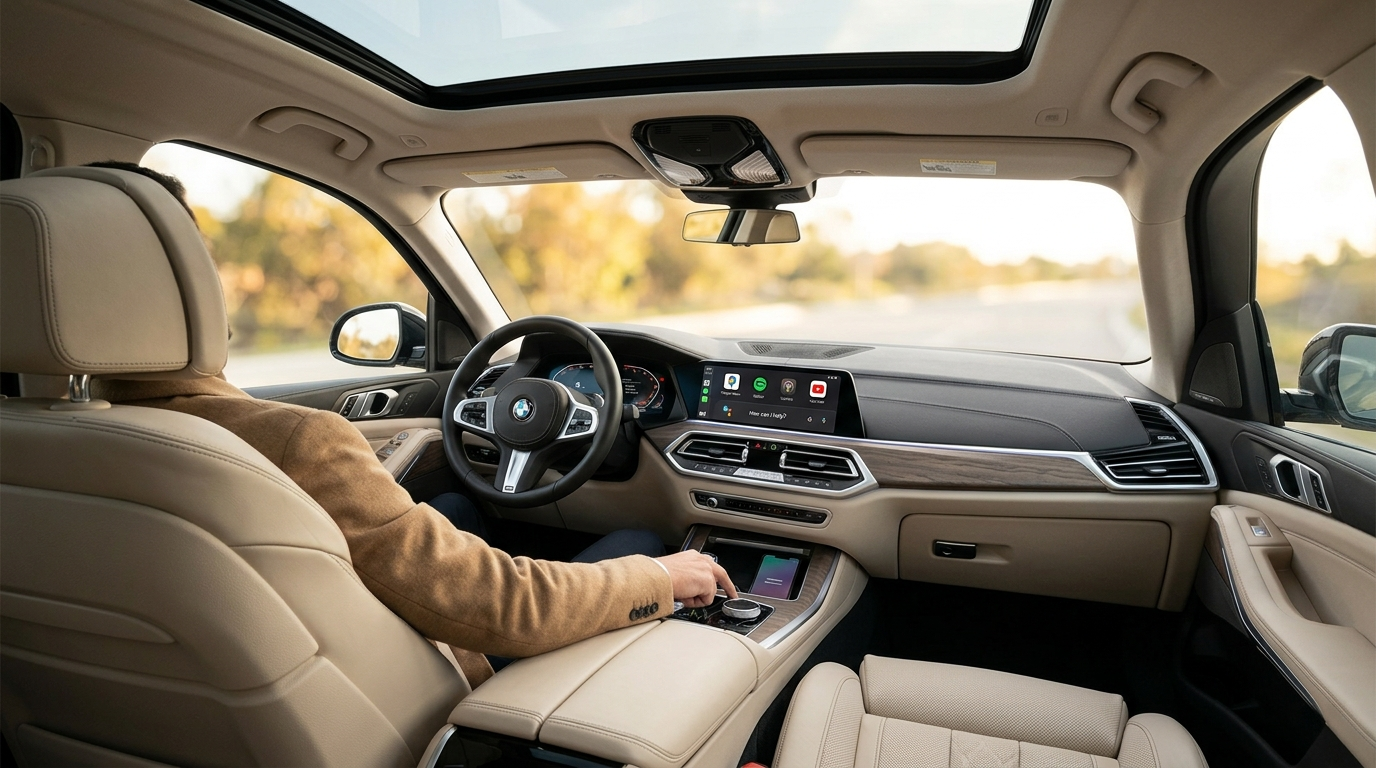
Why Android Auto isn't showing up
The G05 X5 launched with iDrive 7 and Apple CarPlay — but Android Auto was nowhere to be found at launch. BMW didn't announce Android Auto support until December 2019, with the first cars actually receiving it via a free over-the-air update from July 2020 onward. So there are really two different situations, depending on your build date:
- Built before the rollout: Android Auto may never have appeared in your iDrive menu at all — there was no update waiting for it.
- Built after, or updated since: Android Auto likely arrived as a paid ConnectedDrive feature. Once your factory three-year trial lapses, the menu option disappears entirely.
You can check your update status under Remote Software Upgrade in your car's settings.
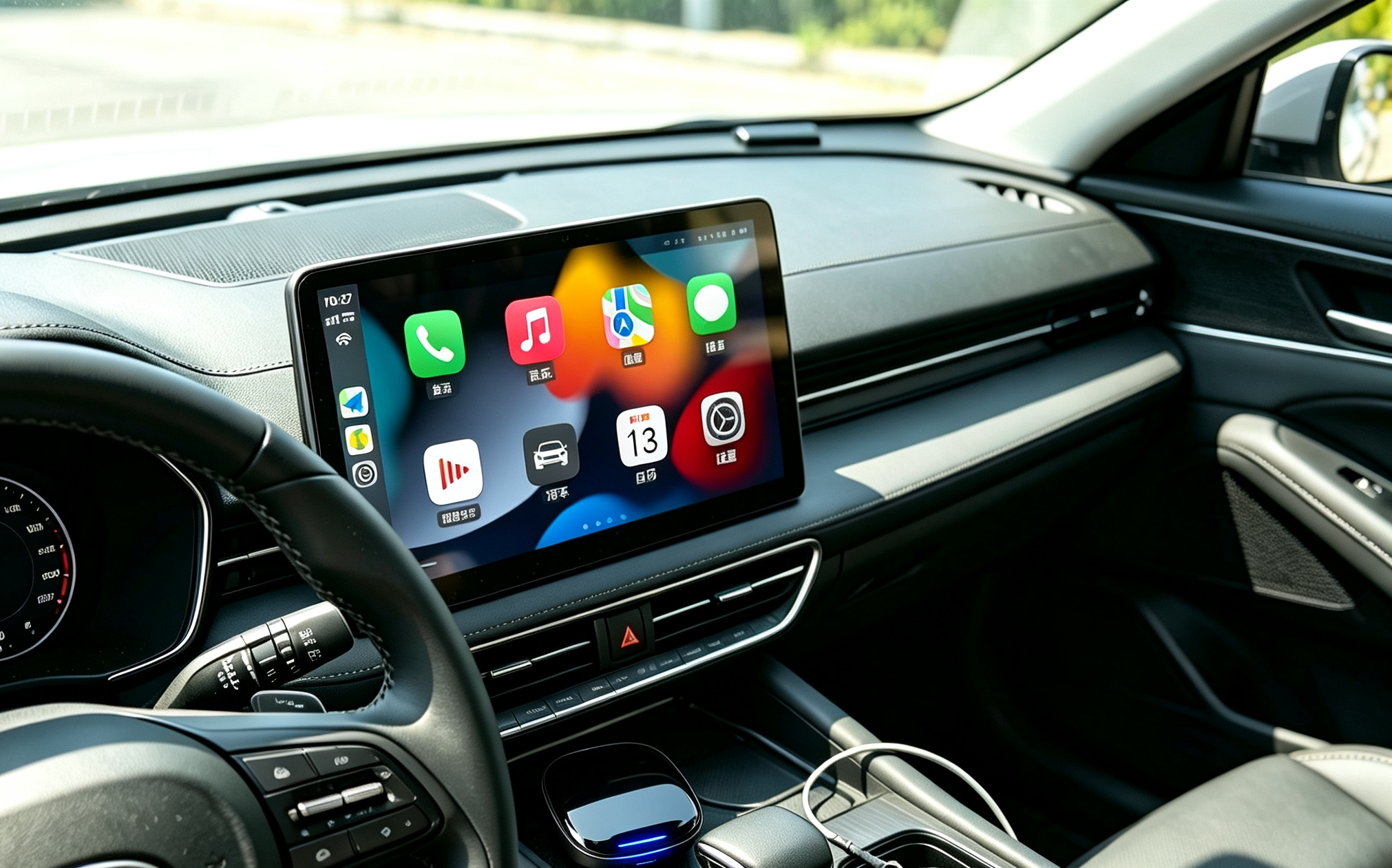
Getting Android Auto reactivated through BMW means a dealer visit, a firmware update that can run $150–$300+ in labour, and then an ongoing subscription to keep it active. One customer summed it up well: "I paid for the car. Then I paid for the premium package. Now BMW wants me to pay again — every year — just to use my own phone?"
- Android Auto wasn't available at all on early production cars — it arrived via OTA update from mid-2020
- The ConnectedDrive free trial expires after three years, locking the feature behind a paywall
- Native Android Auto only works wirelessly and needs Android 10.0+ (11.0+ for non-Pixel/Samsung devices)
- Dealer firmware updates to reactivate the feature can run $150–$300+ in labour alone, before any subscription cost
Android Auto vs. video apps: the distinction that actually matters
Here's where most of the confusion online comes from. Android Auto and video apps are not the same thing, and mixing them up leads people to buy the wrong fix.
- If your X5 is on iDrive 7 and fully updated, wireless Android Auto is quite possibly already sitting there waiting — see the check above.
- Here's the catch: both Apple CarPlay and Android Auto block video apps on purpose, by Google and Apple's own design. You cannot install Netflix or YouTube on either of them, parked or not. This is the wall most owners are actually hitting — not a missing Android Auto menu.
- Your X5 on iDrive 7 uses wireless CarPlay, not a cable. That detail decides which upgrade will work for your car.
The Carlinkit TBox — a different approach
The Carlinkit MMB Multimedia Android iOS Box sidesteps BMW's subscription ecosystem entirely. Rather than unlocking BMW's built-in Android Auto, it runs a completely independent Android 13 environment on your factory screen — using your existing wireless CarPlay connection as the entry point, and critically, it isn't limited by the video-app restriction that CarPlay and Android Auto both carry.
Think of it as a second brain for iDrive. Google Maps, Spotify, YouTube, Netflix, Google Assistant, the Play Store — all running natively on your 12.3" Live Cockpit display, with no phone needed once you've paired.
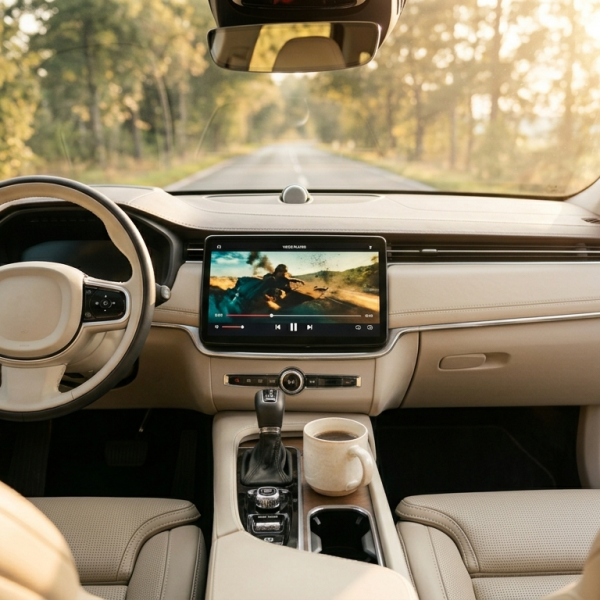
Your 2019 X5 must have factory wireless CarPlay for the TBox to work. If yours only has wired CarPlay, enable wireless CarPlay first (BMW coding or dealer update), then add the TBox. Also worth knowing: the standard/generic TBox Ultra sold for other cars is explicitly not compatible with BMW — BMW uses a proprietary wireless CarPlay handshake that only the dedicated BMW edition can complete. Always order the BMW-specific box.
Once it's in, everything you already have stays intact:
Fully wireless
No cables. Pairs automatically every time you start the car.
Plug & play
No ECU access, no coding, no voided warranty.
Full Android 13
YouTube, Netflix, Maps — the full Play Store on iDrive.
iDrive intact
Switch back to native iDrive via steering wheel any time.
- iDrive controller and steering wheel buttons work as normal within Android
- No subscription, no expiry — the cost stops the day the box arrives
- Unplug it and your car is exactly as it was
Setup in five steps
-
1Confirm wireless CarPlay is active
iDrive → Settings → Connections → Apple CarPlay. Verify it shows "Wireless" — this is the entry point the TBox uses.
-
2Plug into the CarPlay USB port
Connect the TBox to the CarPlay-enabled USB port in the front console — not a charge-only port. The device boots automatically when you start the car.
-
3Pair your phone once
Enable Bluetooth and Wi-Fi, set your phone to "discoverable," and follow the on-screen pairing prompt. Takes about 60 seconds the first time.
-
4Set permissions to "Always Allow"
In your phone's connection settings, set CarPlay/Android Auto to "Always Allow." This shaves 2–3 seconds off every future connection.
-
5Switch in from iDrive
A floating button on your display lets you jump between the Android environment and standard iDrive at any time. After the first pairing, every drive connects automatically.
Before your first setup, delete any old BMW Bluetooth profile saved on your phone — dual Bluetooth connections are the most common cause of audio routing glitches. Also disable your phone's mobile hotspot while connecting, so the TBox pairs cleanly over its own Wi-Fi channel.
Real customers, real results
We've been hearing back from X5 owners across Australia since these adapters went out. A few experiences worth sharing:

I'd been paying for BMW ConnectedDrive just to keep Android Auto alive after my trial ran out. When I found the TBox I was sceptical — it seemed too simple. Plugged it in, paired it, and Google Maps was up on the 12.3-inch screen within five minutes. No more subscription. Genuinely couldn't be happier.
My X5 left the factory before the Android Auto rollout, so the menu option literally never existed for me. Dealer quoted $240 for the firmware update, then told me I'd still need a subscription on top. Ordered the TBox on a Thursday, had it Monday, installed it myself in the car park. Game changer.
I bought a generic TBox from a marketplace first and it didn't work on my X5 at all. Support explained I needed the BMW-specific MMB edition — BMW's proprietary wireless CarPlay channel won't handshake with the generic version. Swapped to the right model and it worked perfectly. Wish I'd known that upfront.
I drive long hauls between Adelaide and Melbourne regularly. Having Waze full-screen on iDrive with live traffic, Spotify through the Harman Kardon system, has made those drives so much better. Thermal performance has been rock solid — no overheating even on a 5-hour run in 38°C heat.
Comparing your options
| Option | Cost | Ongoing fees | Setup time | Risk |
|---|---|---|---|---|
| BMW dealer firmware + subscription | $150–$300 labour | Yes — annual | Dealer appointment | Low |
| Carlinkit MMB TBox | One-time purchase | None | 5 minutes | None (no ECU changes) |
| Generic Android Auto dongle | Cheap | None | 5 minutes | Won't activate on BMW |
| Phone screen mirroring / Bluetooth | Free | None | Minutes | Poor quality, laggy |
The dealer route is the "official" path, but between the labour cost, the ongoing subscription, and scheduling a service appointment — most owners find the TBox the more pragmatic choice.
Pro tips & troubleshooting
🔥 Thermal performance
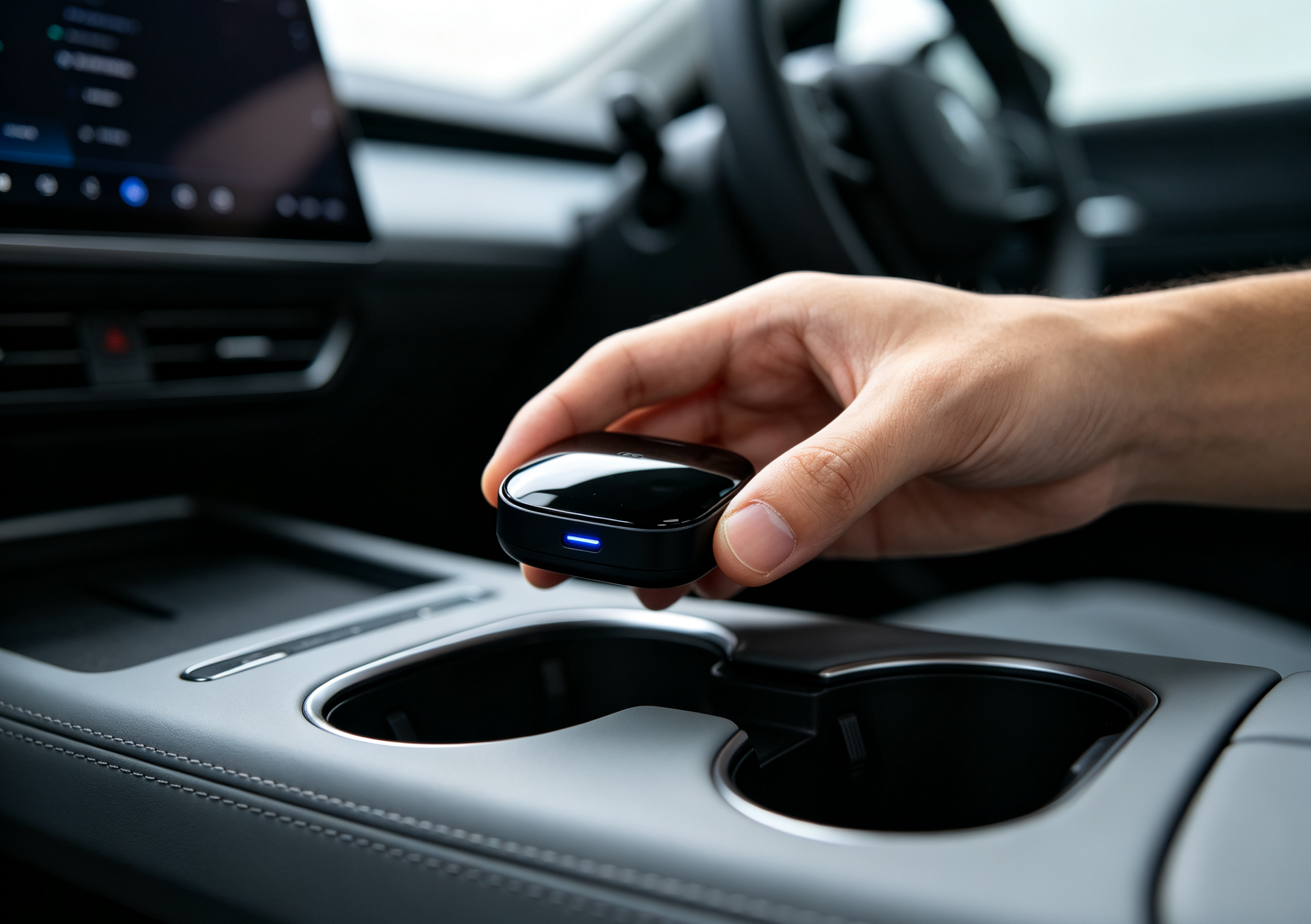
BMW-specific MMB TBox units are engineered for a car's thermal environment. In independent testing, the BMW edition held surface temperatures of 31–35°C after extended use — well within safe limits. Generic TBox models not built for BMW can run noticeably hotter on long drives. Always buy the BMW-specific version.
📶 Wireless connection drops
If you get occasional disconnects, check that "Wireless Projection" is enabled on your phone (Settings → Connected devices → Connection preferences). Also confirm you're not running a personal hotspot at the same time as the TBox connection — the two can conflict.
🔊 Audio routing issues
If audio plays from your phone speaker instead of through the BMW's sound system, delete the old BMW Bluetooth pairing from your phone and re-pair fresh. The TBox routes audio through the car's native digital audio path — your factory sound staging and EQ profiles stay fully intact once paired correctly.
When purchasing, specifically look for the BMW MMB edition — not a generic Carlinkit TBox. BMW uses a proprietary wireless CarPlay handshake that standard TBox units simply cannot complete. The MMB edition is purpose-built for it, which is why it performs reliably where generic adapters fail outright.
Common questions
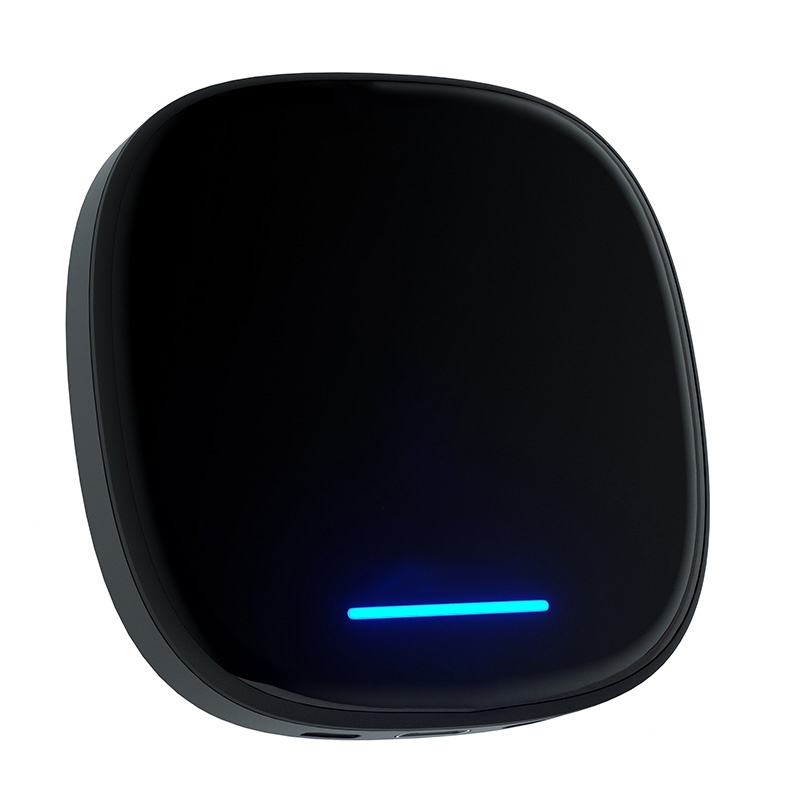
Carlinkit MMB Box for BMW
Android 13 · Wireless AA & CarPlay · iDrive 6–OS9 · 2018–2025 BMW · 2-year AU warranty