
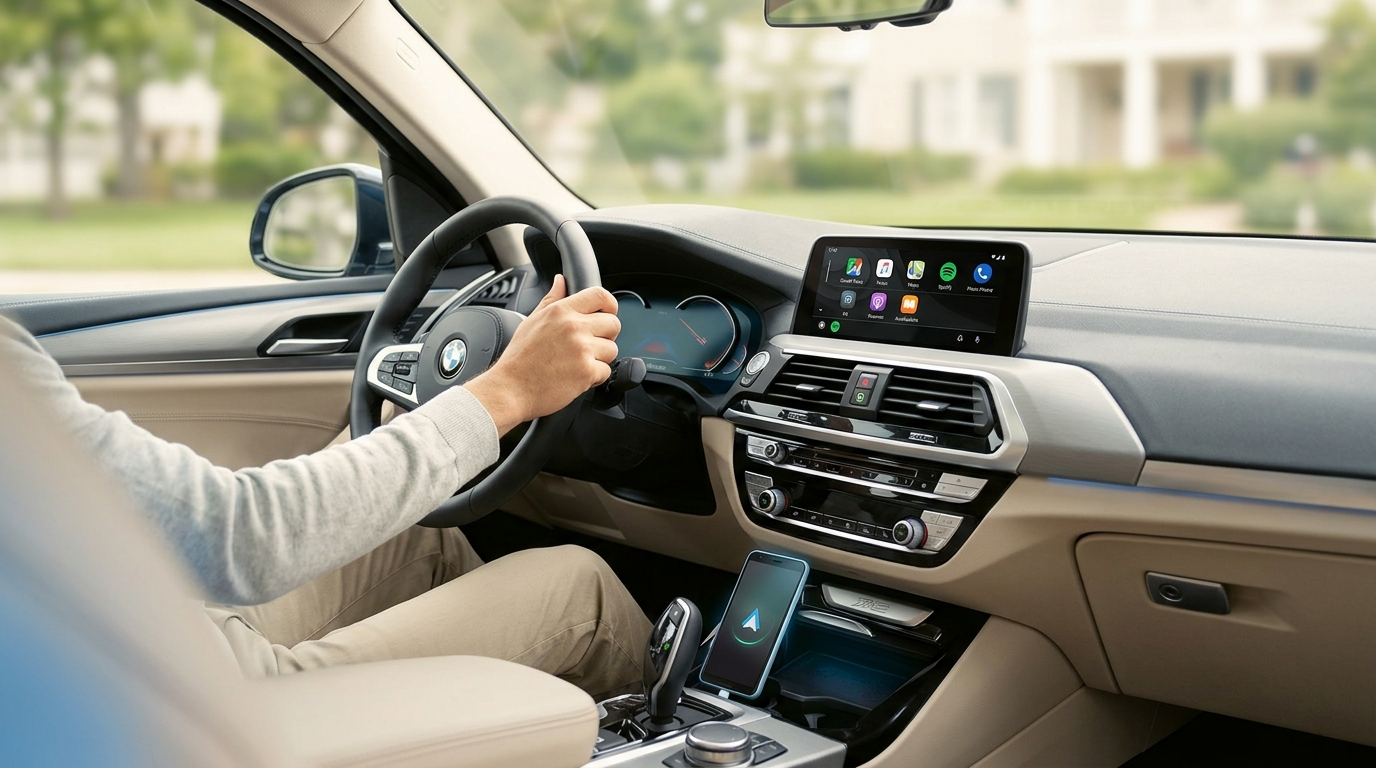
2020 BMW X3 and Android Auto: What Actually Works
If you drive a 2020 BMW X3 and you cannot find Android Auto in your settings, you are not doing anything wrong. Whether your car can run it comes down to a few specific details, and there is a clean way to get a full Android experience on the cars that cannot.
Why some 2020 X3s have Android Auto and others do not
BMW came to Android Auto late. The company only began rolling it out in July 2020, and only to cars running its iDrive 7 operating system. For the X3, that means a car built after 2020 with iDrive 7 and the Live Cockpit Professional option could receive Android Auto from the factory. Cars on the older iDrive 6 system, or without Live Cockpit Professional, were never set up for it.
There is one more wrinkle that catches X3 owners out. While some BMW models received Android Auto over the air, the X3 (along with the X4, 5 Series and 6 Series) could only have it activated by a dealer through a software update. Owners have also reported that only software versions dated 07/2020 and later shipped with the option built in.
BMW's factory version is also wireless only, and it needs an Android phone that supports wireless Android Auto. So if you have an older build, an iDrive 6 system, or an iPhone, the factory path may simply not apply to you.
The short version: a 2020 X3 with iDrive 7 plus Live Cockpit Professional can often get factory wireless Android Auto through a dealer update. Everything else needs a different approach.
How to check what your X3 supports
Before buying anything, confirm two things. They decide which path is right for you.
- Find your iDrive version. Open the iDrive menu and look in the vehicle or system information page for the operating system version. iDrive 6 will not offer native Android Auto. iDrive 7 might, depending on the points above.
- Check whether you have factory CarPlay. Look in your connection settings for an Apple CarPlay option. Most 2020 X3s shipped with CarPlay, and on BMW it is wireless. This matters for the next section.
If you have iDrive 7, Live Cockpit Professional and a recent build, ask your dealer about activating Android Auto first. It may already be sitting in your car waiting to be switched on. If that path is closed to you, read on.
The reliable route: a Carlinkit BMW AI Box
Here is the part that gets misreported online. A simple wireless dongle cannot conjure Android Auto out of a car that was never built for it, because the head unit does not speak the Android Auto protocol. What actually works on a CarPlay equipped X3 is an AI Box.
The Carlinkit BMW AI Box is a small standalone computer that runs its own Android 13 operating system. It plugs into the USB port your car uses for CarPlay, then borrows that CarPlay channel to put a full Android desktop on your screen. Because it rides on CarPlay, the one requirement is that your X3 has factory CarPlay. If it does, the box works whether you carry an iPhone or an Android phone.
This is the important distinction. You are not adding the stripped down factory Android Auto. You are adding a complete Android system. You can run Google Maps and Waze, stream Spotify, install apps from the Play Store, and yes, open Android Auto inside the box if you prefer that layout. It is a more capable result than the factory feature, on a car that could not get the factory feature at all.
What setup actually looks like
This is genuinely a plug and play job. Nothing gets taken apart, so your warranty is not affected.
- Plug it in. Connect the box to your car's factory USB port for CarPlay, usually in the centre console or armrest. Use a port that supports data, not a charge only port.
- Let it start. The box powers up over the car and opens its own interface on your screen.
- Pair your phone. Choose Android Auto or CarPlay in the box, then follow the prompts to connect your phone over Bluetooth and Wi-Fi. After the first pairing, it reconnects on its own each time you get in.
First time setup takes a few minutes, mostly while the box and phone introduce themselves to each other. After that it is automatic. If the screen does not respond at first, the usual cause is a charge only USB port, so move to the data port.
Why an AI Box instead of replacing the screen
Swapping the factory display is expensive, and it can introduce system errors or knock out features like the reverse camera. The AI Box leaves every original protocol in place. It does not trigger warning lights, and it does not touch the wiring behind your dash. For a 2020 X3, it is the lower risk way to modernise the cabin without surgery.
Common questions
Will it affect my factory reverse camera?
No. When you shift into reverse, the car hands the screen back to its own system and shows the reverse camera as normal. The box steps aside for safety, then returns when you are done.
What if the connection drops sometimes?
Keep the box firmware up to date, make sure it is not buried under metal or a thick phone case nearby, and close apps you are not using. A stable wireless link between the box and your phone is what keeps playback smooth.
There is some noise in the audio. What should I check?
Balance the volume between your phone and the car. Setting the phone to a moderate level rather than maximum usually gives the cleanest output, then adjust the car volume to taste.
I have an iPhone. Does the box still help me?
Yes. Because the box runs full Android and connects through CarPlay, iPhone owners can use it to reach Android apps and a different interface than stock CarPlay. Your factory CarPlay still works whenever you want it.
Ready to sort out your 2020 BMW X3?
Check compatibility and find the right BMW AI Box for your car.
Shop Carlinkit Australia