
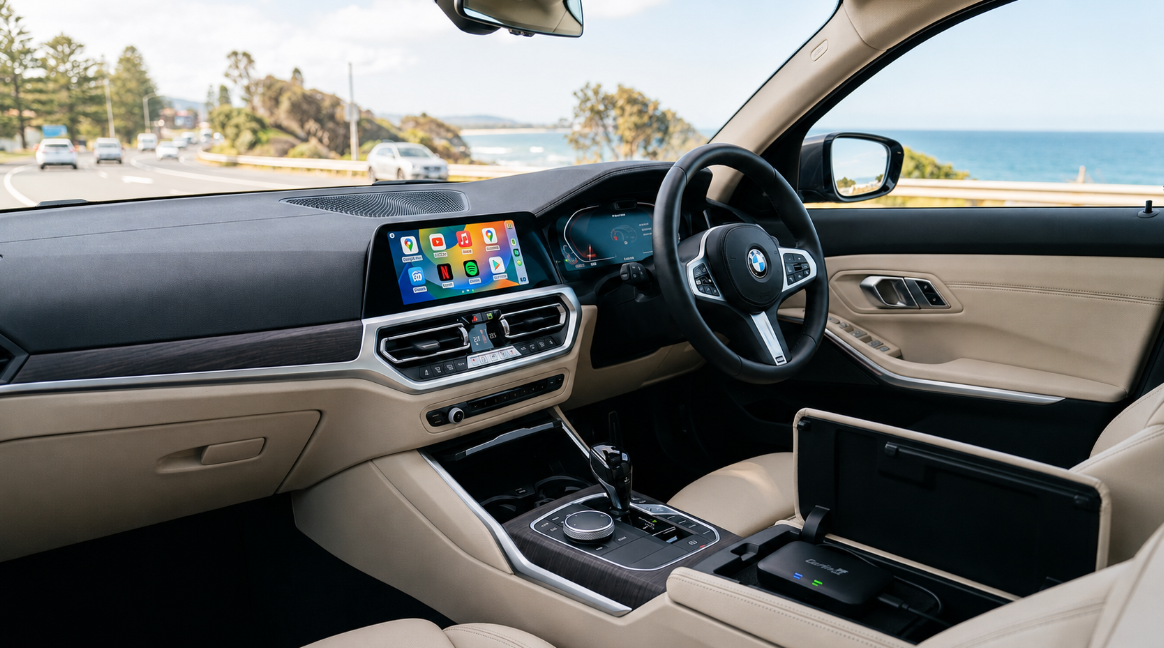
Getting Full Android on a 2021 BMW 330i Through Your Factory Wireless CarPlay
No dash removal, no coding, no flashing third-party software onto your head unit. Just a complete Android system running on the iDrive 7 screen you already love.
If you drive a 2021 BMW 330i, you already know the iDrive 7 setup is one of the nicest screens in the segment. The 10.25-inch display is crisp, the menus are quick, and the whole thing feels properly premium. So it stings a little when your Android phone keeps letting the side down.
Maybe you have noticed it on the commute: wireless Android Auto drops out, the map freezes for a second, or an app quietly crashes and reloads. You are not imagining it, and you are not doing anything wrong. It comes down to how BMW handles phone connection, and there is a clean way around it that leaves your car completely standard.
Why wireless Android Auto struggles on the 330i
Here is the part that catches people out: the 2021 330i (chassis code G20) only ever shipped with wireless CarPlay and wireless Android Auto. There is no wired option to fall back on. That wireless-only design is convenient, but it puts a real load on your phone, and it brings two limitations.
1. Disconnects, and a phone that runs hot
Wireless Android Auto asks your phone to do a lot at once: hold a Wi-Fi link to the car, stream audio, and push live navigation, all at the same time. Now sit that phone on the factory wireless charger in the centre console on a warm Australian afternoon, and you have a device that is both working hard and being heated from underneath.
When a phone gets too warm, it does the sensible thing and throttles itself to cool down. In practice that can look like a stuttering map, a brief freeze, or the dreaded "Device Disconnected" message popping up on the iDrive screen mid-drive. It is not a fault in your car. It is just a phone being asked to do more than it comfortably can while it bakes on the charging pad.
2. No video on the main screen
The other limit is built into the system on purpose. The factory Android Auto interface blocks all video playback on the central display. So when you are parked at school pickup waiting for the kids, or killing twenty minutes at a rest stop, you cannot pull up YouTube or anything else on that lovely 10.25-inch screen, no matter which settings you change.
How the upgrade works (and the box you actually need)
The fix is a small standalone computer, about the size of a power bank, called the Carlinkit Tbox Ultra 3. It is not a phone adapter and it is not a dongle that just makes your existing CarPlay wireless. It runs its own full Android 15 system, with its own processor, storage, and Google Play Store on board.
How it talks to your iDrive
Because BMW has no wired CarPlay, the connection works a little differently from other cars, and it is worth understanding so nothing surprises you:
- You plug the box into a USB-C port in the car. That cable carries power and a wired audio link, which is what keeps sound and picture in sync.
- The box then connects to your car's native wireless CarPlay channel. As far as iDrive is concerned, a "wireless CarPlay device" has appeared and is asking to connect.
- Once that handshake finishes, the iDrive screen shows the box's Android system instead. You tap the CarPlay icon in iDrive to launch it, and tap the "Car" icon in the Android menu to drop straight back to your standard BMW interface whenever you want.
Why it runs more smoothly than your phone alone
The reason this setup feels steadier than plain wireless Android Auto comes down to who is doing the heavy lifting.
It does the work, so your phone doesn't
- Its own Qualcomm processor. The Tbox Ultra 3 uses a Qualcomm SM6350 octa-core chip. App loading, video decoding, and map rendering all happen inside the box, not on your handset.
- Your phone just provides internet. If you use your phone at all, it is only sharing a hotspot. It stays cooler, holds its charge longer, and stops being the bottleneck.
- Or skip the phone entirely. The box takes a SIM card (4G, and 5G where your carrier band is supported), so it can get online on its own with no phone involved.
- It reconnects on its own. After the first pairing, it comes back automatically the next time you start the car. No menu-diving each trip.
What you can actually do with it
Stream YouTube and Netflix on the iDrive screen
Once the box is online, you can install pretty much any app from the built-in Google Play Store. Park the 330i, open YouTube or Netflix, and with the factory audio system the cabin turns into a comfortable little cinema while you wait.
Independent navigation and split screen
The Tbox Ultra 3 has its own built-in GPS, so navigation does not lean on your phone's signal. It also supports a split-screen mode, so you can keep a map running on one side while music or another app sits on the other. Performance is good for everyday use, though heavy multitasking will always feel a touch busier than running one thing at a time.
Setting it up on your 330i
- Plug it inConnect the box to the USB-C port inside the centre console armrest and wait for it to boot.
- Launch it from iDriveOn the iDrive home screen, select the Apple CarPlay option. The box completes its handshake and its Android system appears.
- Get it onlineIn the box's settings, either connect to your phone's Wi-Fi hotspot or insert a SIM card into the card slot. (Turn the box off before inserting or removing a SIM.)
- Switch channels if neededTo swap between the CarPlay and Android Auto channels, press and hold the button on the back of the box for about three seconds, then release.
Frequently asked questions
Will this void my factory warranty?
It is designed to avoid that risk. The box is a fully external, plug-and-play device. There is no wire cutting, no soldering, and no coding to your car's software, so it does not modify the vehicle itself. If you are ever heading in for dealer service, simply unplug it from the armrest and your 330i is back to standard. As with any aftermarket accessory, if you have a concern, it is worth a quick chat with your service centre first.
Do the iDrive controller and steering wheel buttons still work?
For the most part, yes. On most BMW models the iDrive rotary controller, the centre console buttons, and the steering wheel controls map across to core functions like volume, track skipping, and voice input. Exact mapping can vary a little by model and configuration, so if there is a specific control you rely on, it is worth confirming for your car.
Can I still take hands-free calls?
Yes. Calls run through the system while the box is active, so you keep hands-free calling and can use the car's microphone. The Tbox Ultra 3 also carries dual Wi-Fi and dual Bluetooth modules, which is part of how it keeps its internet link and call audio working together.
Does it need an internet connection?
For streaming and live navigation, yes, either from a SIM card or your phone's hotspot. Without internet you can still play media stored locally on a TF card or USB drive, but online apps like YouTube and Netflix need a connection.
The short version
If wireless Android Auto on your 2021 330i keeps dropping out, or you just want a real Android system on that iDrive 7 screen, the Carlinkit Tbox Ultra 3 is the BMW-compatible way to do it without touching the dash. It is worth double-checking your iDrive version (yours is 7) and choosing the Tbox Ultra 3 specifically rather than a standard Tbox, since the regular models are not built for BMW.
Take your time, read through the setup once, and decide whether the streaming and stability are worth it for how you actually drive.