
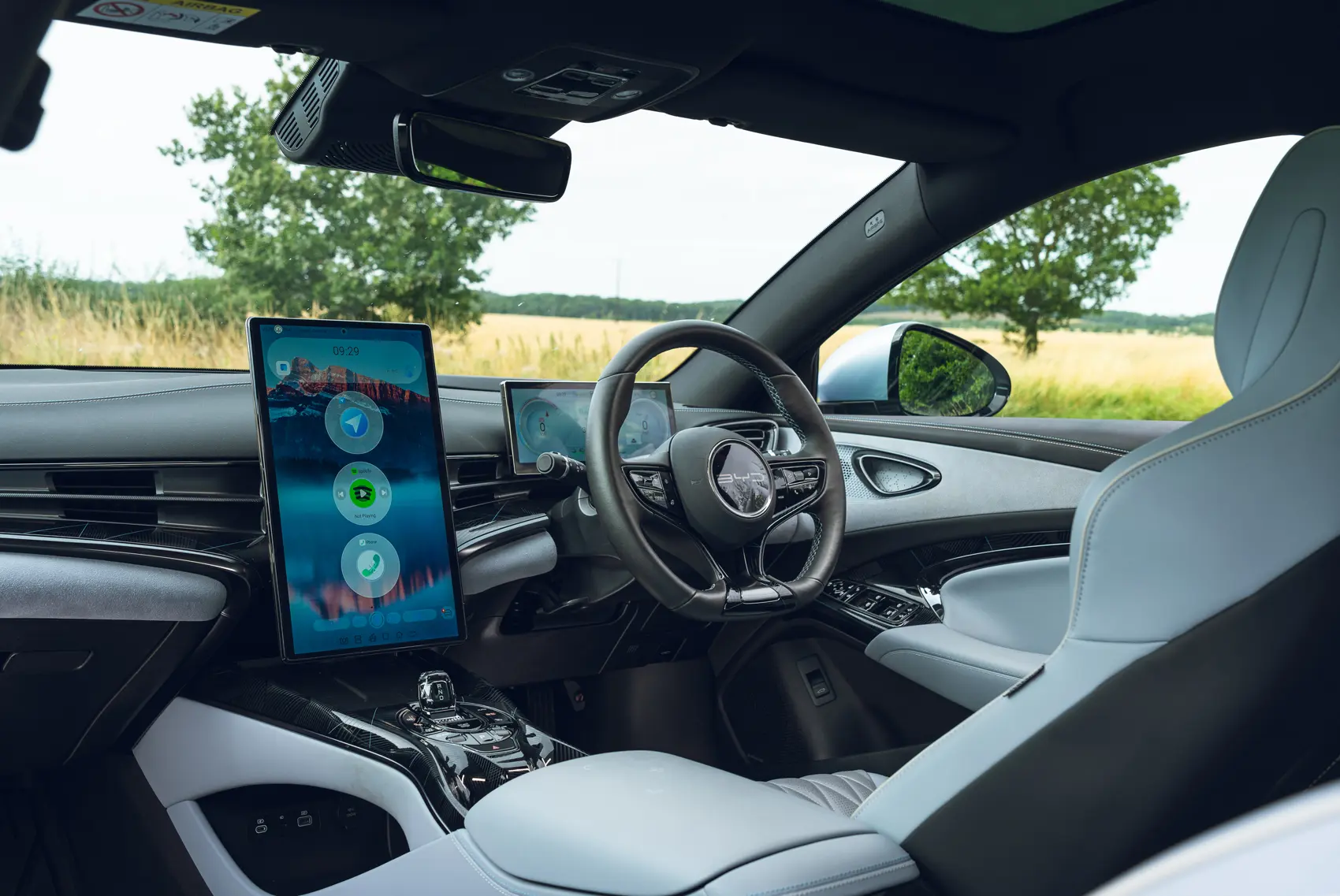
Is Your BYD Ready for Apple CarPlay Ultra? Find Out Now!
The BYD DiLink system is famous for those massive, vibrant rotating screens. Whether you're cruising in a BYD Atto 3, Seal, or Dolphin, that 12.8-inch or 15.6-inch display is the heart of your car. But let's be honest — have you tried using the native Apple CarPlay lately?
For many, it feels like a high-tech straightjacket. You're stuck with basic apps and those annoying black bars that waste half your screen. It completely ignores your car's best feature — the rotating hardware. This is where "Apple CarPlay Ultra" changes the game. It's a high-performance, immersive multimedia experience that finally matches your EV's potential.
We've spent dozens of hours testing the BYD Wireless CarPlay Android Box Multimedia in real-world conditions. It is the missing piece of the puzzle. Let's look at why this upgrade is a must-have for your BYD.
Why a Standard Adapter Isn't Enough for Your BYD
I recently spoke with a customer, "Mark," who drives a 2024 BYD Seal in Sydney. He bought a cheap, generic wireless dongle online and was frustrated within two days. Most generic adapters simply aren't built for BYD's unique tech for three main reasons:
The Rotating Screen Challenge
Generic boxes are "blind" to the BYD rotation sensor. When Mark flipped his screen to vertical for city navigation, the UI stretched like a funhouse mirror or crashed entirely.
The Entertainment Gap
Native CarPlay has a strict "no video" rule. This means you're stuck staring at a blank wall while waiting at a Tritium fast-charger. No Netflix, no YouTube, no fun.
The Performance Ceiling
Basic adapters just mirror your phone. This leads to overheating and a stuttering map interface that feels "cheap" compared to the rest of the car.
Meet the Dedicated BYD Multimedia AI Box
We didn't want a "one-size-fits-all" solution. Our team specifically tested this BYD Multimedia AI Box to ensure it plays nice with the DiLink ecosystem. It's a standalone Android 13 powerhouse that fits right in your center console.
- Deep DiLink Integration: This box speaks the same language as your BYD. It recognises the specific hardware protocols, giving you a connection that feels like it came from the factory.
- True Plug & Play: You don't need to be a mechanic. There's zero dashboard dismantling involved. Just plug it into the primary USB-A data port and watch it boot up.
- Seamless Dual-System Toggle: You never lose your original car settings. Need to adjust the AC or vehicle safety features? One tap takes you back to the BYD home screen, and another brings you back to your "Ultra" setup.
Features That Define the "Ultra" Experience
Full-Screen Optimisation for Rotating Displays
The "magic" feature of this AI Box is the Adaptive UI. During our lab tests, we verified that the interface re-scales in under two seconds when the screen rotates.
| Mode | Best Use Case |
|---|---|
| Landscape Mode | Perfect for a cinematic movie experience while parked |
| Portrait Mode | Ideal for long-view Google Maps navigation |
Cinematic Entertainment: Netflix, Disney+, and Beyond
Why sit in boredom at a charging station? We've verified that the built-in Google Play Store allows you to download almost anything.
- Watch Netflix or YouTube in crisp 1080p resolution
- Scroll through TikTok during your lunch break
Powerful Hardware: Qualcomm Octa-Core & 8GB RAM
Speed is the soul of the "Ultra" experience. This box uses a Qualcomm Snapdragon 8-core chip paired with 8GB of RAM.
| Spec | Detail |
|---|---|
| OS | Android 13.0 |
| RAM / Storage | 8GB RAM + 128GB |
| Processor | Qualcomm Snapdragon Octa-Core |
| Connectivity | 4G SIM card or phone hotspot |
| Offline Movie Storage | ~50 full-length films (128GB) |
- Zero Lag: Switch between Spotify and Navigation instantly.
- Split-Screen Mastery: Run YouTube on the left and Waze on the right without the system breaking a sweat.
- 128GB Storage: Enough room for about 50 full-length offline movies for your next Nullarbor road trip.
How to Install and Unlock Ultra CarPlay on Your BYD
You can set this up in under a minute. Here is our tested, step-by-step workflow:
-
Hardware Connection Find the Data USB port. In many BYD models, only one of the two front USB ports handles data; the other is for charging only. Look for the "USB" icon rather than the "Lightning" bolt.
-
Initial Boot Once plugged in, the BYD screen treats the box as a "wired CarPlay" device. Select the CarPlay icon on your DiLink screen.
-
Phone Pairing Use Bluetooth to link your iPhone for Wireless CarPlay. Alternatively, insert a SIM card into the box for a 100% independent internet connection.
-
Steering Wheel Control We've confirmed this box maps perfectly to your BYD steering wheel buttons. Skip tracks and adjust volume without taking your eyes off the road.
FAQ: Specialised for BYD Users
Final Verdict: Is the BYD Multimedia AI Box Worth It?
Your BYD is one of the most advanced EVs on the planet. Don't let basic software hold your 15-inch screen hostage. By upgrading to the Apple CarPlay Ultra experience, you turn your car into a mobile cinema, a workstation, and a superior navigation tool.
✓ Perfect fit if
- You rely on Google Maps or Waze daily
- You want Netflix / YouTube at EV charging stops
- You won't recode, disassemble, or risk your warranty
- You want a connection stable and independent of your phone
✗ Skip it if
- Your BYD's USB port is charge-only — verify first
- You primarily use an iPhone and stock CarPlay covers your needs
Ready to Unlock Your BYD's Full Potential?
Plug-and-play Android 13 for your DiLink rotating screen. No coding. No tools. No warranty risk.
Already running the AI Box on your BYD? Share your experience in the comments — real-world feedback from actual owners is worth more than any spec sheet.