
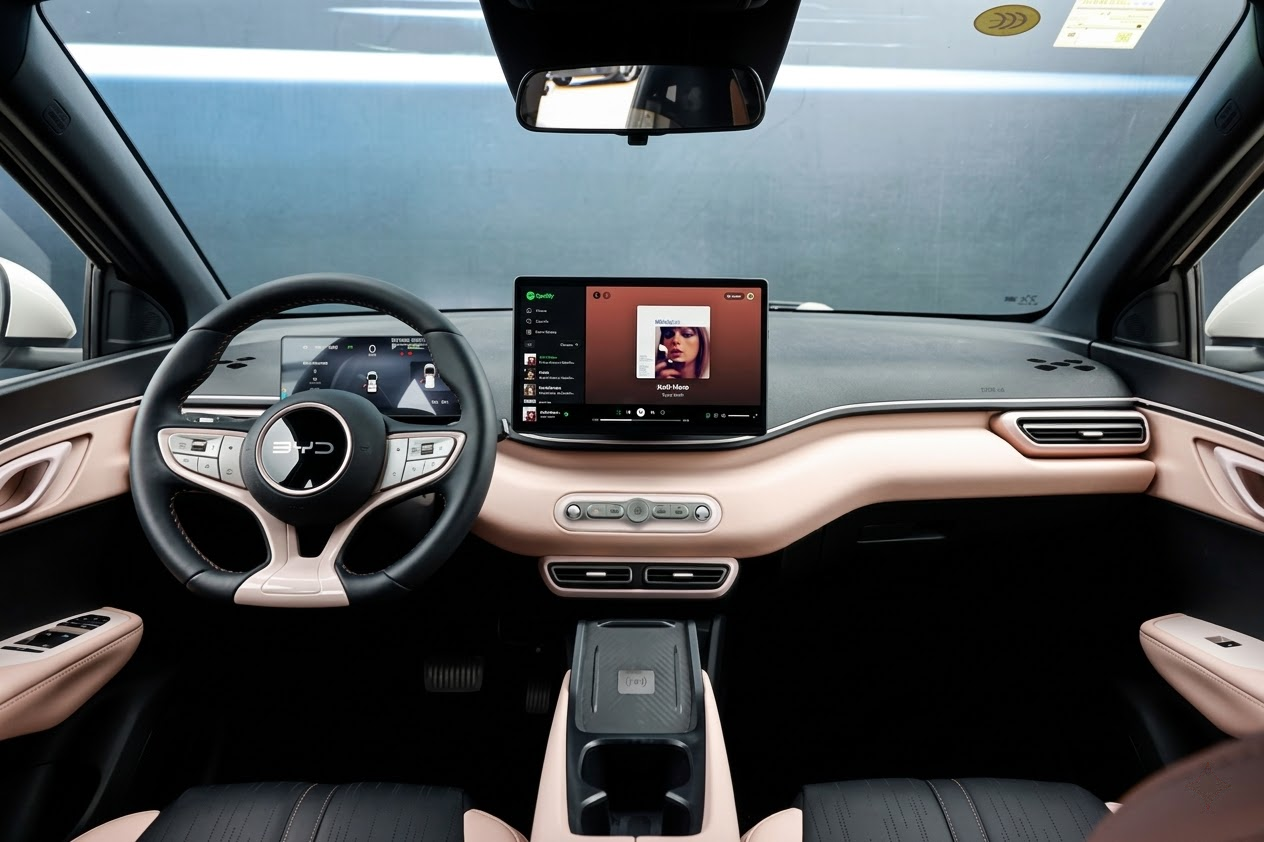
After testing multiple BYD models equipped with the rotating screen,one thing is clear: the hardware looks premium, but the out‑of‑the‑box Apple CarPlay experience leaves noticeable room for improvement. The rotation, resolution, and connection behavior all need tuning before they feel truly “luxury‑grade.”
This review takes a practical, test‑based perspective. Instead of just listing settings, we’ll walk through what worked best in real cars: how to adjust DPI and resolution, when to favor landscape over portrait, and which Carlinkit and TBox devices deliver the best results for different BYD setups.
At a Glance: Best Setup by BYD Configuration
| Owner profile | Recommended device | Key benefit |
|---|---|---|
| Early BYD with wired CarPlay | Carlinkit TBox Ultra 2/Android 15.0 System | Eliminates cable strain, keeps connection stable while rotating |
| New BYD with factory wireless CarPlay (e.g., Seal, Dolphin, Sealion) | Multimedia Android & iOS AI Box for BYD – Compatible with All Wireless CarPlay Models | Turns the screen into a quasi‑tablet, unlocks streaming apps like YouTube and Netflix |
If you want the short answer:
- Older BYD with wired CarPlay → focus on going wireless and stable.
- Newer BYD with wireless CarPlay → focus on unlocking more apps and better layouts.
Why BYD’s Rotating Screen and CarPlay Clash by Design
BYD’s DiLink system was engineered for a rotating, tablet‑like display, while Apple CarPlay was designed around a fixed, horizontal layout. That fundamental mismatch produces three main issues in day‑to‑day use:
- Protocol and refresh mismatch
When you rotate the screen, DiLink animates the physical movement while CarPlay tries to re‑render its interface. These processes don’t always stay in sync, so you occasionally see icons jump, layouts lag, or brief flashes during rotation. - Resolution and DPI mismatch
BYD’s default DPI is relatively low. In practice, this makes CarPlay icons look oversized and “chunky.” On portrait orientation, large black bars at the top and bottom waste a lot of space, so your 12.8‑ or 15.6‑inch panel doesn’t feel fully utilized. - Handshake instability on older DiLink versions
On some early DiLink builds, rotating the screen can temporarily break the CarPlay connection. The familiar “handshake failure” forces you to unplug and reconnect your iPhone, which is even more annoying on bumpy roads.
Because of these issues, BYD has started phasing out rotating screens in newer lineups in favor of more conventional fixed screens that better suit CarPlay and Android‑based apps. That shift matches what we see in testing: once you optimize the horizontal experience, CarPlay becomes far more stable and useful.
Display Tuning: How to Make CarPlay Look Right on BYD
1. Adjust DPI and resolution via Carlinkit
From a reviewer’s standpoint, the single biggest visual upgrade comes from fixing DPI. With stock settings, BYD’s screen makes CarPlay look comically large; with tuned settings, it looks closer to a modern tablet.
Practical steps:
- Plug in a Carlinkit adapter and connect your iPhone to it (wirelessly or wired, depending on model).
- On your iPhone, open Safari and enter the adapter’s configuration IP address (commonly something like
192.168.50.2). - In the settings menu, locate DPI / display scaling options.
- Set DPI in the range of 160–180:
- Below 160: icons and fonts are too big, wasting space.
- Above 180: text can become too small to read quickly while driving.
Observed effects:
- Maps show more content per screen: more streets, labels, and junctions visible at a glance.
- Music and podcast apps display more items per page, reducing scrolling.
- Overall UI density feels closer to a tablet, which matches the physical size of BYD’s 12.8‑ and 15.6‑inch displays.
2. Prefer landscape for navigation and daily driving
Even though a rotating screen suggests portrait should be exciting, our road tests point clearly in favor of landscape for regular driving:
- You get a wider map view, which helps with lane changes, highway exits, and reading ahead in complex interchanges.
- CarPlay’s dashboard view works best in landscape, showing map + media + calendar or suggestions in a single glance.
- The screen height is more natural for eye movement, minimizing the time your eyes spend off the road.
A realistic recommendation is:
- Set landscape as your default for commuting and navigation.
- Reserve portrait mode for parked situations, such as vertical videos, social media, or reading content, especially when using an AI Box.
3. Enable Auto‑adapt on newer DiLink systems
On DiLink 4.0 / 5.0 and newer, BYD includes automatic adaptation options that help the system adjust when resolution or orientation changes.
What to do:
- On the BYD head unit, go to Display or Screen settings.
- Make sure options like Auto‑adapt or Auto scaling are turned ON.
- Test by rotating the screen several times while CarPlay is running and switching between apps (Maps, Music, etc.).
With Auto‑adapt enabled, we see fewer cases of:
- Frozen frames during rotation.
- Black or blank screens during orientation switches.
- CarPlay briefly disconnecting when the screen moves.
Wireless Adapters and AI Boxes: Which One Do You Really Need?
Once the display looks good, the next big decision is how you want to connect and what you want to do on the screen.
1. For wired‑only BYD models: go wireless with Carlinkit Tbox Ultra 2/Android 15.0 System
On early BYD models where CarPlay is only offered via cable , the USB data port is buried deep inside the center console. With a rotating screen, this is a bad combination:
- The cable twists and pulls every time you rotate the display.
- Over time, this can stress the cable and your iPhone’s port.
- The whole setup looks messy and is inconvenient to plug/unplug.
In these cars, a wireless Carlinkit adapter is a straightforward upgrade:
- After initial pairing, your iPhone connects automatically when you start the car.
- You can rotate the screen up to 90 degrees without the cable snagging or disconnecting.
- In long‑distance tests, the connection remains stable with acceptable latency for navigation prompts and media control.
Ideal for:
- Drivers whose main use cases are navigation, calls, and music.
- Owners who are tired of plugging in every drive and worried about port wear.
- People who don’t care about installing extra apps, only about making stock CarPlay nicer and more convenient.
2. For factory wireless CarPlay: Android Multimedia AI Box for all car models with wireless CarPlay
On newer BYD models (like the Seal, Dolphin, and Sealion), wireless CarPlay is already built in. That solves the cable problem, but it introduces another limitation: CarPlay’s restricted app ecosystem.
Typical limitations include:
- No native YouTube or Netflix.
- Very limited use of portrait mode.
- Strict content rules that prevent video playback while moving.
Here is where Android‑based AI Boxes like Carlinkit TBox Ultra or TBox Max shine:
- They turn the BYD screen into an Android 13‑powered device that behaves more like a tablet.
- You can install and run apps such as YouTube, Netflix, TikTok, Spotify, Chrome, and more directly on the box.
- Rotation is handled at the app and Android system level, not locked by CarPlay’s rules, so portrait video and vertical apps finally make sense on BYD’s rotating panel.
From our testing in BYD Seal and similar vehicles:
- If you spend a lot of time parked (waiting for kids, charging, lunch breaks), the AI Box transforms the car into a small entertainment hub.
- For longer road trips with passengers, an AI Box makes far better use of the big screen than stock CarPlay alone.
Step‑by‑Step: How to Set Up a “Full‑Power” CarPlay Experience on BYD
To make this actionable, here is a practical setup process you can follow in your own car.
- Use the correct USB port
- Plug your Carlinkit or TBox device into the rectangular USB‑A data port, not the USB‑C charging‑only port.
- If you use the wrong port, the device may power on but never be recognized by DiLink.
- Complete the initial pairing
- Start the car and wait for the adapter to boot.
- On your iPhone, go to Bluetooth, find the adapter’s name, and pair it.
- Follow the prompts until CarPlay or the AI Box interface appears on the BYD screen.
- Open the adapter’s configuration page
- Connect your iPhone to the adapter’s Wi‑Fi network (if required).
- Open Safari and enter the configuration IP (commonly something like
192.168.50.2). - Log in if a password is needed.
- Optimize video quality and sync
- Set Video Quality or Resolution to the highest level that still runs smoothly on your BYD system.
- Turn Sync Mode (or its equivalent) ON to minimize the 1–2 second audio delay that some users notice with generic wireless adapters.
- Fine‑tune DPI and orientation strategy
- Adjust DPI into the 160–180 range to get a crisp but readable interface.
- Use landscape as the default orientation for driving.
- Keep portrait for parked use, especially when running apps like TikTok or full‑screen maps via an AI Box.
- Align BYD display settings with the adapter
- On the BYD system, enable Auto‑adapt or any automatic scaling feature.
- Rotate the screen a few times and switch between apps to confirm there are no freezes or repeated disconnects.
Once these steps are done, most BYD owners will experience:
- A cleaner and more modern‑looking CarPlay interface.
- Stable wireless connectivity, even when rotating the screen.
- The option to turn the rotating panel into a real entertainment or productivity surface, rather than a purely cosmetic gimmick.