
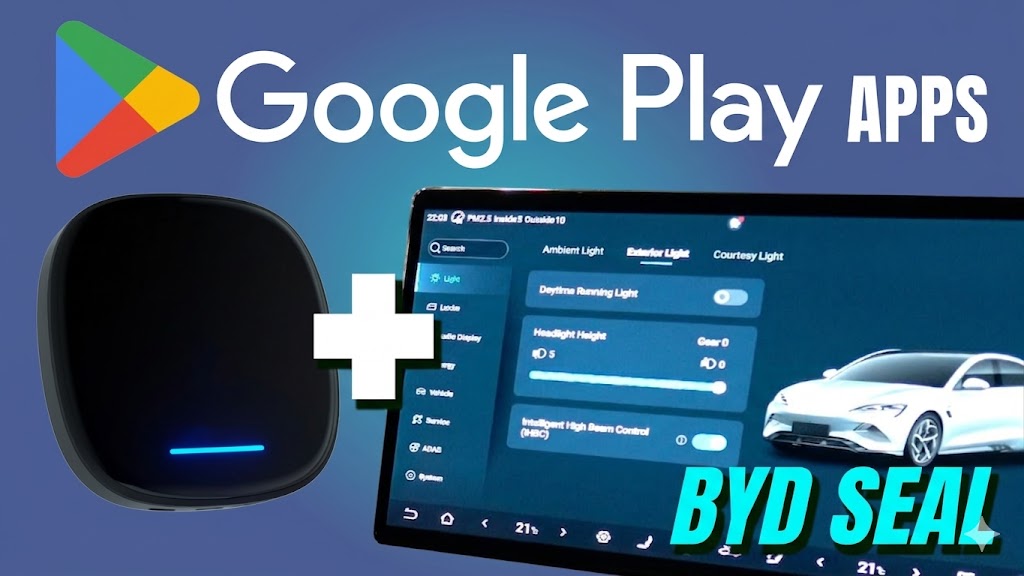
Ever wondered why your BYD Seal’s impressive 15.6-inch display can’t play a single video while you wait at a charger? The Seal is a brilliant EV, but its factory wireless CarPlay has one big limitation: it’s a closed system, and video apps simply aren’t allowed in.
Quick answer
- Can you watch Netflix on BYD Seal CarPlay? Not natively. Apple blocks video apps in CarPlay.
- The fix: plug a BYD Multimedia AI Box into the USB port. It runs Android 13 on the factory screen.
- What you get: Netflix, YouTube, Disney+, TikTok and the full Google Play Store, plus split screen.
- What keeps working: wireless CarPlay, Android Auto, steering wheel buttons and the 360° camera.
- Install: plug and play, no wiring, no coding, fully reversible.
Why standard CarPlay isn’t enough on a 15.6-inch screen
Apple doesn’t allow video apps like Netflix, YouTube or Disney+ inside CarPlay, for driver-safety reasons. That makes sense on the daily commute, but what about the 30-minute break at a DC fast charger?
Although the BYD Seal supports wireless CarPlay out of the box, three limitations hold the screen back:
- The video block: movies and streaming apps can’t be played at all.
- The rotation dilemma: CarPlay doesn’t make good use of the Seal’s rotating screen.
- App isolation: you can’t run Google Play apps in CarPlay mode.
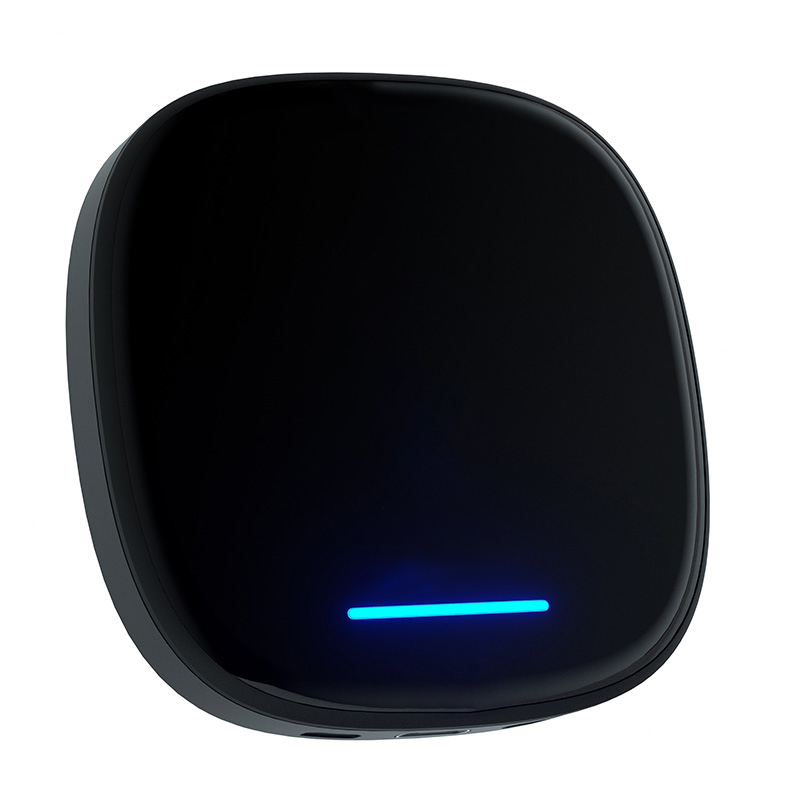
The Carlinkit Multimedia AI Box for BYD solves this. It connects through the Seal’s CarPlay channel and runs a full Android system on the factory display, so the 15.6″ screen works like a large tablet when you’re parked. You can learn more about the box on our BYD Seal Multimedia AI Box page.
✓ FITS BYD SEAL
Multimedia Android & iOS AI Box for BYD
- Netflix, YouTube, Disney+ & TikTok on your 15.6″ screen
- Qualcomm 6125 8-core · 8 GB RAM · 128 GB storage · Android 13
- Wireless CarPlay & Android Auto, split screen, 4G SIM slot
- Plug-and-play USB install, no wiring or coding
🎁 Use code SAVE30 at checkout for A$30 off
✓ Free AU shipping · ✓ 2-year warranty · ✓ 30-day returns
This box needs a BYD with factory wireless CarPlay. If your BYD only has wired CarPlay or Android Auto, look at the Max Ultra AI Box instead. Not sure which you have? Check the BYD CarPlay compatibility guide.
3 ways BYD Seal owners use the AI Box
1. Portrait mode for TikTok and Reels
Thanks to its BYD-specific adaptation, the AI Box recognises when you rotate the screen.
- Turn the screen to portrait and apps like TikTok and Instagram Reels fill the whole display.
- It feels like a giant smartphone, perfect for scrolling while you’re parked.
2. Netflix and Disney+ while you charge
A 10 to 80 percent DC fast charge takes around half an hour, which is most of an episode. While the battery fills up, the box turns your cabin into a private cinema.
- Smooth streaming: the Qualcomm 8-core chip and 8 GB of RAM handle Netflix, YouTube and Disney+ without stutter.
- Plug and play: plug it into the USB port and it’s ready within seconds.
- V2L camping: use the Seal’s V2L power while parked to keep the cabin running for a movie night at the campsite.
Charging somewhere with weak reception?
Download shows in advance and store them on a SanDisk Ultra 256GB microSD card. The AI Box supports up to 256 GB, enough for a full season or two.
3. Split screen: navigation and video side by side
Why choose? Keep Google Maps or Waze on one side while your passenger watches YouTube on the other. The AI Box’s split screen goes well beyond what standard CarPlay can do.
Safety note: the driver should only watch video while the car is parked.
Why this box is made for BYD
Many universal AI boxes struggle with stability on BYD’s DiLink system. The Carlinkit BYD version is built and tested specifically for BYD’s wireless CarPlay models.
- No modifications to the car: it plugs into the existing USB port, with nothing cut or rewired, and unplugs in seconds.
- Seamless integration: steering wheel buttons keep working, and the 360° camera still pops up when you reverse.
- 4G SIM slot: add a data SIM for streaming without relying on your phone’s hotspot.
How to set it up in 3 steps
- Plug in: insert the AI Box into the Seal’s USB data port (the one CarPlay uses).
- Pair your phone once: connect your phone to the box’s Wi-Fi network shown on screen, then approve the CarPlay or Android Auto prompt.
- Install your apps: open the Google Play Store and add Netflix, YouTube, Disney+ or TikTok.
After the first pairing, your phone connects automatically every time you start the car.
FAQs for BYD Seal owners
Can I watch Netflix on BYD Seal CarPlay?
Not through CarPlay itself, because Apple blocks video apps. With a BYD Multimedia AI Box plugged into the USB port, you can run Netflix, YouTube and Disney+ directly on the Seal’s 15.6-inch screen while parked.
Do the steering wheel buttons still work?
Yes. The box reads BYD’s native control signals, so you can still adjust the volume and skip tracks from the wheel.
Does the box interfere with the 360° camera?
No. When you select reverse, the system switches straight to the BYD camera view, then returns to the AI Box automatically.
Do I need a separate SIM card?
Not necessarily. The box works over your phone’s hotspot or any Wi-Fi. For the smoothest streaming, a dedicated 4G data SIM (not included) is a good option.
Don’t leave your Seal’s screen unused
The BYD AI Box plugs straight into the USB port: no rewiring, no coding, set up in minutes. Use code SAVE30 for A$30 off.
✓ Free AU shipping · ✓ 2-year warranty · ✓ 30-day returns
Related Reading
- BYD Sealion 7 HDMI Input: Stream Netflix & YouTube. The same setup on the Seal’s SUV sibling.
- Does BYD Have CarPlay? Wired, Wireless & Upgrades. The model-by-model breakdown for the Australian BYD range.
- BYD Seal Multimedia AI Box. A closer look at the AI Box on the Seal.