
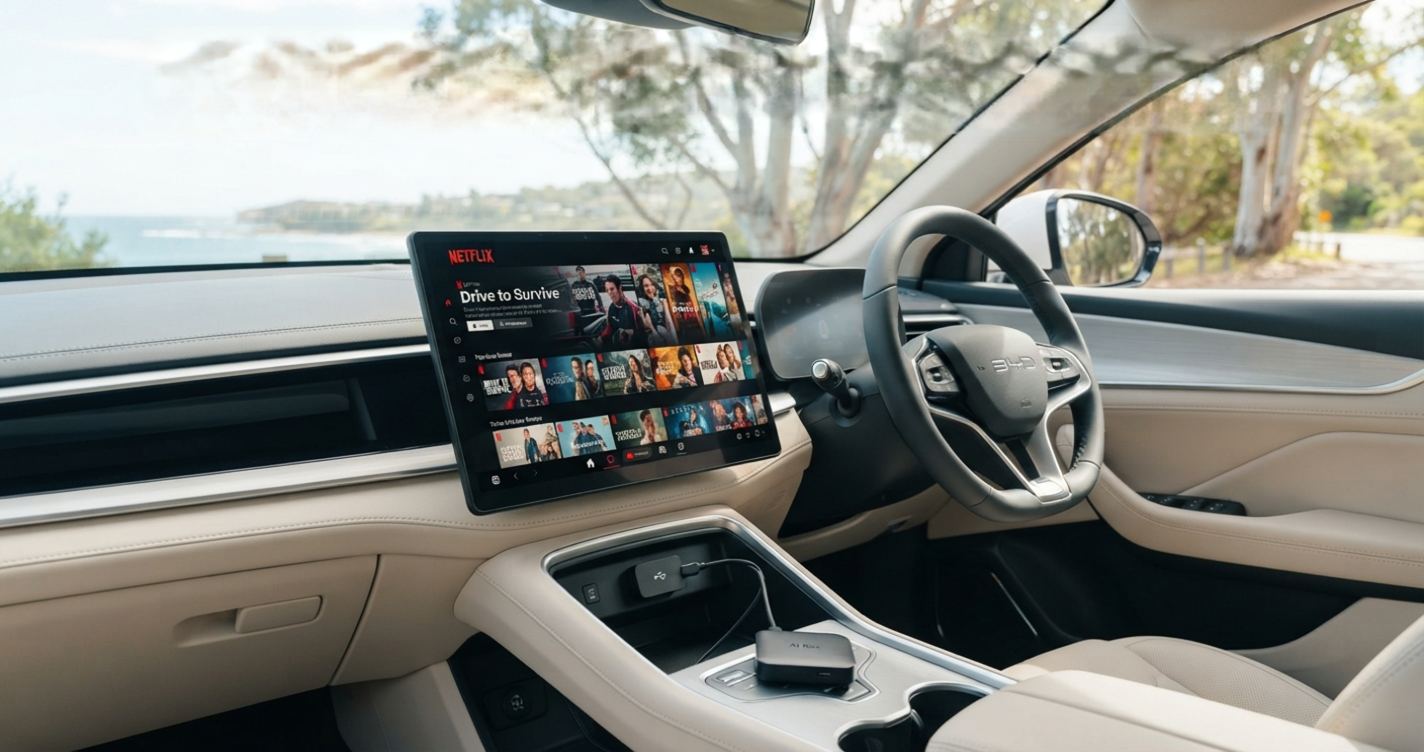
The BYD Sealion 7 does not include a factory HDMI input port. What it does include is a USB data port below the centre console that unlocks the same practical result: Netflix, YouTube, Google Maps, and screen mirroring on the 15.6-inch rotating display, through a plug-in AI Box.
The workaround adds Netflix, YouTube, Disney+, Prime Video, and any other Google Play app to the factory 15.6-inch display. The hardware is a plug-in AI Box running Android 13 on a Qualcomm 8-core chip with 8 GB of RAM, 128 GB of storage, and a 4G LTE SIM slot. Setup is a one-time pairing that takes under two minutes, and the factory DiLink system, wireless CarPlay, wireless Android Auto, steering wheel controls, and 360-degree reversing camera all keep working normally.
Five steps to set up an HDMI-style input on the BYD Sealion 7
BYD Sealion 7 HDMI input setup, from unboxing to opening Netflix, takes about five minutes on any Australian-market model: one hardware check and four setup actions.
Step 1: Does the BYD Sealion 7 have an HDMI input port?
No. According to BYD Australia's official Sealion 7 specifications, the front and rear ports on both Premium and Performance trims are limited to one USB-C and one USB-A each, along with a wireless charging pad and an NFC key zone. HDMI is not listed as a factory feature.
Independent 2025 and 2026 reviews from CarExpert, Chasing Cars, and The Beep confirm the same layout: no HDMI on the dashboard, in the boot, or anywhere else on Australian-market Sealion 7s. For the full BYD wireless CarPlay compatibility list across models, see the BYD CarPlay compatibility guide.
HDMI Wish vs. Sealion 7 Reality
| What HDMI users typically want | What the Sealion 7 delivers via USB |
|---|---|
| Watch Netflix, YouTube, or Disney+ on the big screen | Yes, through an Android-based AI Box in the USB data port |
| Mirror an iPhone or Android screen | Yes, via wireless CarPlay, wireless Android Auto, or the AI Box's Miracast |
| Plug in a Fire TV Stick, Chromecast, or game console | No direct path. Use the AI Box's own Android app store instead |
| Feed a rear-seat display | Not natively. Rear entertainment needs a separate tablet mount |
Step 2: Where is the USB data port on the Sealion 7?
Look below the centre console bridge. You'll find a small cubby housing two ports side by side: a USB-A and a USB-C. It's easy to miss on the first sit-down, since the ports are recessed and BYD doesn't badge them prominently.
To tell which one carries data (the one CarPlay uses) rather than power only, look for the icon printed above each port:
- USB or data icon: handles data transfer and connects CarPlay, Android Auto, and any AI Box.
- Lightning bolt icon: charge only, will not connect an AI Box or CarPlay.
On Sealion 7, owner reports consistently point to the USB-C port as the data port on the front pair. If you're unsure, plug in and check whether the CarPlay handshake starts. If it doesn't, swap ports.
Step 3: Plug in a BYD-compatible AI Box to add HDMI-style input
Insert the AI Box's USB-C connector into the data port identified in Step 2. Within seconds, the 15.6-inch screen loads the Android 13 launcher, with app tiles for Netflix, YouTube, wireless CarPlay, wireless Android Auto, and the Google Play Store.
The Carlinkit BYD Multimedia AI Box runs on a Qualcomm 8-core chip with 8 GB of RAM, 128 GB of on-board storage, and a nano SIM slot for optional 4G LTE data. The factory DiLink system, steering wheel controls, and the 360-degree reversing camera continue to operate normally in parallel.
Any Google Play app runs directly on the 15.6-inch screen, and switching back to the native BYD DiLink system takes one tap on the bottom home bar. For the broader Sealion 7 upgrade context, see the BYD Sealion 7 Accessories guide.
Step 4: Pair your phone once, then it's automatic
On the phone, open Wi-Fi settings and connect to the network name the AI Box displays on its on-screen prompt (typically starts with the box's brand followed by four digits). Return to the Sealion 7's screen and tap the CarPlay icon for iPhone, or the Android Auto icon for Android, in the AI Box launcher. Approve the pairing request that appears on the phone. First pair usually takes under two minutes.
From that point on, every ignition-on cycle recognises your phone automatically. There's nothing to open, no app to launch, and no repeated pairing menu. The Sealion 7's screen boots into the AI Box home, and you can either use it directly or tap through to CarPlay, Android Auto, or the native DiLink system.
If the box doesn't detect your phone on the first try, forget the previous CarPlay pairing in DiLink settings, then attempt the pairing again.
Step 5: Open Netflix or YouTube on the 15.6" screen
With the AI Box active, the Google Play Store gives you the full Android app ecosystem on the Sealion 7's screen. Install Netflix, YouTube, Disney+, Prime Video, Spotify, or Waze the same way you would on a tablet.
Three scenarios where this earns its keep:
- DC fast-charge stops: BYD Australia lists a 10 to 80 percent DC charge at 150 kW as roughly 32 minutes. That's most of a Netflix episode without touching your phone's battery or mobile data.
- V2L camping and picnics: the Sealion 7's V2L output delivers 3.3 kW to external appliances, which lets the car stay awake and entertain the cabin for hours while parked. Handy for a long lunch break, a beach afternoon, or waiting out weather at a trailhead.
- Long-drive downtime: on a 4-hour highway leg with a break at a rest stop, the front screen becomes a proper streaming device while you eat, not a locked-out CarPlay tile that says "video playback while stationary is not supported".
Want wireless CarPlay, Netflix and YouTube on your BYDs factory screen? Our model-matched BYD AI box plugs straight in — no rewiring, no coding. Set up in minutes.
✓ Free AU shipping · ✓ 2-year warranty · ✓ 30-day returns
Frequently Asked Questions
Does the BYD Sealion 7 have an HDMI input port?
No. The BYD Sealion 7 does not include a factory HDMI input on any Australian-market trim. Its physical data ports are limited to one USB-A and one USB-C below the centre console, plus one USB-A and one USB-C in the second row.
Can I add an HDMI input to my BYD Sealion 7 after purchase?
There is no clean HDMI retrofit for the Sealion 7 that keeps the factory system intact. The practical alternative is a plug-in AI Box that connects through the existing USB data port. Because it doesn't require cutting cables or dashboard disassembly, the fitment is fully reversible and does not disturb the factory wiring. BYD Australia covers the USB ports themselves under the 3-year multimedia component warranty; any aftermarket device is used at owner discretion.
What do I plug into the USB port to watch Netflix on my Sealion 7?
A BYD-compatible Multimedia AI Box. It runs Android 13 on the factory 15.6-inch screen and unlocks the full Google Play Store, including Netflix, YouTube, Disney+, Prime Video, and Spotify. Wireless CarPlay, wireless Android Auto, steering wheel controls, and the reversing camera all keep working as normal. For a sister-car walkthrough on the streaming experience, see Watch Netflix on the BYD Seal.
Related Reading
- Does BYD Have CarPlay? Wired, Wireless & Upgrades. The model-by-model breakdown for the whole Australian BYD range.
- BYD Sealion 7 Accessories: Unlock CarPlay, Android & More. The wider upgrade picture for Sealion 7 owners.
- Watch Netflix on the BYD Seal: Unlock Full CarPlay Potential. A parallel guide for the Sealion 7's sister sedan.