
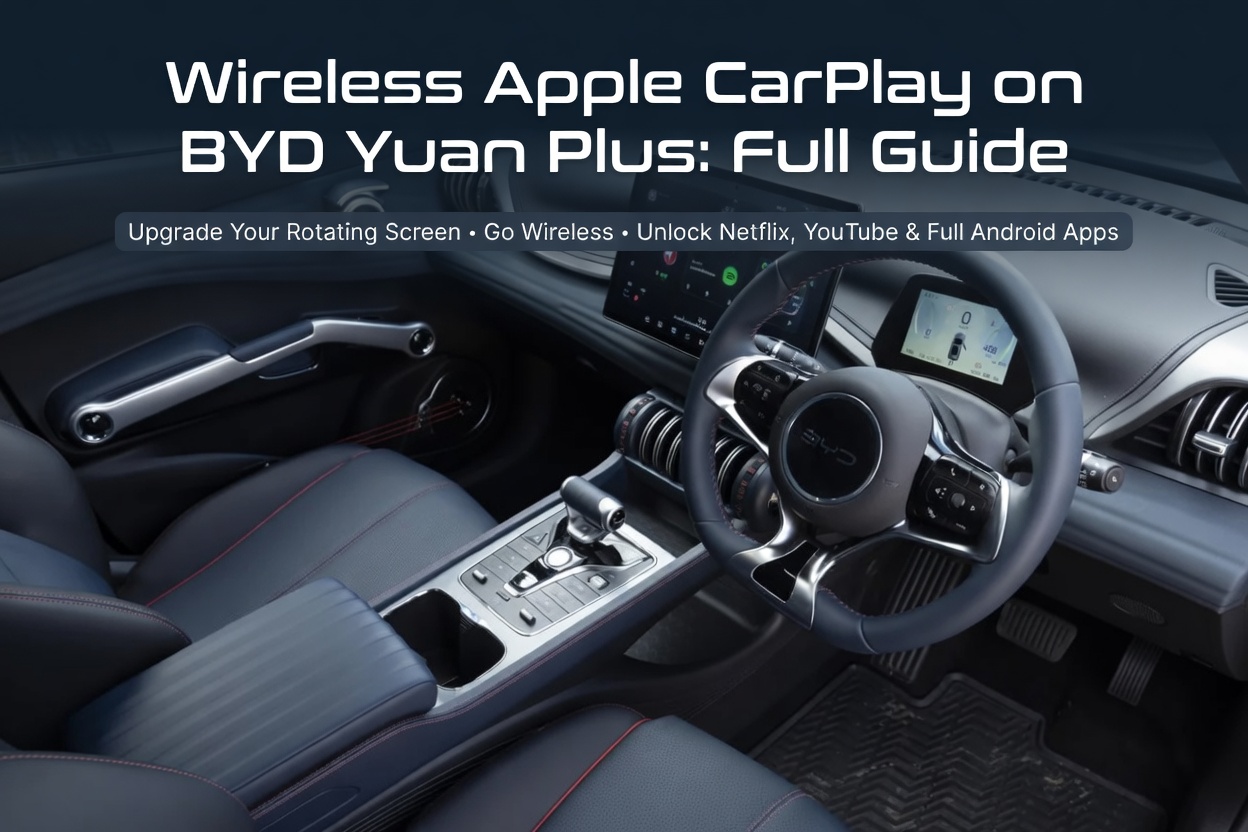
Does the BYD Yuan Plus Have Wireless Apple CarPlay?
The BYD Yuan Plus — sold in Australia as the Atto 3 — is one of the most capable electric SUVs in its class, famous for its gym-inspired interior and that stunning rotating 15.6-inch touchscreen. But for iPhone users, one question comes up constantly: does it support wireless CarPlay?
The answer depends on your build date and firmware version. Here's the breakdown our technical team confirmed through hands-on testing:
| Build / Firmware | Wired CarPlay | Wireless CarPlay | Recommended Fix |
|---|---|---|---|
| Pre-2023 / v1.2 | ✅ Yes | ❌ No | Carlinkit Wireless Adapter or AI Box |
| 2023–2024 / v1.3 | ✅ Yes | ✅ Yes | Enable in DiLink Settings |
| 2024+ / OTA 1.8 | ✅ Yes | ✅ Yes | Already active — AI Box to add apps |
Why Your Yuan Plus Screen Deserves More Than Standard CarPlay
The 15.6-inch rotating display in the Atto 3 is one of the best in-car screens available at any price point. Yet standard Apple CarPlay uses only a fraction of what it's capable of:
- No video apps — Apple's guidelines block Netflix, YouTube, and Disney+ entirely while the vehicle is in motion.
- Portrait mode wasted — CarPlay's fixed horizontal layout looks odd on a rotating screen.
- Cable clutter — On v1.2 units, a USB cable tangles every time the screen rotates.
Wired vs Wireless vs AI Box — Which Should You Choose?
| Feature | Wired CarPlay | BYD AI Box |
|---|---|---|
| Cable-free experience | ❌ No | ✅ Yes |
| Netflix / YouTube | ❌ Blocked | ✅ Full access |
| Google Play Store | ❌ None | ✅ Android 13 |
| Rotating screen support | ⚠️ Cable snags | ✅ Native auto-sync |
| Android Auto | ✅ Yes | ✅ Yes (both OS) |
| Warranty impact | ✅ None | ✅ None (USB only) |
| 4G SIM / independent internet | ❌ No | ✅ Yes (Telstra/Optus/Vodafone) |
How to Enable Native Wireless CarPlay (v1.3 / OTA 1.8)
If your Yuan Plus is already on firmware v1.3 or later, you don't need any hardware. Follow these steps:
-
1Check your firmware version
Go to Settings → System → Software Update on your DiLink screen. Confirm you're running v1.3.0 or OTA 1.8 or higher before proceeding.
-
2Enable CarPlay in DiLink
Navigate to Settings → Connections → Apple CarPlay. Toggle wireless CarPlay on.
-
3Pair your iPhone
Enable Bluetooth and Wi-Fi on your iPhone. Select "BYD Atto 3" in your iPhone's CarPlay settings, then tap "Use CarPlay with BYD BT" on the DiLink screen when prompted.
-
4Auto-connect from now on
After the first pairing, your iPhone connects automatically every time you start the car. No cables, no manual steps.
Why an AI Box Is the Ultimate Upgrade for Your Yuan Plus
For owners who want more than navigation and music — or who are still on wired-only v1.2 firmware — the BYD Dedicated Multimedia AI Box is the definitive upgrade. Here's what makes it different from generic alternatives:
1. Deep DiLink Integration
Generic AI boxes treat your BYD like any other car. Our dedicated box speaks the same hardware protocol as DiLink — including the rotation sensor handshake — so when the screen pivots, the video layout adjusts in real time. No black bars, no crashes.
2. Full Android 13 Ecosystem
The box runs an independent Android 13 system alongside your existing CarPlay. Install Netflix, Disney+, Kayo Sports, and TikTok directly from the Google Play Store. Your BYD screen becomes a proper tablet.
3. Seamless Dual-System Toggle
Switch between CarPlay for navigation and Android for entertainment with a single tap on the DiLink screen. Your original vehicle settings, climate controls, and steering wheel buttons are always preserved.
Installation: One Plug, Done in 60 Seconds
-
1Locate the correct USB port
Use the USB-A data port (marked with a data icon, closest to the driver). The charge-only port will not boot the device.
-
2Plug in and wait for boot
The DiLink screen will detect the box as a wired CarPlay device. Tap the CarPlay icon to launch.
-
3Pair your iPhone wirelessly
Use Bluetooth to connect your iPhone to the box for wireless CarPlay. Or insert a 4G SIM (Telstra, Optus, and Vodafone bands B1/B3/B7/B28 supported) for independent internet.
-
4Confirm steering wheel controls
Our testing confirmed full mapping to Yuan Plus steering wheel buttons — skip tracks and adjust volume without taking your hands off the wheel.
BYD Wireless CarPlay Android Box Multimedia
- Qualcomm 8-Core Snapdragon
- 8GB RAM + 128GB ROM
- Android 13 + Google Play Store
- DiLink optimised — rotating screen auto-sync
- 4G SIM slot (AU carriers)
- Wireless CarPlay & Android Auto
- 2-Year Comprehensive Warranty
- 30-Day Money-Back Guarantee
Compatible with all BYD models that have factory wireless CarPlay · Plug & play, no tools required