
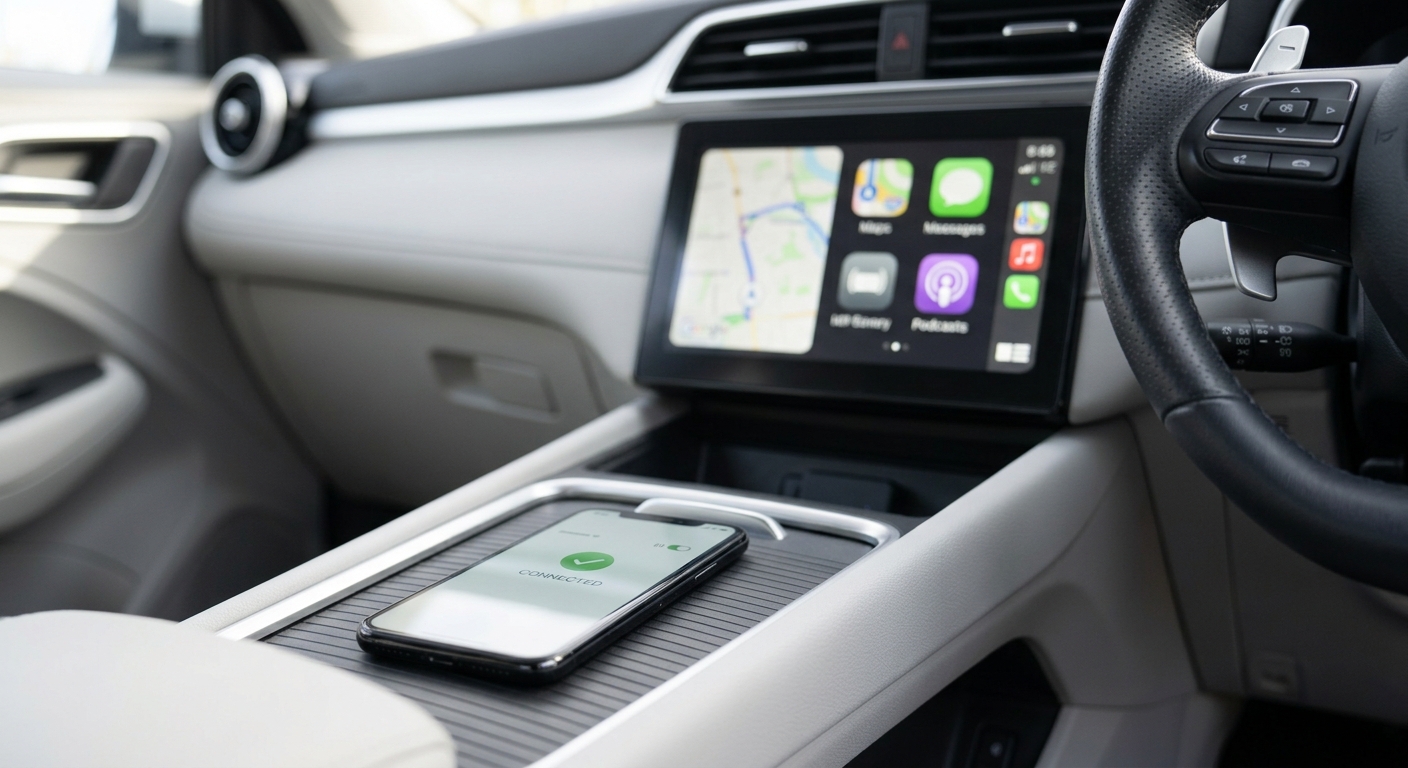
Wondering how to connect iPhone to BYD? On most Australian BYDs it's a one-off setup: turn on Siri, Bluetooth and Wi-Fi on your iPhone, pair with the car, then go to Settings > General > CarPlay on the phone and select your BYD. No wireless option on your car? Plug the iPhone into the USB data port with a good cable and CarPlay starts on the screen.
| Your situation | How to connect |
|---|---|
| BYD sold in Australia, software up to date | Wireless CarPlay – pair once, then it connects automatically |
| Atto 3, Dolphin or Seal on older software | Wired CarPlay via USB, or install the V1.8.0+ update for wireless |
| CarPlay doesn't appear at all | Check the software version and run the quick fixes below |
| Just want calls and music | Bluetooth only – no CarPlay needed |
Before You Start: Is Your BYD Wired or Wireless?
This is the step most guides skip, and it's why many owners get stuck.
When the Atto 3, Dolphin and Seal launched here, they only had wired CarPlay. In July 2024 BYD pushed the V1.8.0 over-the-air update, which added wireless CarPlay to all three. At the time, CarExpert reported that every BYD sold locally – including the then-new Sealion 6 – now had wireless Apple CarPlay.
So two cars of the same model can behave differently, depending on whether the update has been installed.
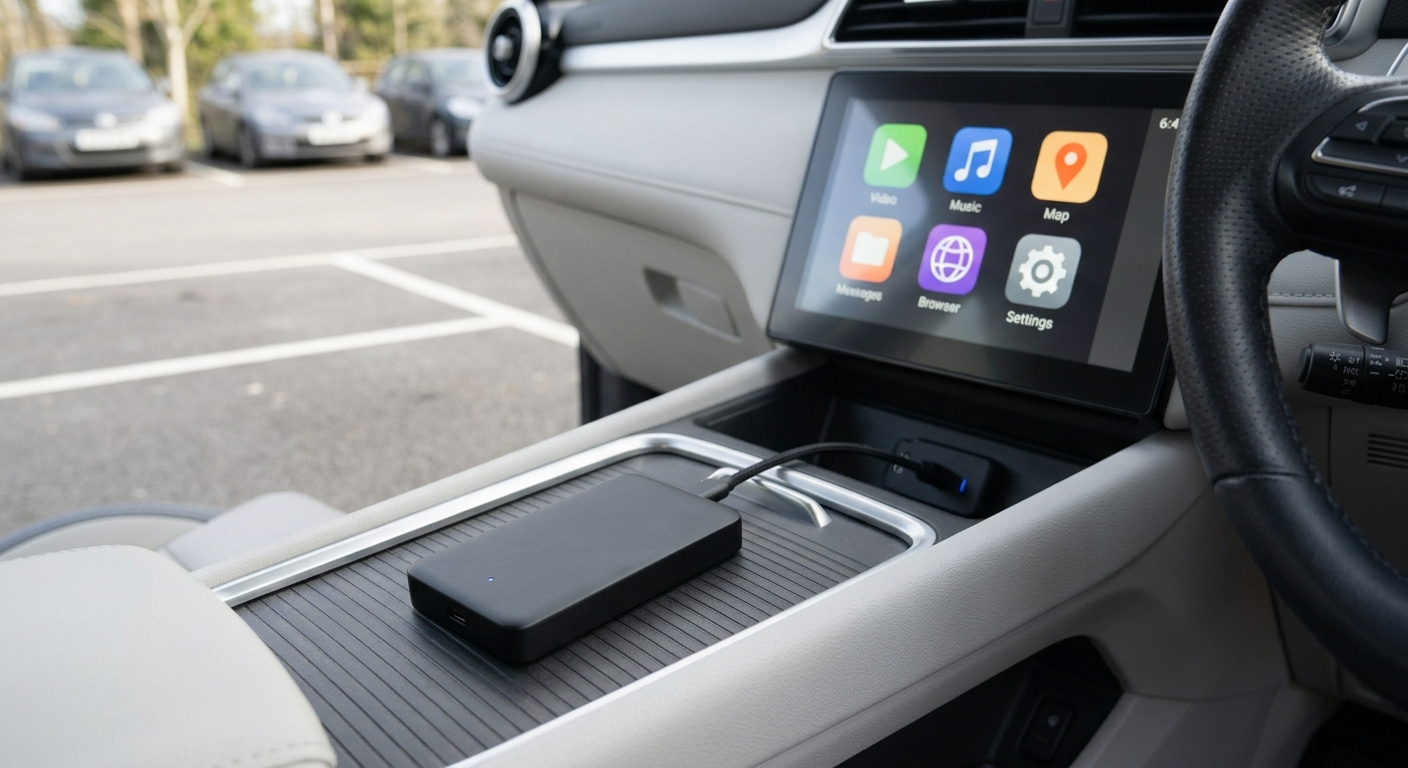
Check the software version
- Find the software version in the system information section of the car's settings menu. The menu layout differs between models and software versions, so if you can't find it, check your owner's manual or ask your BYD dealer.
- If it's V1.8.0 or later, you should have wireless CarPlay.
- Quick test: if CarPlay only appears after you plug in a cable, your car is running wired CarPlay.
Tip: install any waiting update with the car parked. If CarPlay misbehaves after an update, "forget" the car on your iPhone and pair again (see the quick fixes below).
Get your iPhone ready
Before pairing, check these on your iPhone:
- Siri is on (Settings > Siri). Apple's own CarPlay setup steps start with this check.
- Bluetooth and Wi-Fi are on – wireless CarPlay needs both.
- iOS is up to date (Settings > General > Software Update).
- Personal Hotspot is off during first pairing – it can get in the way of the car's Wi-Fi link.
How To Connect iPhone To BYD Wirelessly
Follow these steps with the car switched on and parked:
- Open the Bluetooth or phone connection menu on the BYD screen. The exact name and location vary by model and software version – your owner's manual shows where it is on your car.
- Pair over Bluetooth. On your iPhone, open Settings > Bluetooth and tap your BYD. Confirm that the code on the phone matches the car screen.
- Allow CarPlay. When the iPhone asks whether to use CarPlay with this car, tap Use CarPlay. Allow contacts and notification sync if you want calls and messages on the screen.
- Turn on Auto-Join. Go to Settings > Wi-Fi, tap the info (i) button next to the car's CarPlay network, and make sure Auto-Join is on.
- Confirm in CarPlay settings. Open Settings > General > CarPlay – your BYD should be listed under My Cars.
After that, CarPlay should start by itself each time you get in. Apple's instructions also mention holding the voice-command button on the steering wheel to begin wireless setup – worth trying if the car menu doesn't offer pairing.
How To Connect iPhone To BYD With a USB Cable
Wired CarPlay is the fallback for older software, and it's also handy when your phone battery is low.
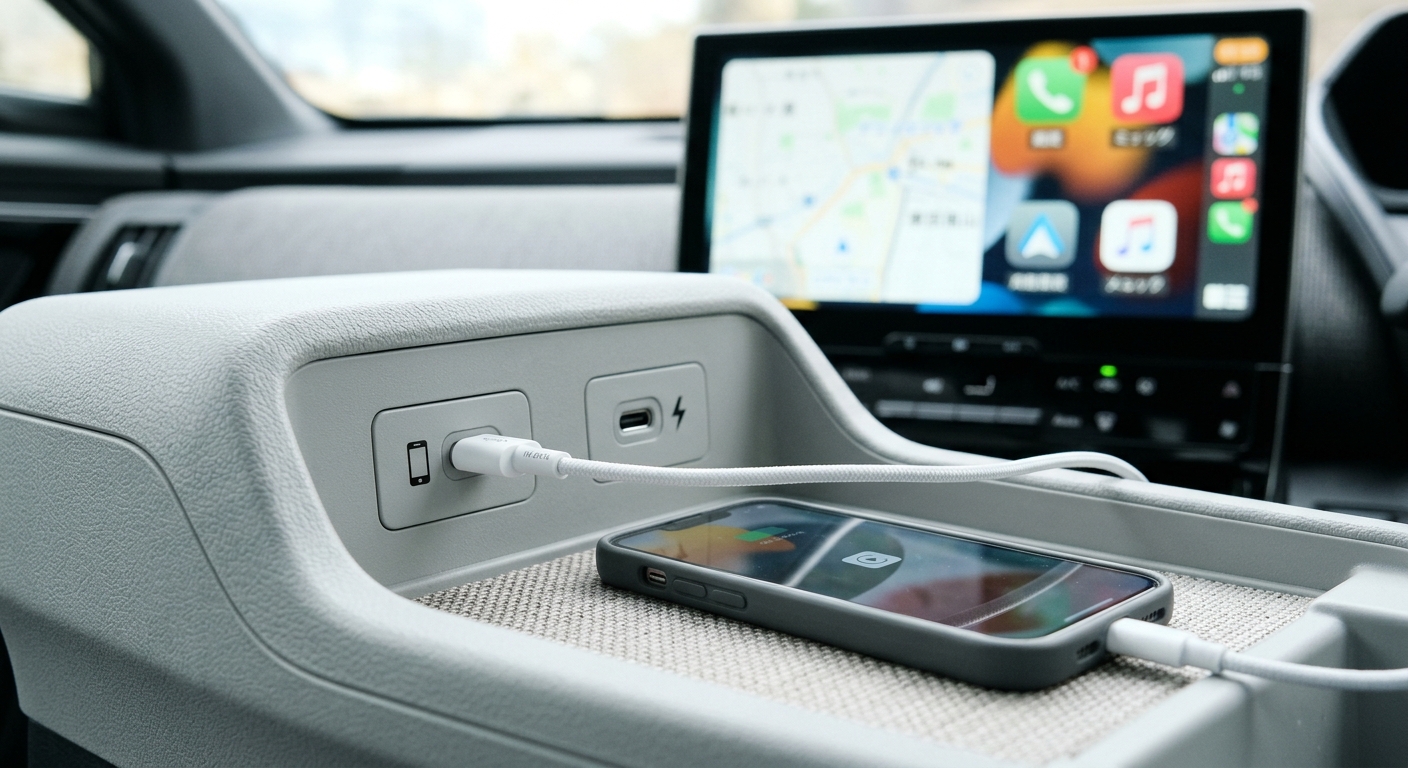
- Use a quality data cable – Apple recommends its own cable. Newer iPhones use USB-C, older ones Lightning, so match the cable to your phone and to the car's port.
- Plug into a USB port that carries data. Not every port in the cabin does – some are charge-only. If nothing happens, try another front USB port.
- Unlock your iPhone and tap Allow when asked.
- CarPlay should open on the BYD screen. If it doesn't, try the quick fixes below.
If your car supports both, your iPhone may ask whether you want to connect wirelessly on future drives – tap yes and you can leave the cable at home.
BYD Wi-Fi and Your iPhone: What's Actually Connecting?
A common point of confusion, especially if you searched "BYD Wi-Fi iPhone": wireless CarPlay doesn't use the internet.
- Bluetooth does the handshake – it tells the phone and car to start CarPlay.
- A direct Wi-Fi link then carries the screen, audio and touch inputs between your iPhone and the car.
- That Wi-Fi network is created by the car for CarPlay only. It isn't a hotspot, and your iPhone's mobile data still handles Maps, Spotify and messages.
That's why turning off Wi-Fi on your iPhone – even if Bluetooth stays on – stops wireless CarPlay. You'll still get calls through Bluetooth, but the CarPlay screen won't appear.
iPhone Won't Connect to Your BYD? Quick Fixes
| What you see | Likely cause | Fix |
|---|---|---|
| Bluetooth works, CarPlay never appears | Siri off, or Wi-Fi off | Turn on Siri and Wi-Fi, then reconnect |
| Wireless CarPlay stopped after an update | Old pairing data | Settings > General > CarPlay > your BYD > Forget This Car, delete the car in Bluetooth, then pair again |
| CarPlay drops after a few minutes | Auto-Join off, or Personal Hotspot on | Turn Auto-Join on for the car's network; turn off Personal Hotspot |
| Plugged in, nothing happens | Charge-only port or damaged cable | Try another USB port and a different data cable |
| Connects, then freezes or won't load | VPN, security app or Screen Time limits | Pause the VPN; check Screen Time > Content & Privacy Restrictions |
| No wireless option in the car menu | Software older than V1.8.0 | Use wired CarPlay or install the latest update |
Still dropping out? Restart both the iPhone and the car's screen, then pair from scratch.
What CarPlay Can (and Can't) Do in a BYD
Once connected, CarPlay gives you Maps, Waze, Spotify, Messages, Phone and Siri on the BYD screen. Car settings – climate, driving modes and so on – stay in BYD's own interface, so you'll switch back to it for those.
What CarPlay won't do is play video. Apple doesn't allow streaming apps like Netflix or YouTube in CarPlay.
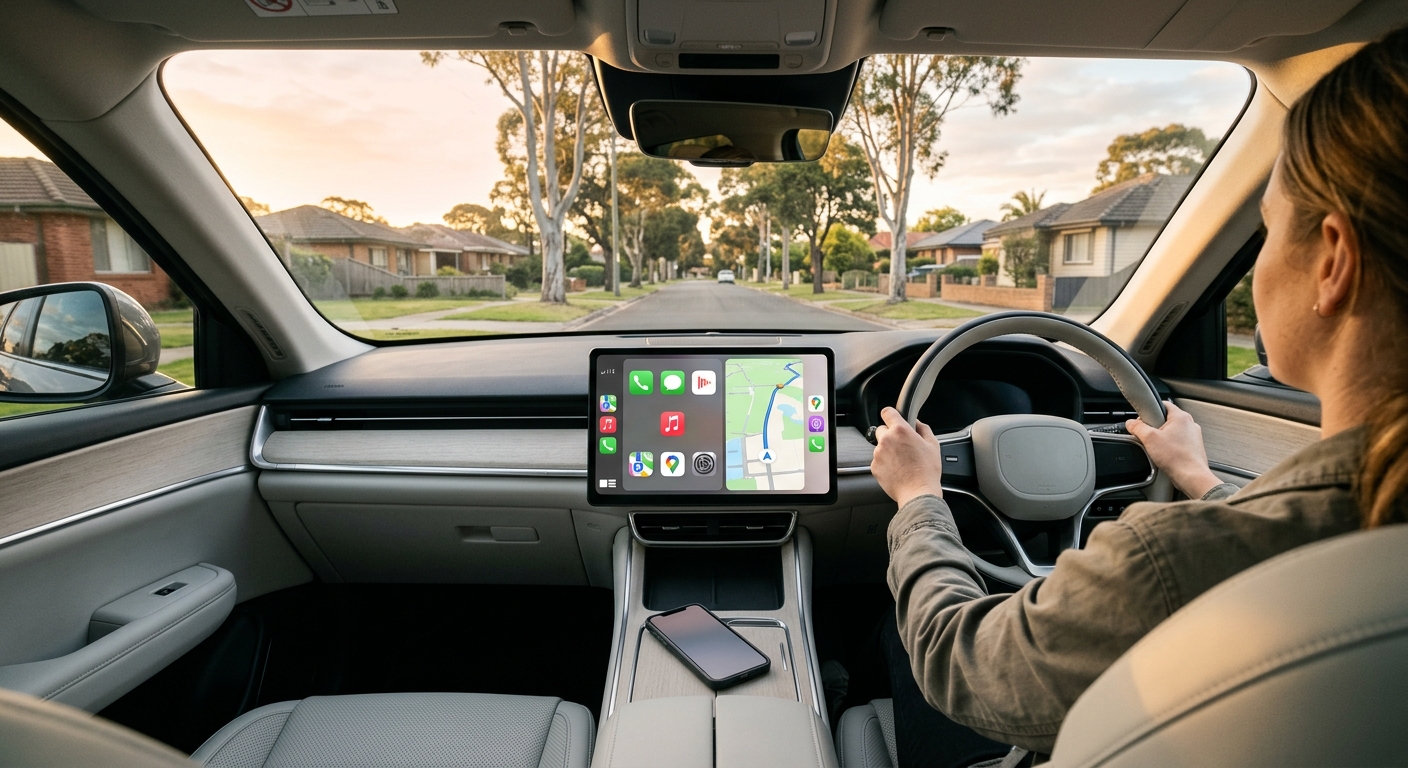
If you want those apps on your BYD screen, an AI box is the usual route. Our Multimedia Android & iOS AI Box for BYD (AU$368.99) plugs into the existing USB port and runs full Android 13 (8-core Qualcomm CPU, 8GB RAM, 128GB storage), while keeping CarPlay and Android Auto. One condition matters:
- It needs your BYD's factory CarPlay to work – the product FAQ specifies the wireless CarPlay feature.
- Listed models: Atto 1, Atto 2, Atto 3, Seal, Sealion 5, Sealion 6, Sealion 7, Dolphin and Shark 6.
So connect your iPhone wirelessly first using the steps above – that's also the best way to confirm your car is ready. Video should only ever be watched when the car is parked.
FAQ
Does my BYD have wireless CarPlay?
Most likely, yes. BYD's V1.8.0 update in July 2024 added wireless CarPlay to the Atto 3, Dolphin and Seal, and CarExpert reported at the time that every BYD sold in Australia had it. If yours only shows CarPlay when a cable is plugged in, check the software version and install any pending update.
Do I need the BYD app or DiLink app to use CarPlay?
No. Apple CarPlay is built into iOS, so there's nothing extra to download. You pair the phone through Bluetooth on the car screen, then confirm the car under Settings > General > CarPlay on your iPhone. Any BYD app on your phone is separate from CarPlay and isn't needed for it.
Why does my iPhone connect to Bluetooth but not CarPlay?
Usually Siri or Wi-Fi is switched off, or Auto-Join is off for the car's network. Wireless CarPlay needs Bluetooth to start and Wi-Fi to run. Turn them on, then go to Settings > General > CarPlay. If it still won't connect, forget the car on your iPhone and pair again.
Can I use wired CarPlay if my BYD has wireless?
Yes, as long as you plug into a USB port that carries data. A cable is useful on long drives when your battery is low, or when wireless keeps dropping. If both are available, your iPhone may ask which one you'd like to use on future drives.
Can I watch Netflix or YouTube through CarPlay in a BYD?
Not through CarPlay itself – Apple doesn't allow video streaming apps on it. To run those apps on the BYD screen, you need an Android AI box that connects through the car's factory CarPlay, and your model needs to be on the box's compatibility list. Only ever watch video while the car is parked.
Next Step: Pair It Now, Then Upgrade if You Want More
Grab your iPhone, check Siri, Bluetooth and Wi-Fi are on, and follow the five wireless steps above – that's how to connect iPhone to BYD for good. Once CarPlay is working and you'd like Netflix, YouTube and other Android apps on the same screen, see the Multimedia Android & iOS AI Box for BYD and check that your model is on the compatibility list.
See the BYD AI Box