
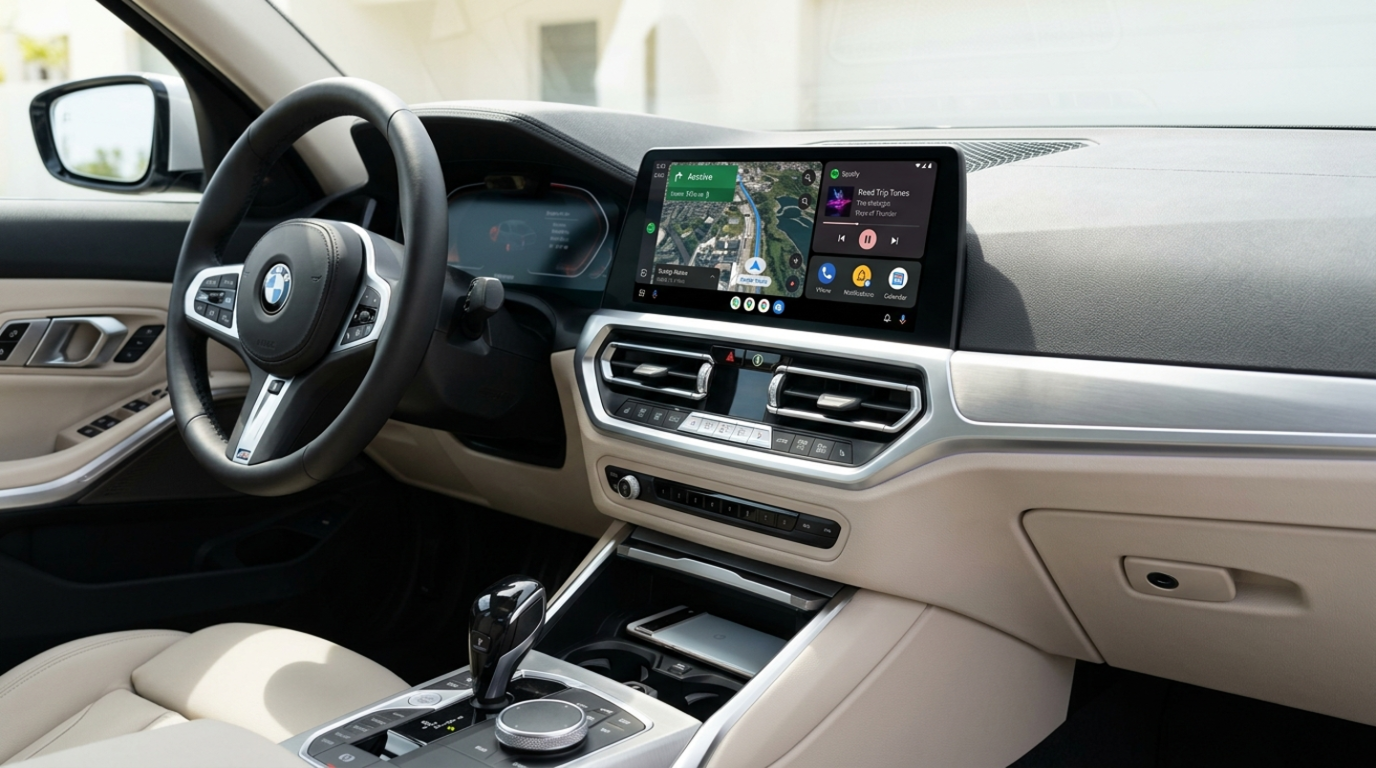
How to Install Android Auto on Your 2021 BMW (Step-by-Step Tutorial)
You can add Android Auto to a 2021 BMW in about a minute using a plug-and-play AI box that connects to the car's USB port. There's no coding, no dealer visit, and no risk to your factory warranty. Below is exactly how the upgrade works, what to check first, and the three steps to get your favorite navigation and media apps running on the iDrive screen.
Why your 2021 BMW doesn't have Android Auto
Most 2021 BMWs ship with Apple CarPlay but no native Android Auto because that was BMW's software policy at the time, not a fault with the car. The iDrive 7 system (and the iDrive 8 system on later 2021 models) was built to support wireless CarPlay, while Android Auto integration arrived on BMW much later. That gap is exactly what a plug-and-play AI box fills, without touching the factory software.
So if your media menu already lists Apple CarPlay, the hardware you need is already in the car. You just need a device that turns that CarPlay channel into a full Android system.
The safest way to add Android Auto: plug-and-play vs. coding
A plug-and-play AI box is the safest upgrade because it adds Android over your existing CarPlay connection instead of rewriting any of the car's code. An AI box like the Carlinkit TBox Ultra 3 reads your car's wireless CarPlay signal and runs a full Android system on top of it, so you get Google Maps, Waze, streaming apps, and the Play Store on the iDrive screen.
Coding, by contrast, means flashing your BMW's control modules. It's risky, it can void your manufacturer warranty, and a bad flash can leave the car in an unstable state. The AI box approach avoids all of that. Nothing is re-coded and nothing is rewired, so the upgrade is fully reversible and your warranty stays intact.
Before you start: check compatibility
Your 2021 BMW is ready for this upgrade if it already supports wireless Apple CarPlay. The quickest way to confirm is to open the iDrive media or connectivity menu and look for "Apple CarPlay" in the list. If it's there, the AI box will work.
If your car only has wired CarPlay, you'll need a wireless adapter alongside the AI box, since most boxes connect over the wireless channel. It's worth confirming your CarPlay type before ordering so you get the right kit the first time.
Step-by-step: installing the AI box
The whole installation is plug-and-play and takes only a few minutes, with no tools and no dashboard disassembly.
Confirm your CarPlay connection
Check that "Apple CarPlay" appears in your iDrive media menu, as described above. This confirms the box has a connection to work with. For wired-only cars, add a wireless adapter at this stage.
Plug in the adapter
Connect the AI box to your car's data USB port. On most 2021 BMWs the port in the center console marked with a phone icon is the data port, and it gives a more stable connection than the charge-only USB ports. Use that one if your car has it.
Pair your phone and switch to Android
Follow the on-screen prompts to pair your smartphone, then switch from the default iDrive interface to the new Android system. On the very first boot the screen may go dark for several seconds while the box starts up, which is normal, so give it about 10 seconds to load before assuming anything is wrong.
It's fully reversible. Because nothing is wired into the car, you can unplug the adapter at any time and iDrive returns to its factory state immediately. That makes it a good fit for leased vehicles you'll hand back.
A note on watching video while you drive
An Android box lets you install video and streaming apps, but watching video on the screen while the car is moving is restricted by law in Australia and many other places. Use video features only when you're safely parked, and rely on navigation and audio while driving. The box itself doesn't change your BMW's safety equipment, so your parking sensors, reversing camera, and other iDrive features keep working exactly as before.
Common questions
A few things owners usually want to confirm before upgrading:
Does this void my warranty?
No. Since nothing is re-coded or rewired, your factory warranty stays valid. The box simply uses the CarPlay connection that's already in the car.
Will it interfere with my reversing camera?
No. Your iDrive safety features, including parking sensors and the reversing camera, continue to work as normal.
What if the screen flickers or disconnects?
Flickering on startup usually means the USB connector isn't fully seated. Unplug it, check that it clicks firmly into the data USB port, and reconnect. A loose connection is the most common cause.
Can I remove it later?
Yes. Unplug the adapter and the car reverts to its original iDrive setup right away, which is handy for lease returns or selling the car.
Ready to upgrade your iDrive?
See which AI box fits your model and trim.
Browse our 2021 BMW Android Auto upgrade options