

How to Upgrade Your Factory Car System: First Impressions of the TBox Ultra 3
If you're already using factory CarPlay, you probably don't think it's bad. You just can't really call it good, either.
Navigation runs. Music plays. Calls connect. Then what?
For most drivers, the moment they start looking at AI boxes isn't dramatic. It's usually something small. Seeing someone else's car running a video app on the dash. Watching a passenger use navigation and a video app at the same time. Or just noticing that a car bought only a year or two ago already feels behind.
The car isn't the problem. The system inside it just doesn't do very much.
In the Box: Simple, and Enough
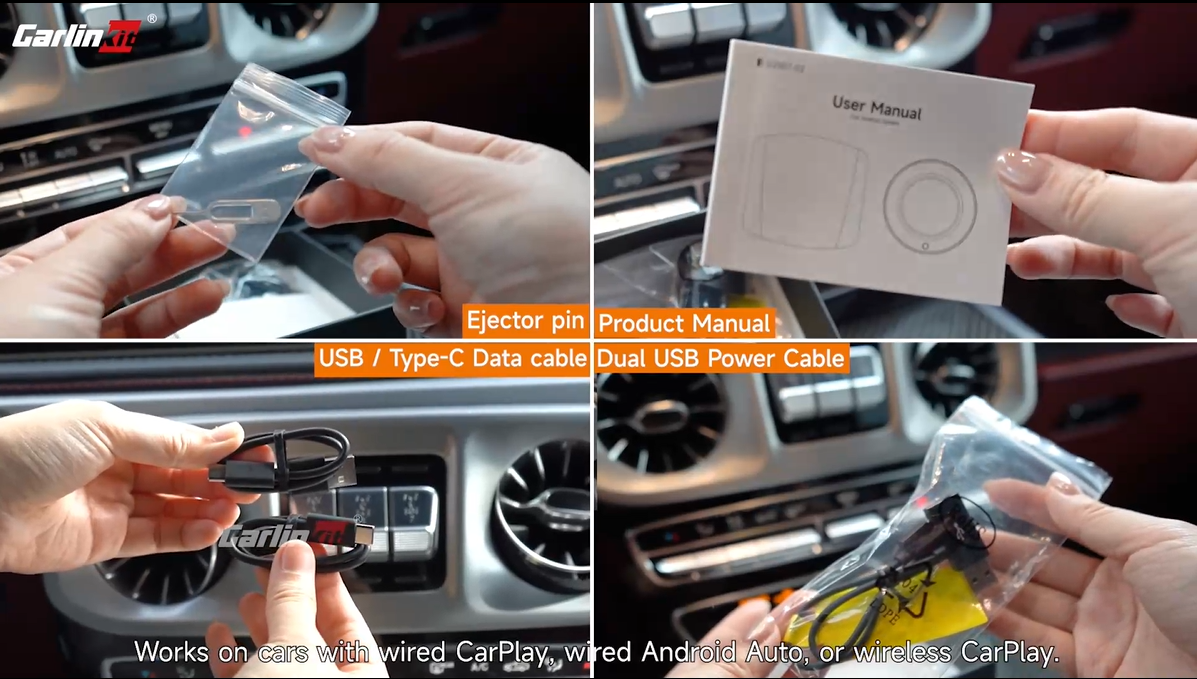
Open the package and you'll find the main unit, an eject pin, a user manual, a dual-USB power cable, and a USB to USB-C data cable.

The USB to USB-C cable is the one that matters most. It connects the device to your car, powers it, and handles the data connection at the same time. The eject pin is for the SIM and microSD card slots (expandable up to 512GB). The dual-USB power cable is a backup, for certain vehicles (some Toyota models, for example) where the USB-C port alone doesn't supply enough power for the device to boot properly. If that happens, plugging in this second cable solves it.
Setup Takes About 30 Seconds
Plug it into your car's existing CarPlay USB port and start the car. The screen briefly shows your factory CarPlay interface while the device is detected, then switches to Android 15 after about thirty seconds.
On the back of the unit there's a SIM slot and a microSD slot. Insert a SIM card and the Ultra 3 gets its own data connection, 5G where available and 4G otherwise. That means navigation and music keep working even if your phone is dead or out of signal. No SIM card is fine too. The device connects through a phone hotspot or WiFi just as easily.
Every time you start the car after that, the same handoff happens automatically. No reconnecting, nothing to set up on your phone.
The LCD Screen Is the Real Upgrade
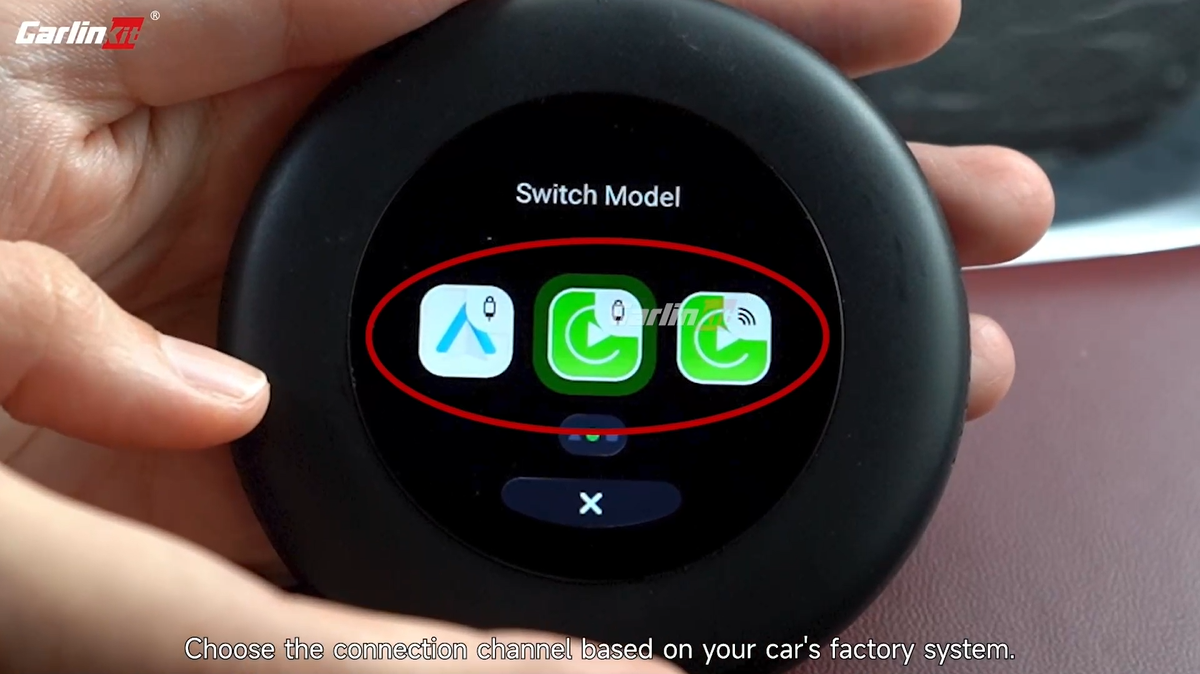
The first time I saw the small circular screen on the device, I assumed it was just a status display. It does more than that. It handles two things.
The first is switching connection modes. Three icons appear on the screen: a square for Wireless CarPlay, a circle for Wired CarPlay, and a triangle for Wired Android Auto. Tap the screen to switch between them, no need to dig through car menus.
The second is "mouse mode." Turn it on and the entire LCD becomes a trackpad for controlling your car's main screen. This matters for two kinds of vehicles: ones where the main display sits far from the driver, common in larger SUVs and MPVs, and ones where the main display isn't touch-enabled at all. Either way, a passenger in the front or back seat can use this small screen to control what's on the main display.
Android 15: More Than a Screen, More Than One App
Once connected, the car's screen is running full Android 15. The Play Store opens directly, and apps like YouTube, Netflix, Spotify, and TikTok install and run normally. These are apps that factory systems either don't include at all, or only show through phone mirroring. Here, they're installed on the device itself.
In practice, almost nobody runs just one app while driving. Navigation stays open. Music plays in the background. A passenger might be watching something. These things tend to happen at the same time, and the Ultra 3 can display more than one app on screen at once, navigation on one side and video or music on the other. For long drives, that means not having to decide whether to bring a tablet along.
The same multitasking applies to games. The chipset handles a casual game running alongside navigation without the kind of lag that makes a passenger give up halfway through a level.
Compatibility: Lower Bar Than You'd Expect
Compatibility is usually the first worry with any AI box. In practice, the Ultra 3's requirements are simpler than most people assume.
If your car has factory CarPlay, wired or wireless, it almost certainly works. There's no disassembly and no rewiring involved.
What stands out isn't really Android 15, 5G, or the storage.
It's that the device has moved past simply "putting Android in the car" and toward something built more specifically for how people actually use a car screen.
The LCD screen, the independent connection, the multitasking. None of these feel huge on their own. Together, they make day-to-day use a bit smoother. If you're used to CarPlay but keep feeling like your factory system can't do enough, the Ultra 3 is worth a closer look.
Full specs, compatibility, and ordering details