
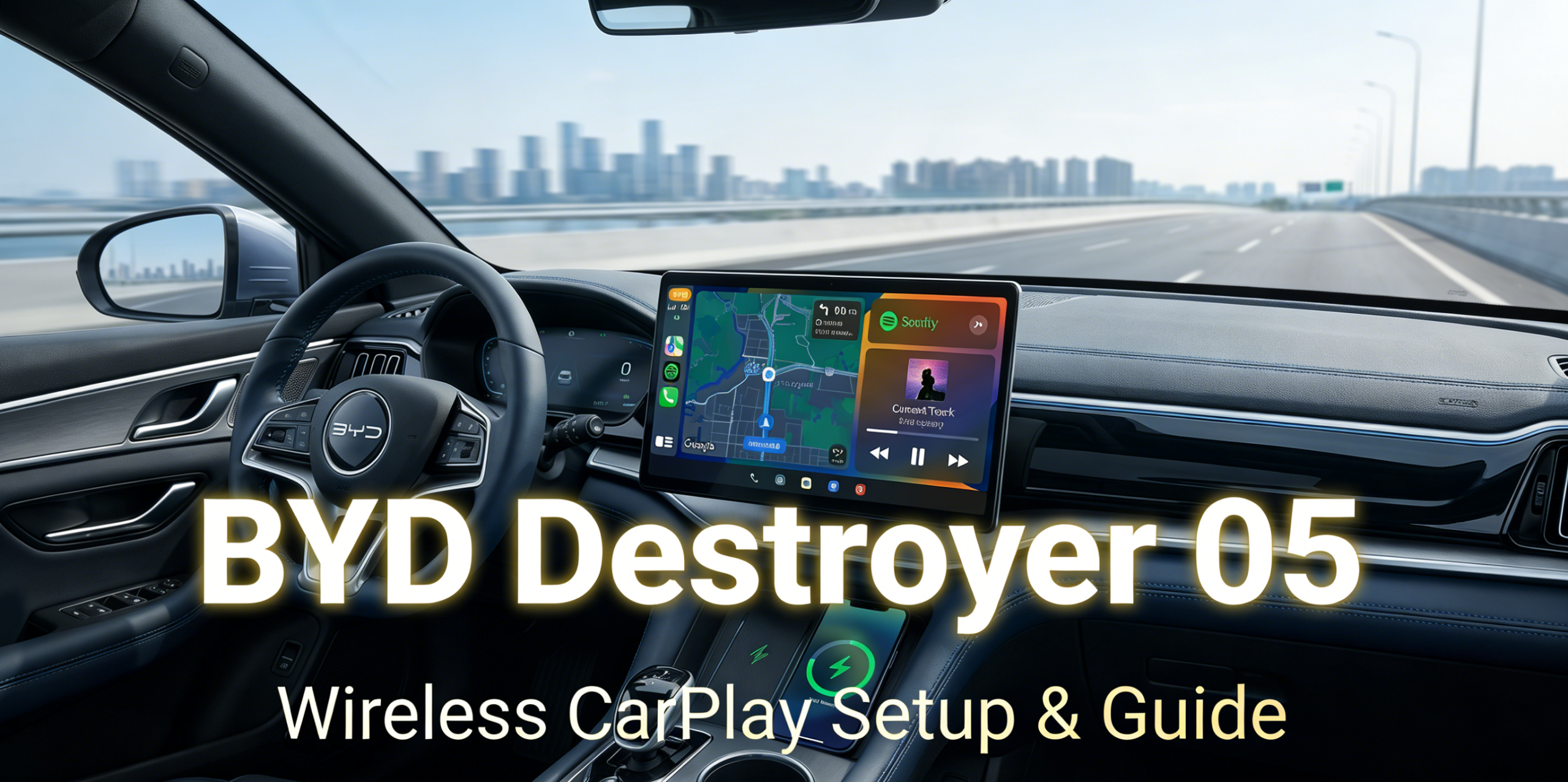
BYD Destroyer 05
Wireless CarPlay
Complete Guide
Everything you need to set up, optimize, and troubleshoot Apple CarPlay on your Destroyer 05 — with or without a cable.
The BYD Destroyer 05 & Apple CarPlay
The BYD Destroyer 05 (known globally as the BYD King or Chazor) sets a new benchmark for plug-in hybrid sedans. One of the most notable features of its 2024–2026 models is native wireless Apple CarPlay support. Say goodbye to tangled Lightning cables; the modern BYD smart cockpit is designed for a cable-free lifestyle.
In this guide we cover which Destroyer 05 models ship with factory wireless CarPlay, how to optimize your DiLink system for best connectivity, and how to resolve the common "handshake" issue. For a broader overview of BYD CarPlay compatibility across all models, see our complete BYD CarPlay wired vs wireless guide →
Which Models Come with Factory Wireless CarPlay?
Not all Destroyer 05 models share the same feature set. Depending on your region (Australia, Brazil, Mexico, or Southeast Asia) and production year, hardware features may vary:
2024–2026 Flagship Trims
DiLink 4.0 (5G) or DiLink 5.0 — wireless CarPlay factory-enabled out of the box.
12.8″ & 15.6″ Rotating Screens
If your Destroyer 05 has a large rotating screen with crystal-style UI icons, wireless connectivity is built in.
OTA Unlock (Early 2023)
Some 2023 owners report that OTA updates unlocked the wireless toggle in Settings > Connections > Apple CarPlay.
Expert Tip: Check Your Console
If your car has a wireless charging pad, it almost certainly supports wireless CarPlay too.
Wired vs Wireless CarPlay: Full Comparison
Not sure whether to stick with the cable or go wireless? This table covers every decision point — from daily convenience to screen rotation friction.
| Feature | Wired CarPlay | Wireless CarPlay |
|---|---|---|
| Setup Time | Instant (plug & play) | 30 sec first-time pairing |
| Cable Required | ✗ Yes – Lightning / USB-C | ✓ No – fully cable-free |
| Auto-Connect on Start | ✗ Manual every trip | ✓ Automatic on engine start |
| Screen Rotation Risk | ✗ Cable may snag / disconnect | ✓ Zero friction, seamless |
| Phone in Pocket | ✗ Must be plugged in | ✓ Stay in your bag or pocket |
| Battery Charging | ✓ Charges via cable | Use wireless charging pad |
| Best For | Occasional users | Daily drivers & families |
Not on the wireless list yet? Our BYD Wireless CarPlay AI Box bridges the gap instantly — plug in, pair once, and every future start is automatic.
Benefits of Native Wireless Connectivity
- Instant Startup: Press Start and your iPhone syncs via high-speed 5GHz Wi-Fi. Spotify resumes playback before you back out of your lane.
- Full-Screen Display: Native connectivity is optimized for BYD's rotating screen. Whether in landscape (navigation) or portrait (music) mode, the UI adjusts seamlessly — no stretching, no distortion.
- Siri Integration: Use the Voice button on the steering wheel to trigger hands-free texting, keeping your eyes on the road.
- Zero Cable Hassle: Especially critical with the Destroyer 05's rotating screen — a stiff cable can snag mid-rotation and cause accidental disconnections.
How to Connect Wireless CarPlay on the Destroyer 05
First-time setup is straightforward. Follow these steps for a stable, persistent connection:
- Enable Bluetooth & Wi-Fi on Your iPhone
Both must be active. CarPlay uses Bluetooth for the initial handshake and 5GHz Wi-Fi for data transfer.
- Navigate DiLink: Settings > Connections > Apple CarPlay
This is the dedicated CarPlay settings path on DiLink 4.0 and 5.0 systems.
- Select "Add New Device"
Find your iPhone's name on the screen and tap it to initiate pairing.
- Confirm on Your iPhone
Tap "Use CarPlay with BYD BT" when the prompt appears.
- Let the Wi-Fi Handshake Complete
The vehicle automatically establishes a dedicated Wi-Fi network for data transfer. Do not manually disconnect this network — doing so breaks the connection.
After the first pairing, your Destroyer 05 will auto-connect every time you start the engine — no steps required. The entire process is one-time only.
Optimize Your Experience: Avoid Disconnections
- Turn Off Personal Hotspot: An active iPhone hotspot can conflict with the CarPlay Wi-Fi signal, causing drops or failed handshakes.
- Update DiLink Regularly: Check System Settings for OTA patches — BYD releases regular Bluetooth stability improvements.
- Temperature Management: Wireless CarPlay + wireless charging can overheat your iPhone. On long summer drives, use the AC vents to keep the phone cool and prevent thermal throttling.
- 2.4GHz Interference: If you experience audio lag, access the adapter's backend (usually 192.168.50.2) and switch to the 5GHz band.
Troubleshooting: Common Destroyer 05 CarPlay Issues
🖤 Black Screen on Boot
Unplug the adapter, wait 10 seconds, and re-insert. Ensure your iPhone's Wi-Fi is enabled and the hotspot is off.
🔁 Hard Reset DiLink
Hold the volume wheel on the center console for 10 seconds until the DiLink system restarts. This clears the system cache but does not delete your data.
📵 Ignore & Re-Pair
In iPhone Bluetooth settings, tap "Forget" on the BYD device. Then go to Settings > General > CarPlay, remove the vehicle, and restart the pairing process from Step 1.
⏱ Check Screen Time Restrictions
Ensure CarPlay is not blocked in Settings > Screen Time > Content & Privacy Restrictions > Allowed Apps.
Still Using a Cable?
Upgrade to wireless CarPlay for BYD today. Plug in once, pair once — every start is automatic from that point on.
✦ View BYD Wireless CarPlay AI Box →★★★★★ Verified Customer Orders
Frequently Asked Questions
Can I use wireless CarPlay and BYD Navigation simultaneously?
Yes, but only one can be displayed on the home screen at a time. For more accurate real-time traffic information, we generally recommend using Google Maps or Waze with CarPlay — both integrate seamlessly with the Destroyer 05's rotating screen.
Will wireless CarPlay drain my iPhone battery?
Wireless CarPlay consumes more power than the wired connection. For trips exceeding 30 minutes, place your phone on the Destroyer 05's built-in wireless charging pad to maintain battery level throughout your journey.
What if my Destroyer 05 only has wired CarPlay?
If your vehicle doesn't have a built-in wireless Wi-Fi module, you can easily upgrade using our BYD Wireless CarPlay AI Box — a plug-and-play USB device that requires zero modifications, no coding, and no dealership visit. Setup takes under 30 seconds.
Does the BYD Destroyer 05 support Android Auto?
Most international versions of the Destroyer 05 support both wired and wireless Android Auto natively, alongside CarPlay. Feature availability varies by region and DiLink version.
Will using a wireless adapter void my BYD warranty?
No. Wireless CarPlay adapters and AI boxes are external USB peripherals. They make zero permanent changes to the vehicle's ECU, hardware, or software. Unplug at any time and the car returns exactly to factory condition.
Can I still use the BYD voice assistant with CarPlay active?
Yes. "Hey BYD" continues to control car functions (AC, windows, seat heating). The steering wheel voice button (long press) will activate Siri for CarPlay functions. Both coexist without conflict.
Wireless CarPlay on the Destroyer 05: Pros & Cons
✓ What Works Exceptionally Well
- Auto-connects every start — truly set and forget
- Optimized for the rotating screen in both orientations
- 5GHz Wi-Fi delivers stable, low-latency audio
- Works alongside "Hey BYD" voice control
- Wireless charging pad keeps phone topped up
- Zero cable to manage or damage during rotation
! Limitations Worth Knowing
- Not available on all trims — check your DiLink version
- Uses slightly more iPhone battery than wired
- Personal hotspot must stay off during use
- Congested 2.4GHz environments may cause lag
Conclusion: The Future of BYD Connectivity
The CarPlay ecosystem in the BYD Destroyer 05 represents the pinnacle of automotive convenience. With its built-in wireless capability, the DiLink system bridges the gap between your digital life and your driving experience. By following the optimization steps above, you can ensure that every journey is connected, entertained, and cord-free.
Ready to enhance your BYD smart cockpit? Explore our full range of DiLink-compatible wireless CarPlay accessories and stay ahead of the curve.