
How to Add Apps to CarPlay: The Ultimate 2026 Guide
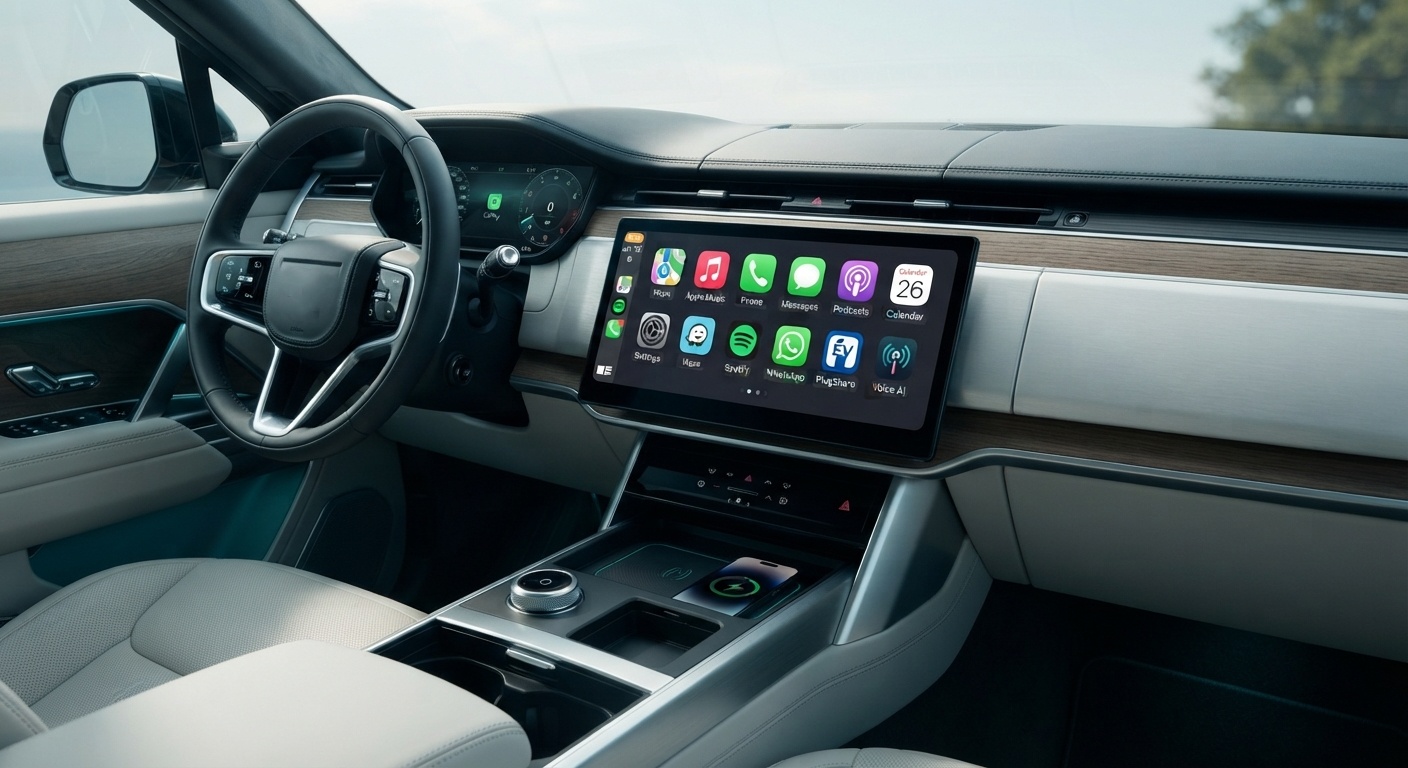
Ever stared at your car's dashboard wondering, "Why on earth won't the app I just downloaded show up on my screen?" If so, you're definitely not alone.
CarPlay doesn't work quite like your phone's home screen. There's no dedicated App Store to browse from your driver's seat, and Apple has strict rules about which apps are allowed to join you for the ride. Here's how to add apps to CarPlay, what's actually possible, and how to fix the ones that refuse to show up.
What "Adding Apps to CarPlay" Actually Means
Here is the big secret: You don't actually download apps to CarPlay.
CarPlay simply mirrors a curated selection of apps already installed on your iPhone. If an app supports CarPlay and lives on your phone, you can pull it onto your car's display—no separate car-install step required.
However, having it on your iPhone is only half the battle. The app must be built specifically to support Apple's CarPlay framework. If the developer didn't code a car-friendly version, it simply won't appear as an option.
What CarPlay Apps Can (and Can't) Do
Apple carefully gates the types of apps allowed on your dashboard for safety reasons. Here is what makes the cut:
- Navigation — Apple Maps, Google Maps, Waze, etc.
- Audio — music, podcasts, audiobooks (Spotify, Apple Music, Audible).
- Communication — calls and messaging, mostly hands-free via Siri.
- EV charging & parking — tools to find juice or a spot.
- Driving tasks — mileage loggers and fuel tools.
- Voice assistants — conversational AI apps, a category added in early 2026.
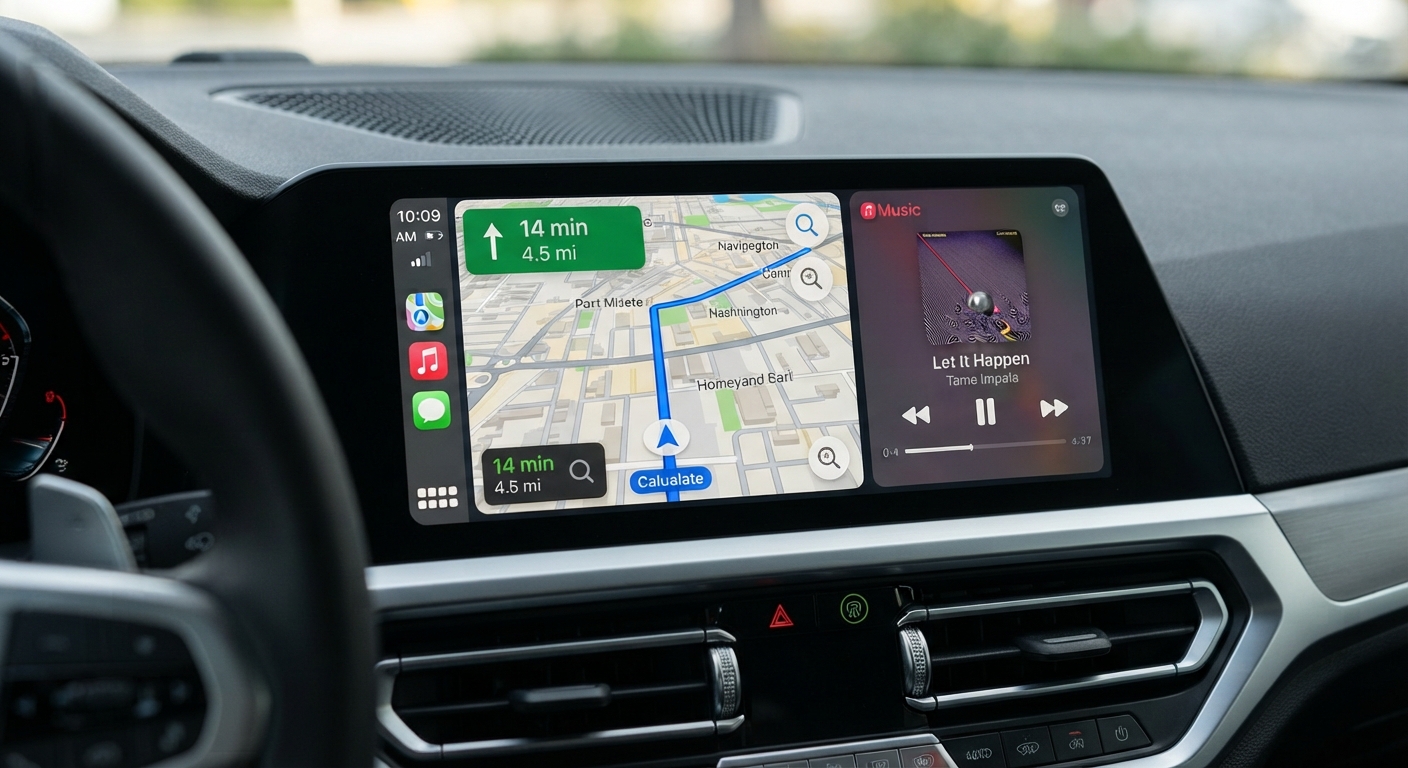
What's off-limits? Video streaming apps like Netflix, YouTube, or Disney+. Apple strictly bans video playback on standard CarPlay to keep your eyes on the road. It's not a glitch—it's a safety feature that's here to stay.
Step-by-Step: How to Add and Arrange Apps on CarPlay
Got a supported app ready on your phone? Here is how to get it onto your dashboard in seconds:
- Make sure the app is installed on your iPhone first. (Remember, it needs to fall into one of the supported categories above.)
- Open Settings on your phone.
- Tap General, then select CarPlay.
- Choose your vehicle from the paired list.
- Tap Customize.
- Scroll down to More Apps and tap the green + next to the app you want to add.
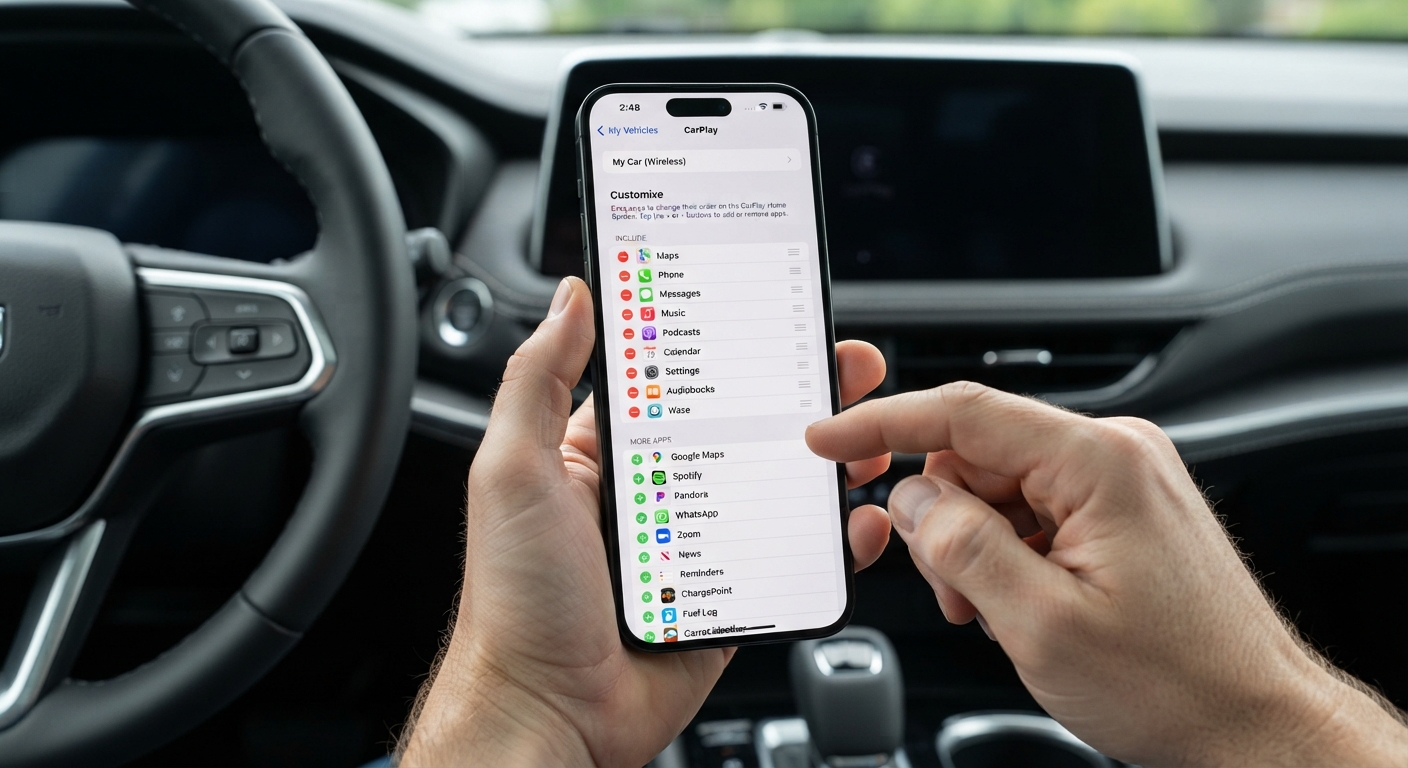
Pro tips: to reorder apps, press and hold the three lines next to an app and drag it into position—apps higher on the list appear earlier on your screen. To remove one, tap the red – sign.
That covers the apps Apple allows. If what you actually want is video, a broader app library, or an Android-style experience on your stock screen, that's a different beast—and one we'll touch on below.
Why an App Still Won't Show Up After You've Done This
Stuck with an empty "More Apps" list even after following every step? A few culprits are usually to blame:
- Zero CarPlay support — the app's developer never built a car interface for it. Being on your phone isn't enough, and no setting on your end can force it.
- Outdated iOS — newer categories (like 2026's voice assistants) require a current iOS version. If your phone hasn't been updated in a while, compatible apps might still look unavailable.
- Needs a refresh — occasionally an app shows up in your iPhone settings but lags on the car screen until you disconnect/reconnect or restart the car.
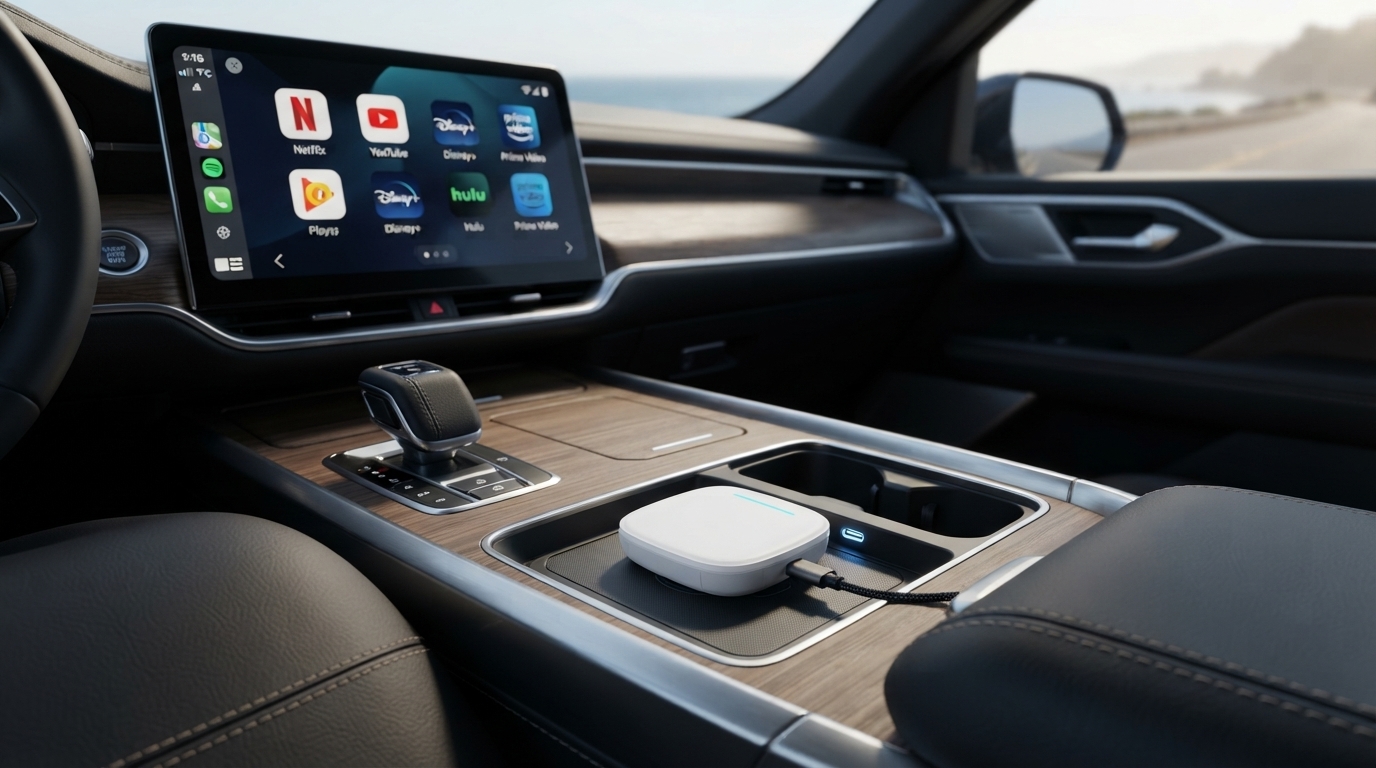
Looking for video? If you want to stream Netflix or YouTube, standard CarPlay won't work. Many drivers use a CarPlay AI Box (like the TBox series) which plugs in and runs an independent Android system alongside CarPlay to bypass these restrictions without modifying your iPhone.
FAQ
Why doesn't my app show up on CarPlay even though it's installed on my iPhone?
Being installed isn't enough—the app must be built with CarPlay support by its developer. If it's not part of Apple's approved categories, it will never appear in the More Apps list, regardless of your settings.
Can I watch Netflix or YouTube on CarPlay?
Not through standard CarPlay. Apple blocks video streaming apps in the CarPlay interface for safety reasons. Some drivers bypass this using a separate Android-based AI Box that runs alongside CarPlay rather than inside it.
Is there a way to add apps without jailbreaking my phone?
Yes, and jailbreaking is definitely not recommended! Every app in Apple's supported categories can be added the standard way via Settings > CarPlay > Customize. For apps outside those categories, a CarPlay AI Box like the Max Ultra AI Box offers a safe, unmodified way to run more apps without touching your iPhone's software.
Do I need to update my iPhone to get new CarPlay app categories?
Yes. Apple regularly expands supported app categories—like the voice-assistant apps introduced in early 2026. If your phone is running an older iOS version, you might not see these new categories available yet.
What's the difference between a CarPlay app and an AI Box running its own apps?
A CarPlay app mirrors your iPhone and is restricted to Apple's approved categories. An AI Box runs its own independent Android system directly on your car's screen, freeing it from CarPlay's limitations so it can support things like video apps.
Source note: App category and policy details in this guide reflect Apple's official CarPlay Developer Guide (last revised June 2026).