Short answer: The factory app store does not include Netflix. A test on European vehicle software found YouTube in the store but no Netflix, while sideloaded copies refused to play. The most reliable way to stream Netflix on BYD Sealion 7 screens is via a plug-in Android AI Box that operates Google Play apps through the car's wireless CarPlay connection. In Australia, remember that video playback is strictly for when you are parked.
If you are still exploring what your BYD supports out of the box, start with our guide to whether BYD has Apple CarPlay, then return here for streaming solutions.
| Option | Netflix plays? | Effort | Best for |
|---|---|---|---|
| Factory app store | No (not listed) | None | YouTube only |
| Sideloading an APK | Installs, but shows "device not supported" | High, unofficial tools | Tinkerers who accept risks |
| CarPlay / Android Auto | No video apps allowed | None | Navigation, music |
| HDMI adapters | Not applicable (no factory HDMI input) | Medium | Other vehicles |
| BYD-specific AI Box | Yes, via Google Play | Low, plug-and-play | Most Sealion 7 owners |
Does the BYD Sealion 7 have Netflix built in?
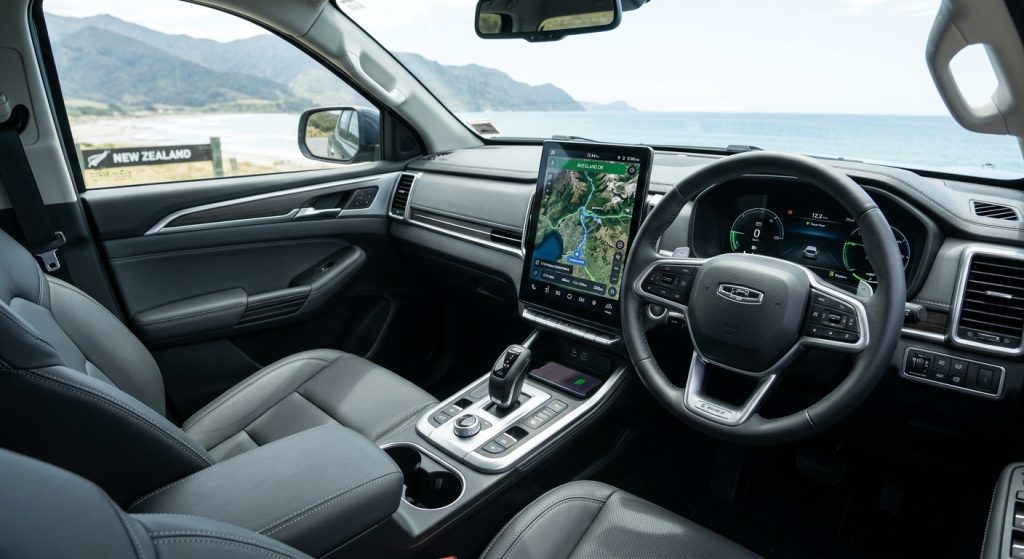
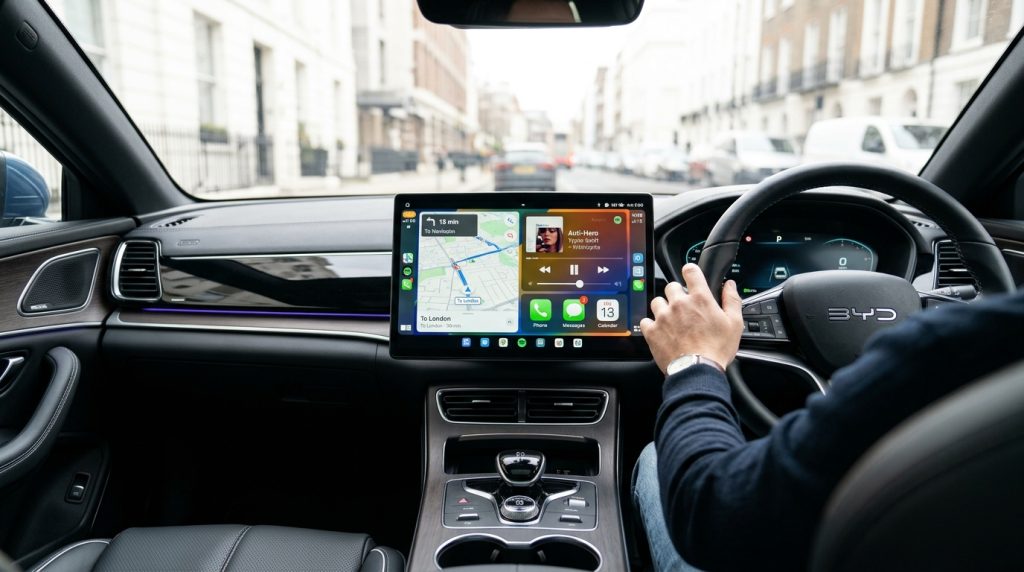
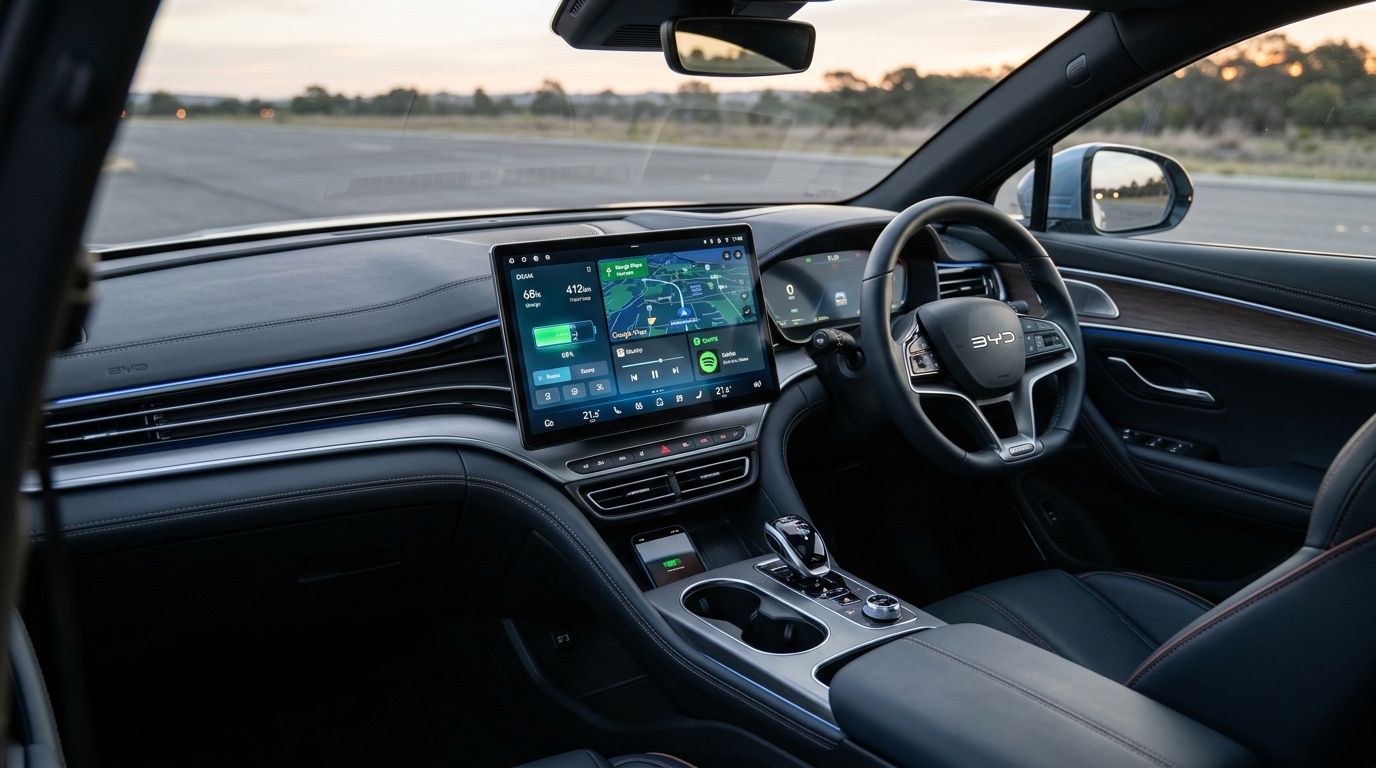
No. The Sealion 7 features a 15.6-inch rotating screen running BYD's DiLink software, accompanied by a curated app store. Tests on recent software builds confirmed YouTube in the store, but no native Netflix or Amazon Prime Video.
Australian models may feature slightly different localized firmware, so you can check your system directly in under a minute:
- Open the App Centre on the main screen and search for "Netflix".
- If it does not appear, there is currently no official way to install it natively.
- Re-check after major over-the-air (OTA) updates, as store offerings are subject to change.
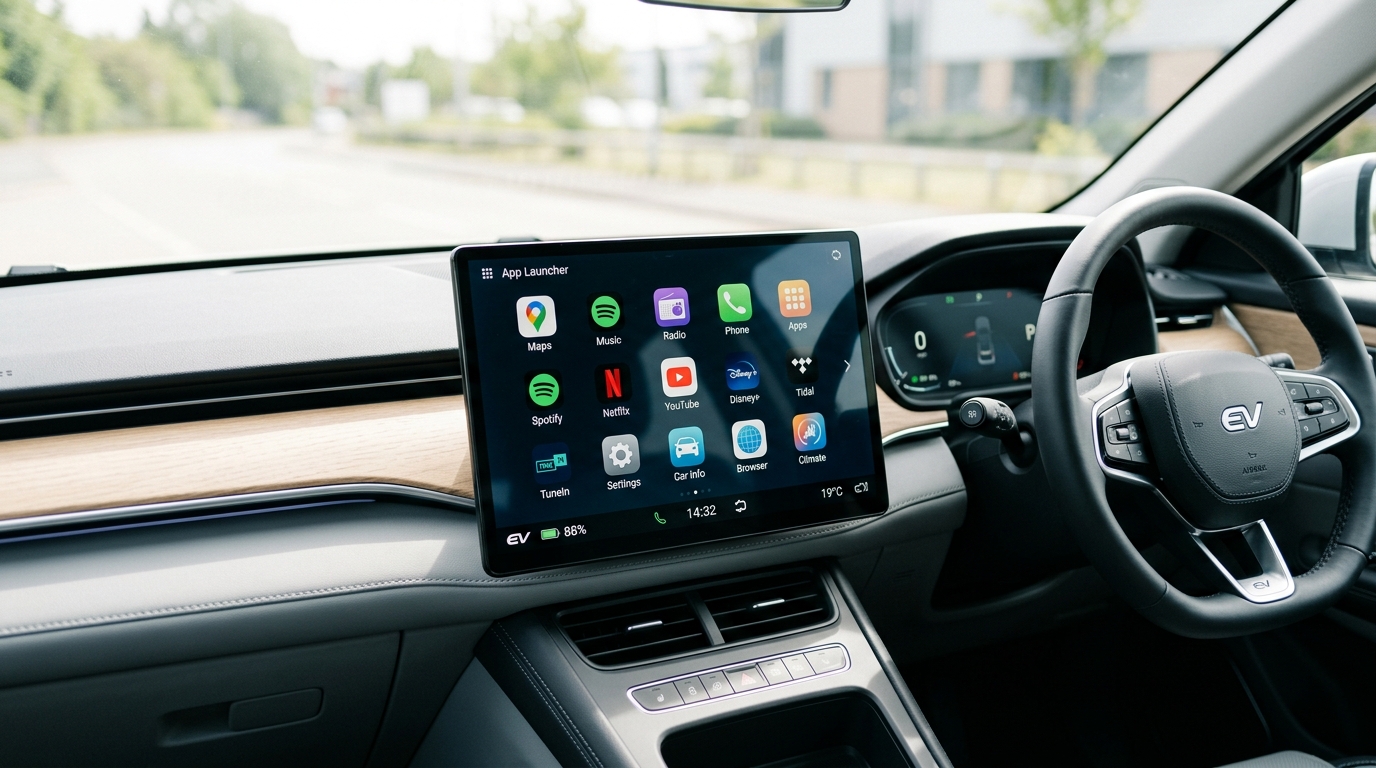
Tip: Do not confuse YouTube in the factory store with full streaming app support. Platforms like Netflix, Stan, and Kayo each require separate DRM certifications.
5 ways to get Netflix on BYD Sealion 7, compared
Option 1: The factory app store
Free and seamless, but only useful if Netflix is officially released for your vehicle's region. Currently, the store primarily supports YouTube for video content.
Option 2: Sideloading an Android APK
Some users attempt to install Android APKs via hidden service menus. In verified testing, Netflix installed successfully but failed to stream, returning a "device not supported" DRM error. Disney+ encountered black-screen audio issues, while Prime Video failed installation entirely.
Sideloading introduces unnecessary security risks to your vehicle's infotainment system, and future BYD software updates may restrict or revert these modifications.
Option 3: CarPlay, Android Auto and AirPlay video
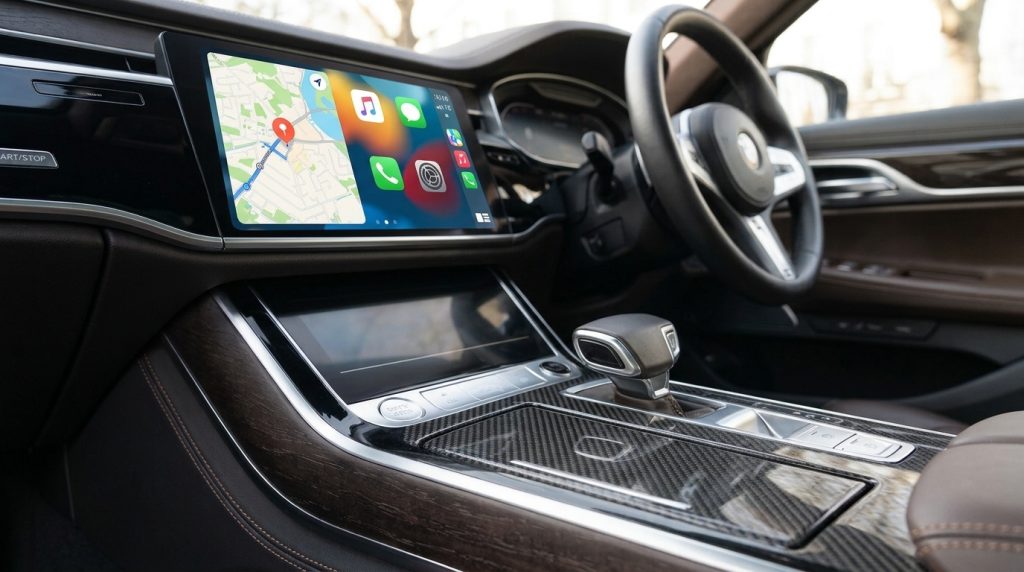
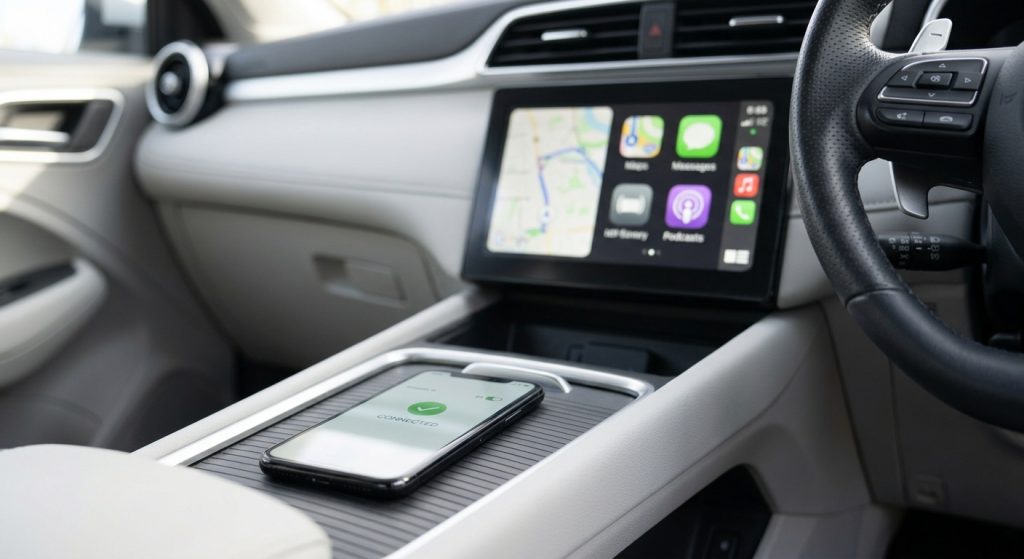
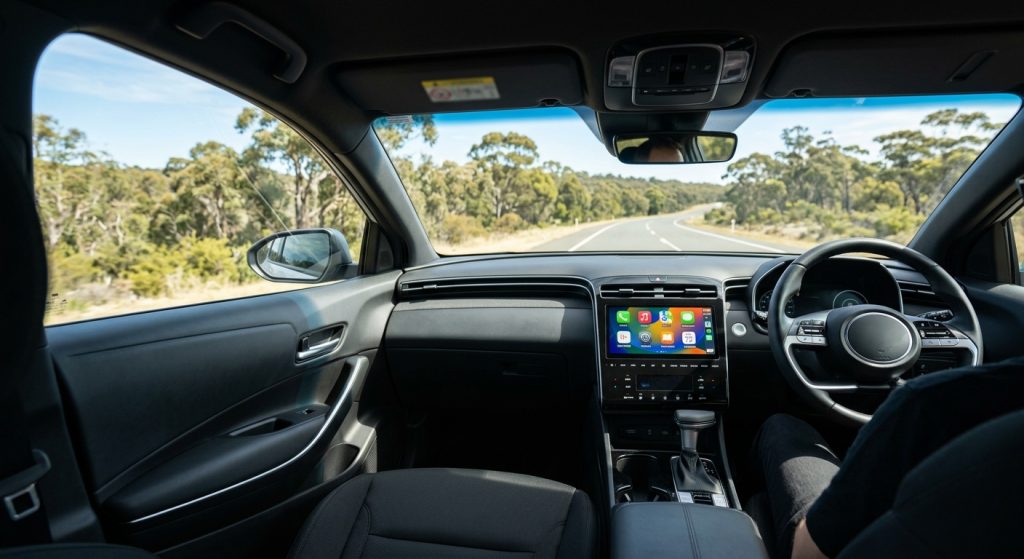
Standard Wireless Apple CarPlay works reliably on the Sealion 7, but native CarPlay and Android Auto protocols deliberately block video streaming apps. Additionally, CarPlay remains fixed in landscape mode on rotating screens.
While Apple updates have expanded AirPlay video capabilities for select stationary vehicles, Netflix does not support AirPlay casting to vehicle head units.
Option 4: HDMI adapters
HDMI-to-CarPlay adapters allow connection of external streaming sticks. However, the Sealion 7 does not feature a factory HDMI input. For more details on port specifications, refer to our Sealion 7 HDMI input guide.
Option 5: A BYD-specific AI Box
An AI Box is a compact Android multimedia module that plugs into the vehicle's data USB port and interfaces seamlessly through the wireless CarPlay system. Our Multimedia Android & iOS AI Box for BYD features:
- Android 13 OS powered by a Qualcomm 8-core processor with 8GB RAM and 128GB storage
- Direct access to Google Play Store, supporting Netflix, YouTube, Stan, Kayo, ABC iview, SBS On Demand, and Disney+
- Connectivity options via 4G SIM card slot, Wi-Fi, or personal phone hotspot
- Full integration with BYD touchscreen, center console controls, and steering wheel buttons
- Tailored firmware compatibility specifically for the BYD Sealion 7
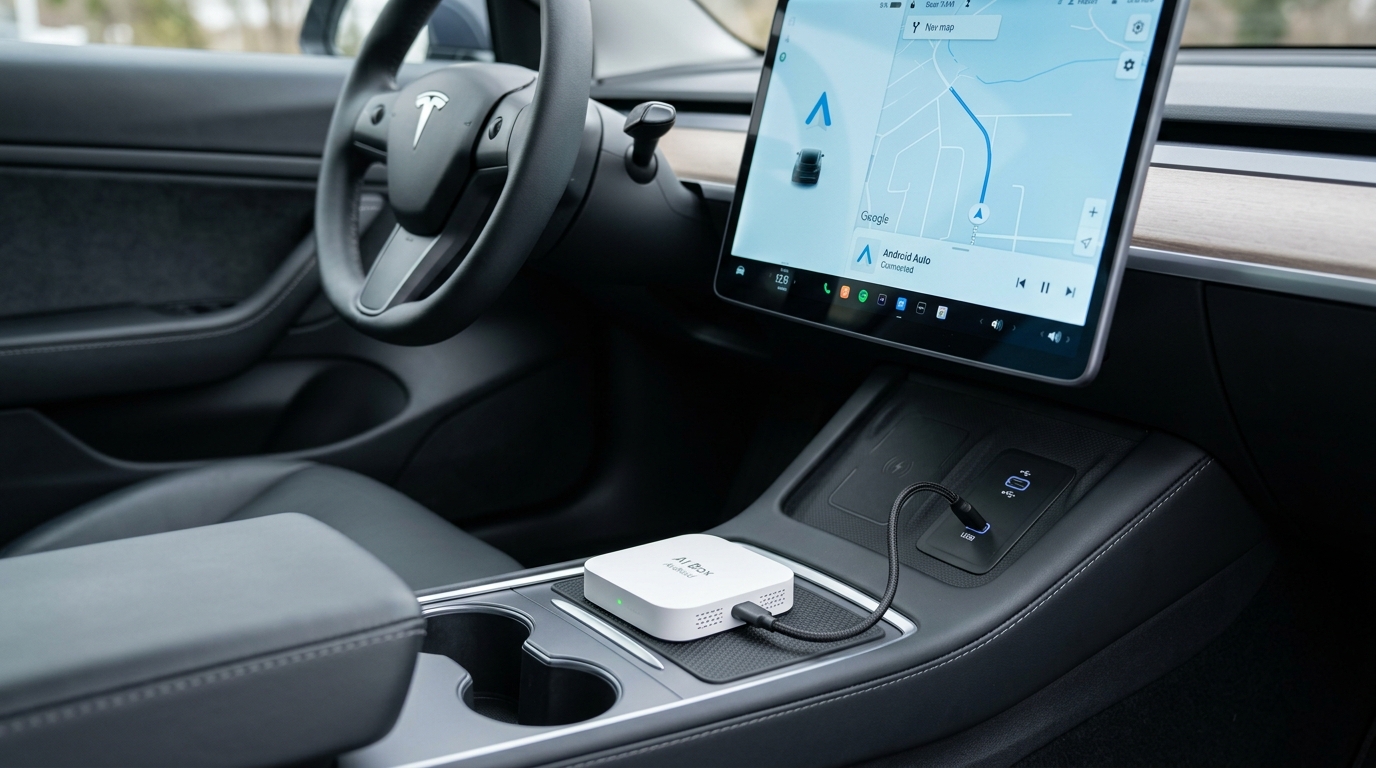
To view the full compatibility kit, visit the BYD Sealion 7 AI box product page.
Before you buy: a 30-second compatibility check
The BYD AI Box initializes via the vehicle's native Apple CarPlay interface. Perform this quick check before ordering:
- Disconnect your phone's cable and check for CarPlay / Android Auto settings on the infotainment screen.
- Connects wirelessly? Your vehicle supports wireless CarPlay, making the BYD-specific AI Box fully compatible.
- Requires a cable connection? Select an AI Box configured specifically for wired CarPlay systems.
Australian Sealion 7 models typically feature factory wireless CarPlay. If you need assistance verifying your specific build, contact our support team with your model year and trim details.
Setup guide: Netflix on your Sealion 7 in three steps
Complete this setup while parked with the ignition turned on.
- Clear existing connections. On your phone, forget previous CarPlay, Bluetooth, and Wi-Fi pairings associated with the vehicle. Remove the phone from the vehicle's device list to prevent connection conflicts.
- Plug in the AI Box. Connect the device to the primary USB data port (located in the lower center console compartment). Ensure wireless CarPlay is enabled in DiLink settings. If the device does not initialize, test the alternative USB port, as secondary ports may be power-only.
- Configure and download. Sign into your Google Play account, download Netflix (along with regional apps like Stan or Kayo), sign in, and re-pair your smartphone for wireless pass-through.
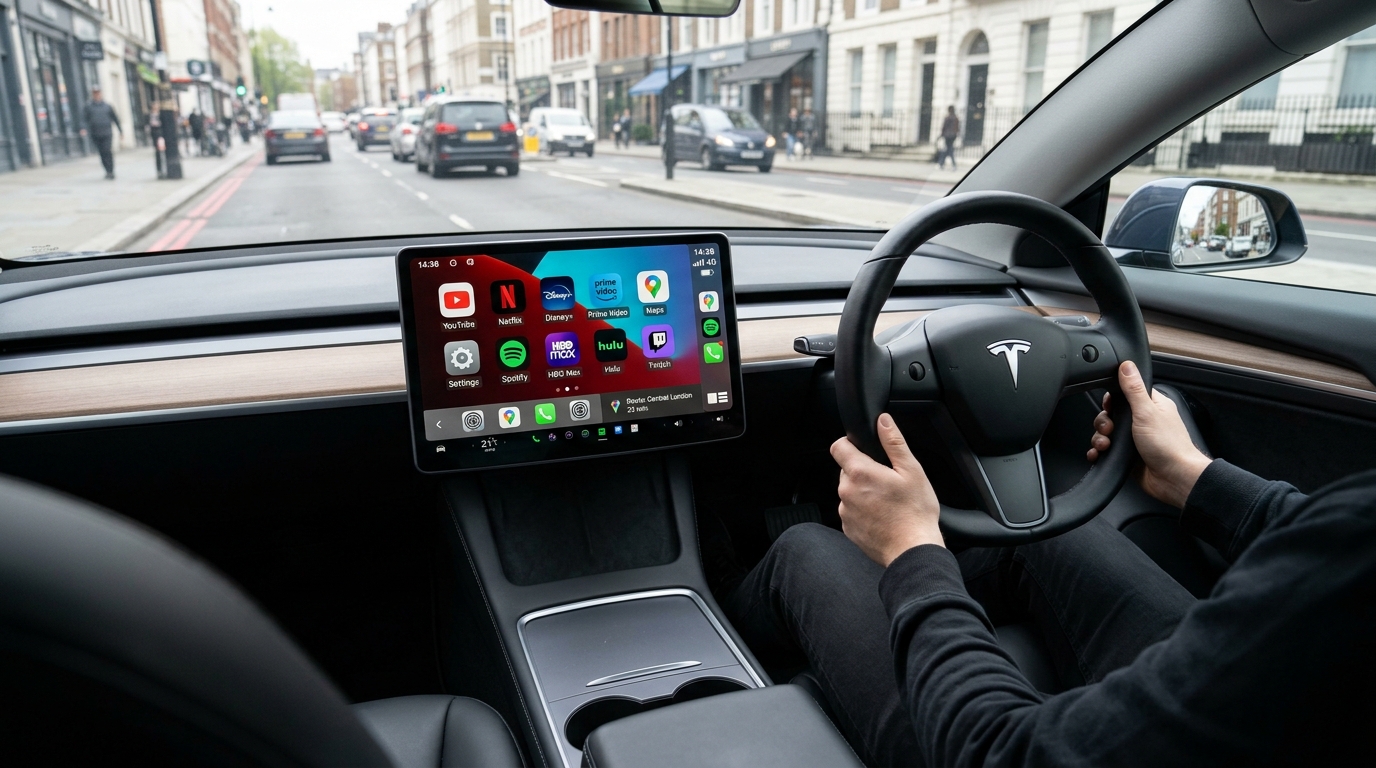
Data Tip: Mobile hotspots work well for casual viewing. For frequent streaming during charging sessions, inserting a dedicated 4G SIM card into the AI Box preserves smartphone battery life and mobile data limits.
You can instantly toggle back to the original DiLink interface with a single tap. Climate adjustments and steering wheel functions remain fully operational.
Watching legally in Australia: parked only
Under Australian Road Rules (e.g., Rule 299), operating a TV or visual display screen showing video content visible to the driver while driving or stationary (such as at traffic signals) is strictly illegal. Fines and demerit points apply across all states and territories (e.g., NSW, VIC, QLD).
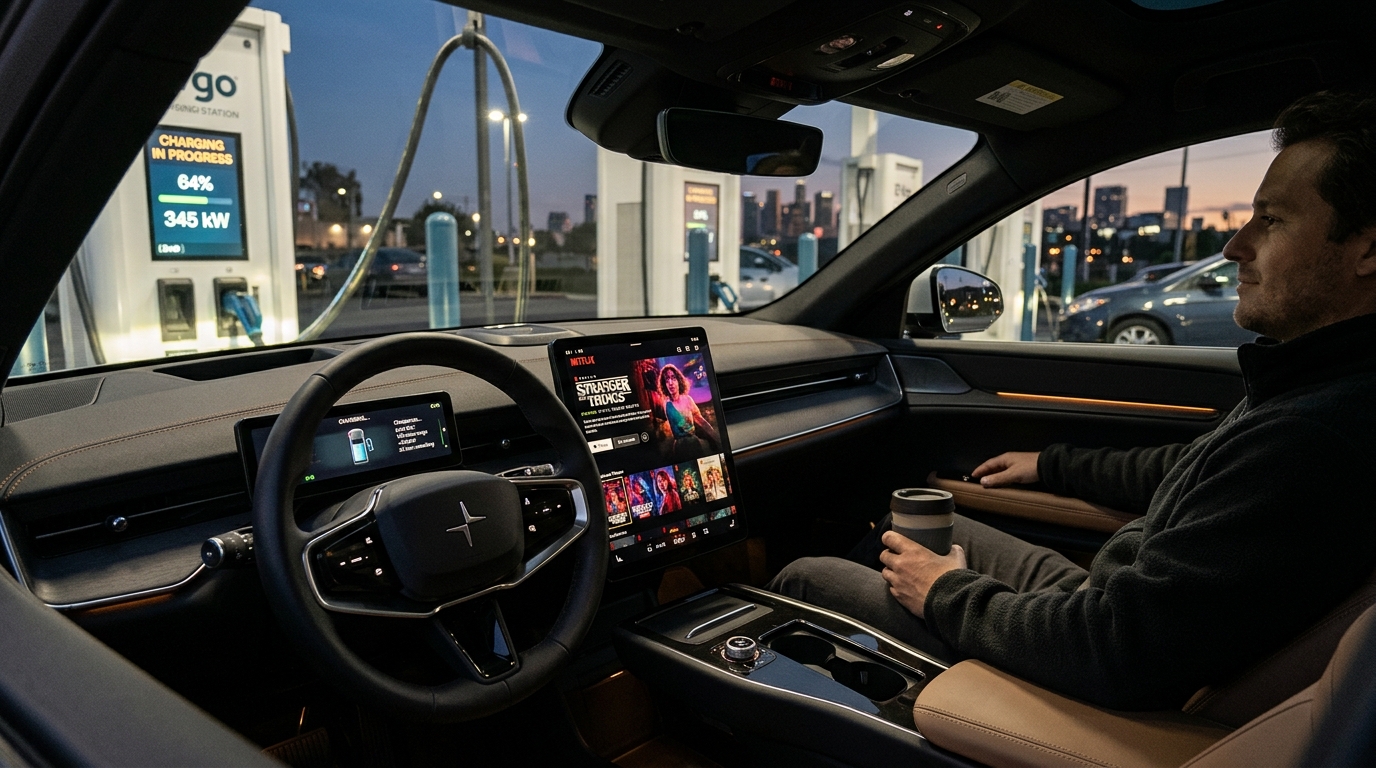
- Stream video content exclusively while parked: at EV charging stations, parking lots, or rest stops.
- Screens visible to the driver must not display non-driving video while the vehicle is in motion.
- Always check local state transport regulations for current enforcement and penalty details.
Troubleshooting common problems
If you encounter issues during setup, review these common solutions:
- Device not detected: Verify wireless CarPlay is active in DiLink settings and confirm the USB port supports data transfer.
- Phone overrides connection: Previous Bluetooth/CarPlay profiles are taking priority. Clear pairings on both phone and vehicle.
- Streaming buffering: Inspect 4G SIM signal or mobile hotspot connectivity. Underground parking or enclosed charging stations may experience reduced signal strength.
- Display orientation: CarPlay-based video output displays standard landscape aspect ratio on the rotating screen.
FAQ
Does the BYD Sealion 7 have Netflix?
Not natively in the factory app store on current firmware. While YouTube is available in many builds, Netflix is not listed. For reliable access to Netflix, an Android AI Box with Google Play integration provides the standard solution.
Can I sideload Netflix onto the Sealion 7?
Sideloading is not recommended. Published tests indicate that while Netflix APKs may install, DRM protection triggers a "device not supported" error upon playback. Additionally, sideloading uses developer access paths that OTA software updates may disable.
Can I watch Netflix through Apple CarPlay?
No. Standard Apple CarPlay protocols restrict video playback apps like Netflix. A dedicated Android AI Box operating through the CarPlay interface provides full streaming app functionality.
Does an AI Box modify my vehicle's firmware?
No. The AI Box operates externally through the existing CarPlay protocol via USB. It leaves vehicle system software untouched, and you can revert to the native DiLink screen instantly.
Can passengers watch Netflix while driving?
No. Australian Road Rules prohibit driver-visible screens from displaying video playback while the vehicle is moving or stopped in traffic. Stream video only when safely parked.
Your next step
Perform the 30-second wireless CarPlay verification on your vehicle. If your smartphone connects wirelessly, the Multimedia Android & iOS AI Box for BYD offers a straightforward way to enable Netflix streaming during your charging stops.
See the AI Box for BYD