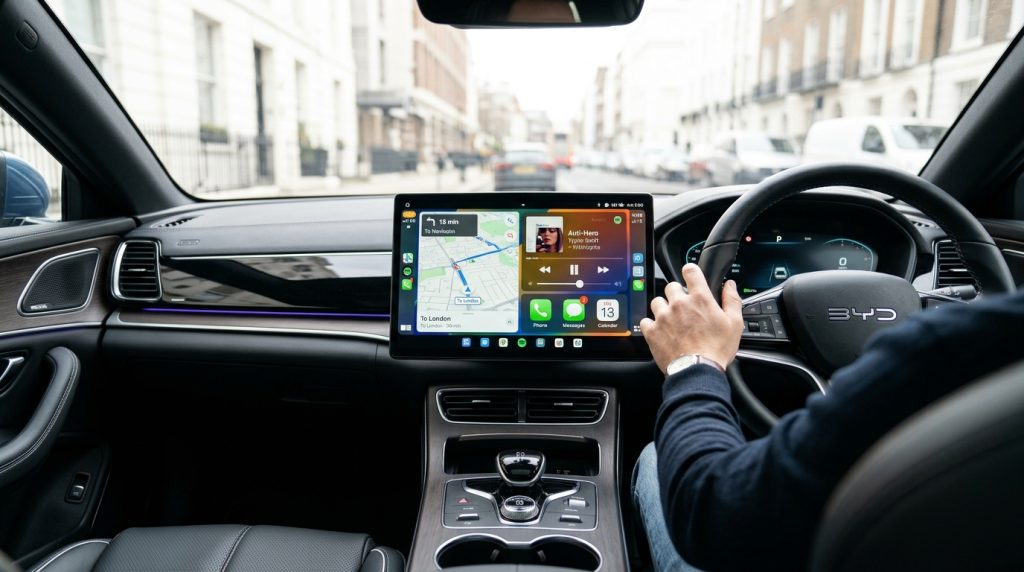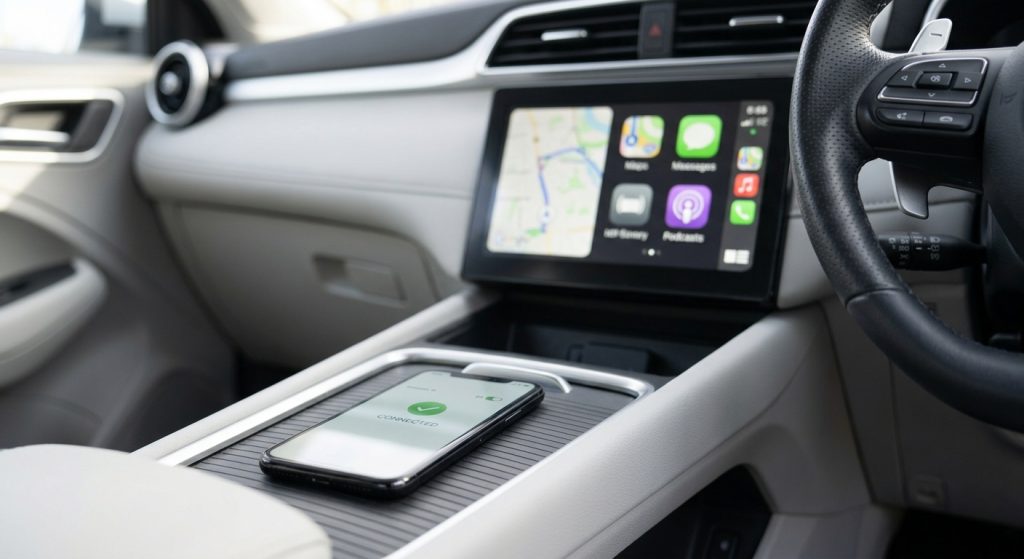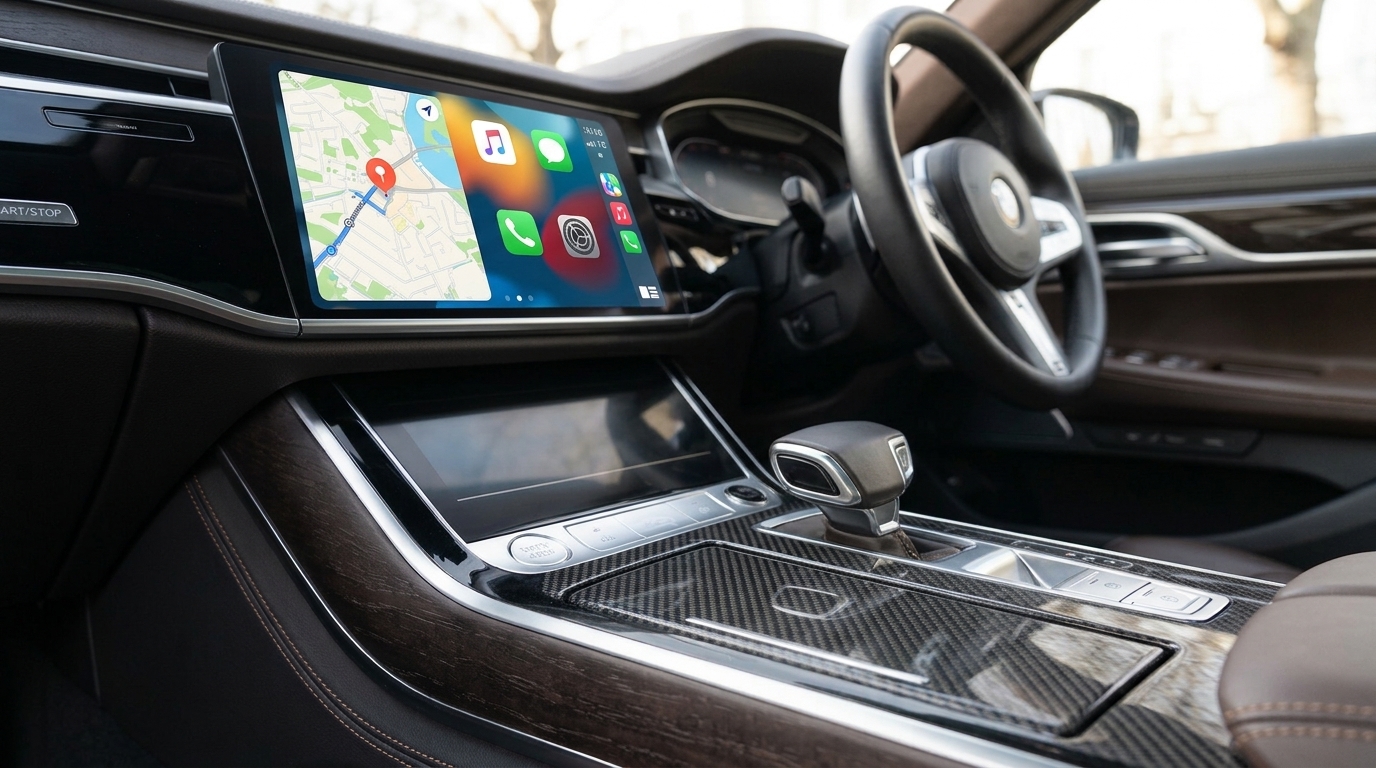
Yes — BYD Sealion 7 CarPlay comes standard on both Australian variants, Premium and Performance, and Apple CarPlay connects wirelessly. Android Auto is supported too[cite: 6]. One detail noted in overseas independent reviews is that projection apps may require the 15.6-inch screen to be in landscape mode; verify based on your current software version if it ever fails to show[cite: 6]. Want streaming apps on top of CarPlay? A BYD multimedia AI box adds them without touching the factory system. For other models, see our BYD CarPlay support guide.
| Item | BYD Sealion 7 (Australia) | Worth knowing |
|---|---|---|
| Apple CarPlay | Standard, wireless | Check orientation if display scaling acts unusual |
| Android Auto | Standard | Behavior can vary depending on local software updates |
| Screen | 15.6-inch rotating touchscreen | 10.5-inch driver display |
| USB ports | 1 × USB-A + 1 × USB-C up front | Tucked under the centre console |
| Software updates | Over-the-air (OTA) | Update before troubleshooting |
| Add Netflix / YouTube | Via a multimedia AI box | Requires factory wireless CarPlay |
Does the BYD Sealion 7 Have Apple CarPlay and Android Auto?
BYD Australia lists Apple CarPlay and Android Auto as standard features on the Sealion 7, alongside the 15.6-inch rotating touchscreen[cite: 6]. You don't need to buy anything extra to use either one.
Wireless Apple CarPlay
Wireless Apple CarPlay is part of the package. Launch reviews found it straightforward to connect and reliable on the road[cite: 6]. In short, the Sealion 7 ships ready with BYD wireless CarPlay support.
Android Auto: wired or wireless?
Specification details can vary by regional software rollouts. Early reviews noted wired connections[cite: 6], while subsequent updates or spec database updates point toward wireless capability depending on the firmware version installed.
Quick test: with your Android phone unplugged, open Android Auto on the car's screen. If it connects without a cable, you have wireless. If not, run any pending OTA update and try again — then fall back to a USB cable[cite: 6].
How to Set Up BYD Sealion 7 CarPlay Wirelessly
Before you start, make sure your iPhone has Bluetooth and Wi-Fi switched on and the latest iOS installed.
- Park the car and switch it on so the infotainment screen is awake.
- Rotate the screen to landscape if it happens to be in portrait.
- Open the phone-connection or CarPlay menu on the BYD screen and choose to add a new device.
- On your iPhone, go to Settings > General > CarPlay and select the car when it appears, or accept the Bluetooth pairing prompt.
- Allow CarPlay when the iPhone asks, and choose whether to allow it while the phone is locked.
Next time, CarPlay should start on its own once the car and phone are both on. If it doesn't, check under Settings > Wi-Fi that Auto-Join is on for the car's CarPlay network.
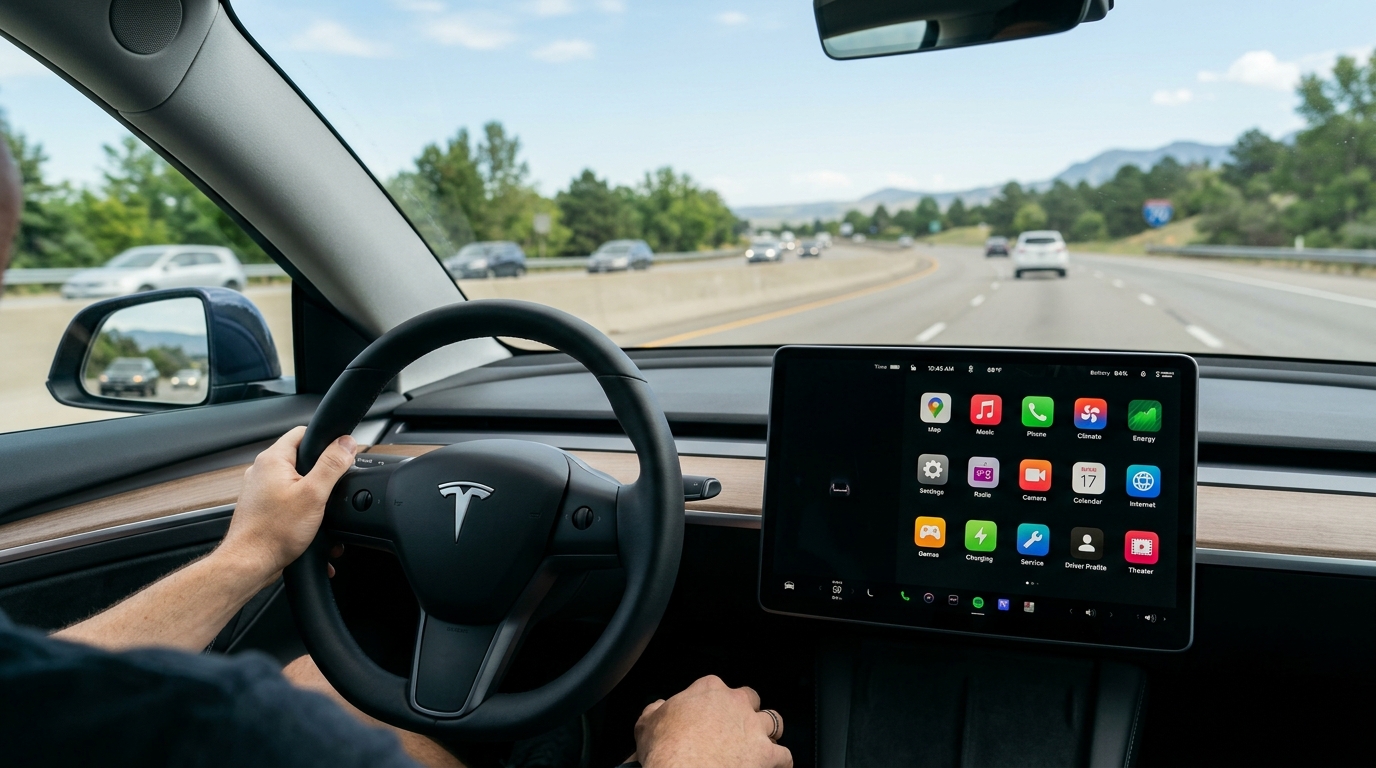
Tip: keep the screen in landscape
Certain independent market reviews note that projection interfaces perform best or are explicitly optimized when the 15.6-inch display is in landscape orientation[cite: 6]. If interface elements look misaligned, check the screen position first.
Where are the USB ports?
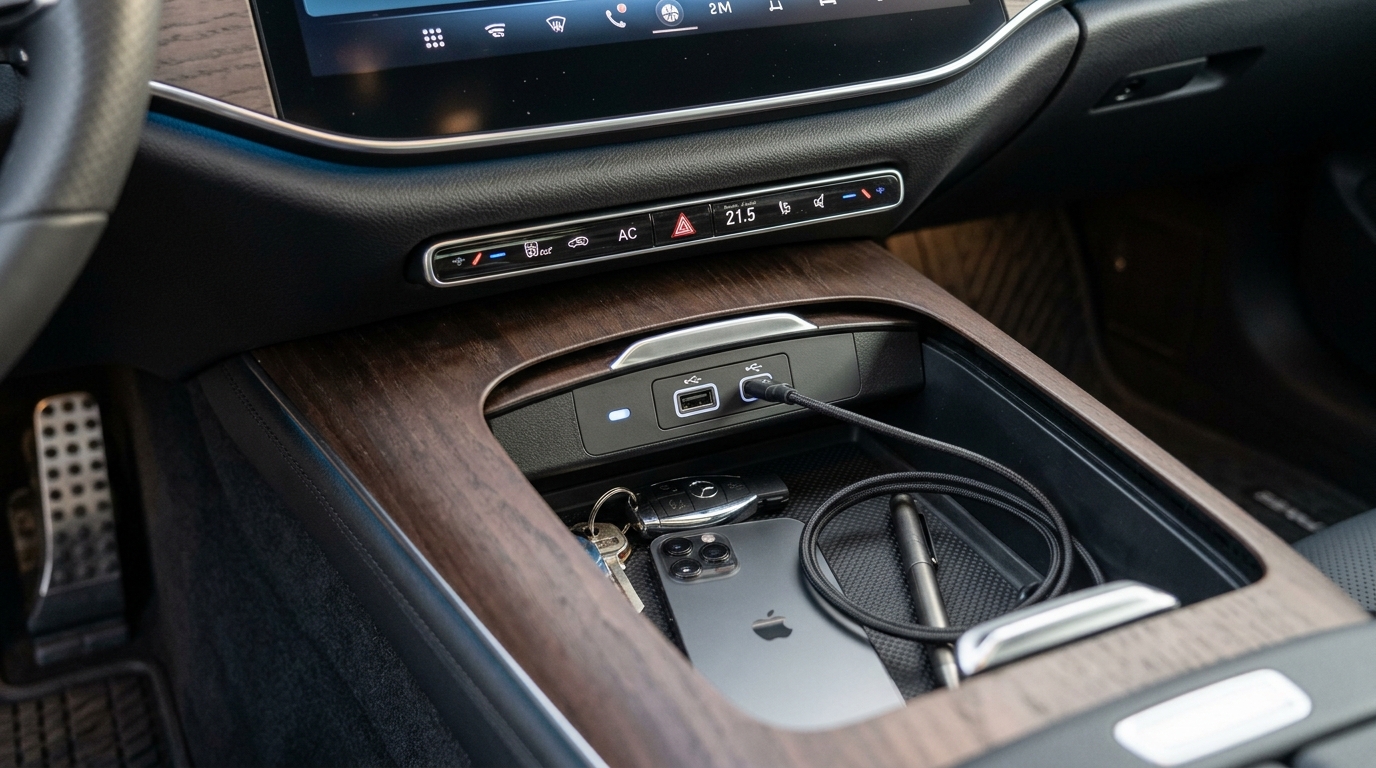
The Sealion 7 features one USB-A and one USB-C port below the centre console[cite: 6]. They are tucked away and easy to miss initially[cite: 6]. If a wired connection or accessory doesn't respond in one port, try the other.
BYD Sealion 7 CarPlay Problems and Fixes
Most minor glitches come down to quick settings adjustments. Work through this table before considering a service check.
| Symptom | Likely cause | What to try |
|---|---|---|
| CarPlay icon missing | Screen orientation or app sync lag | Rotate the screen or restart the infotainment system |
| iPhone won't connect wirelessly | Old pairing conflict | Forget the car on your iPhone, delete the phone on the car, then pair again |
| Drops out on every trip | Bluetooth and CarPlay competing for the phone | Re-pair from scratch; make sure no other device grabs the connection |
| Doesn't reconnect automatically | Wi-Fi Auto-Join turned off | Turn on Auto-Join for the car's CarPlay network on the iPhone |
| First pairing fails | Out-of-date software | Update iOS on the phone and run any available BYD OTA update |
| Android Auto won't go wireless | Firmware version or phone settings | Update the car software, then use a USB cable as a stable backup |
| Display alignment quirks | App scaling or screen rotation | Toggle screen orientation to refresh layout |
Before you blame the car: restart both the phone and the infotainment screen. Short-lived projection glitches often clear after a simple system reboot.
Upgrade Options: What You Can Add on Top of Factory CarPlay
CarPlay covers maps, music, podcasts and messages. What it doesn't do natively is full independent video streaming or standalone Android apps. If you want those expanded capabilities, an external multimedia upgrade path is available.
Option 1: Keep it stock and stay updated
BYD pushes over-the-air updates to the Sealion 7, continually refining system performance and screen responsiveness[cite: 6]. Keeping your software current is the simplest way to maintain smooth compatibility.
Option 2: A BYD multimedia AI box
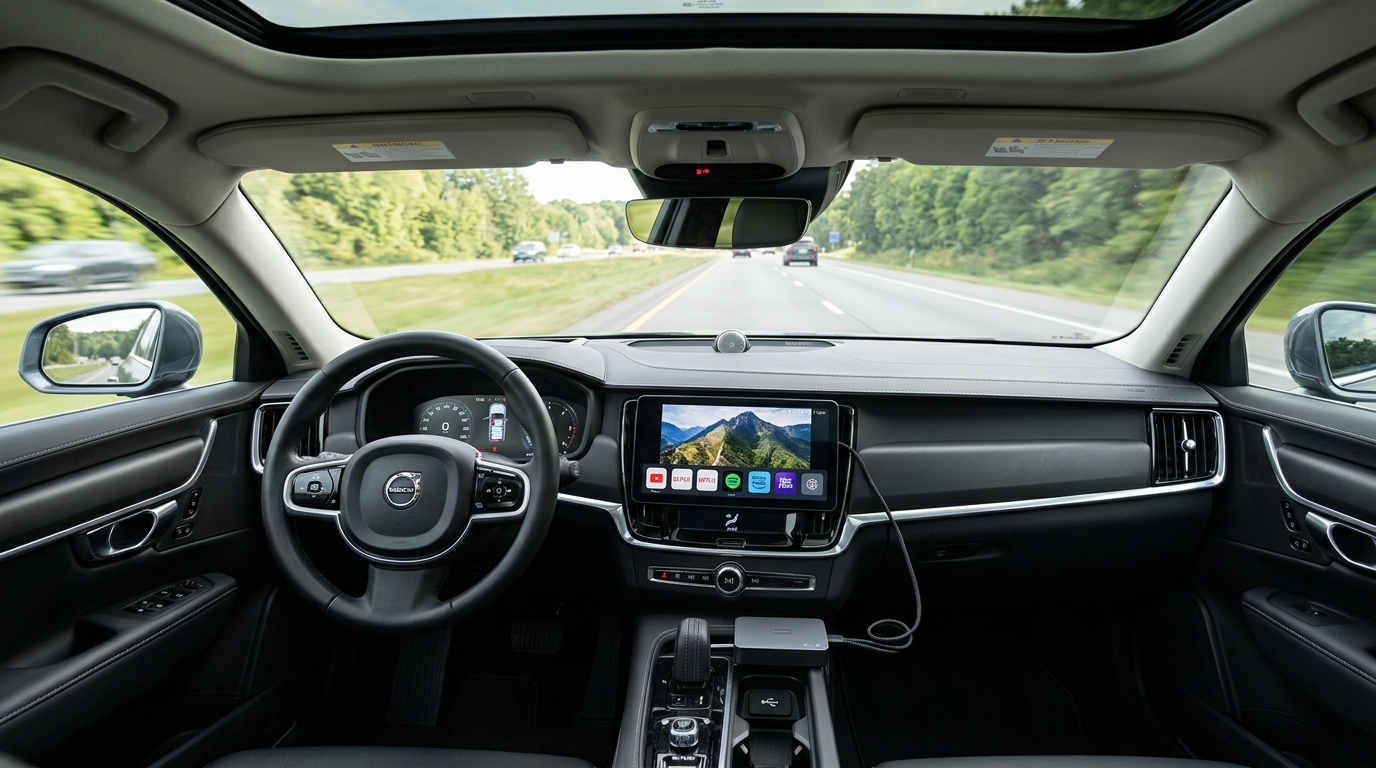
A multimedia AI box for BYD plugs into the car's USB port, taking advantage of factory wireless CarPlay[cite: 6]. It runs an open Android system — bringing apps like Netflix and YouTube directly to the 15.6-inch screen while preserving standard wireless CarPlay and Android Auto functionality.
| Spec | Multimedia AI Box for BYD |
|---|---|
| System | Android with Google Play access |
| Processor | Qualcomm 8-core processor |
| Memory & Storage | High RAM & ROM configurations with expandable storage options |
| Internet | 4G SIM support, Wi-Fi, or phone hotspot |
| Control Integration | Supports BYD touchscreen and steering-wheel controls |
| Requirement | Factory wireless CarPlay (standard on Sealion 7)[cite: 6] |
Will it replace the original system? No. You can switch back and forth between the standard BYD interface and the AI box environment whenever you want.
How the AI box installs
The setup process requires no specialized wiring or vehicle coding:
- Clear old pairings — remove existing direct CarPlay, Bluetooth and Wi-Fi connections between your phone and the car.
- Plug the box into the data USB port, let wireless CarPlay initialize and wait for the system to boot.
- Sign in to your account, install desired apps and pair your phone if you wish to use mirrored projection.
If app icons appear stretched, ensure the screen is set to landscape view to correct display scaling.
Safety first: video streaming applications are intended for when the vehicle is safely parked (such as waiting while charging). Never watch videos while operating the vehicle.
FAQ
Does the BYD Sealion 7 have wireless CarPlay?
Yes. Wireless Apple CarPlay comes standard on Australian Sealion 7 variants (Premium and Performance)[cite: 6]. Pair your iPhone through the vehicle setup menu and it will reconnect automatically during subsequent drives.
Is Android Auto wireless on the Sealion 7?
Compatibility can depend on the specific software version installed on your vehicle[cite: 6]. Test with your phone unplugged after running any recent OTA updates; if wireless isn't active on your build version, a wired USB connection serves as a reliable alternative.
Why does CarPlay behave unusually when I rotate the screen?
Screen layout scaling can occasionally be sensitive to rotation changes on large rotating displays[cite: 6]. Keeping the screen in landscape orientation generally provides the most stable interface presentation for projection apps.
Can I watch Netflix on the BYD Sealion 7?
Native CarPlay does not support video streaming apps. However, using a compatible multimedia AI box enables access to apps like Netflix and YouTube via Google Play while parked.
Will an AI box replace the factory BYD interface?
No. An AI box runs as an independent layer on top of factory wireless CarPlay[cite: 6]. You can easily exit the box environment to return to standard vehicle controls at any time.
Next Step
Start with the basics: keep your Sealion 7 software updated, maintain landscape screen alignment where optimal, and re-pair your phone cleanly if connection drops occur[cite: 6]. If you want to expand your infotainment capabilities with streaming apps on that large display, explore the Multimedia AI Box for BYD.
See the Multimedia AI Box for BYD