
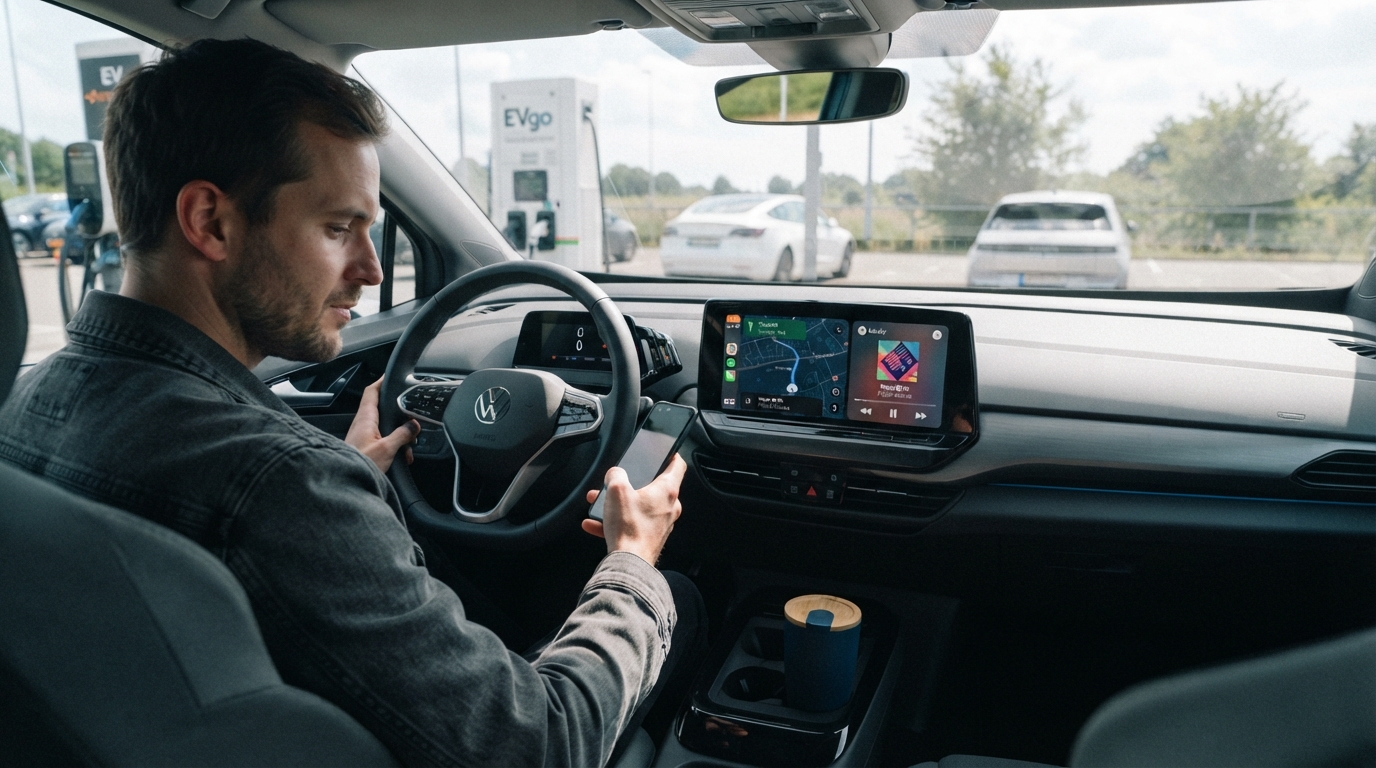
The Carlinkit Ultra split screen lets your car's factory head unit show navigation and another app, such as music or messages, side by side. If you drive with maps and audio running at the same time, that means fewer taps to see the current song, and no need to leave the map to check a notification. On long trips, in unfamiliar cities, and on daily commutes, the feature turns the head unit into a two-panel display, so the info you check most often can share the screen with your route.
What Is Carlinkit Ultra Split Screen?
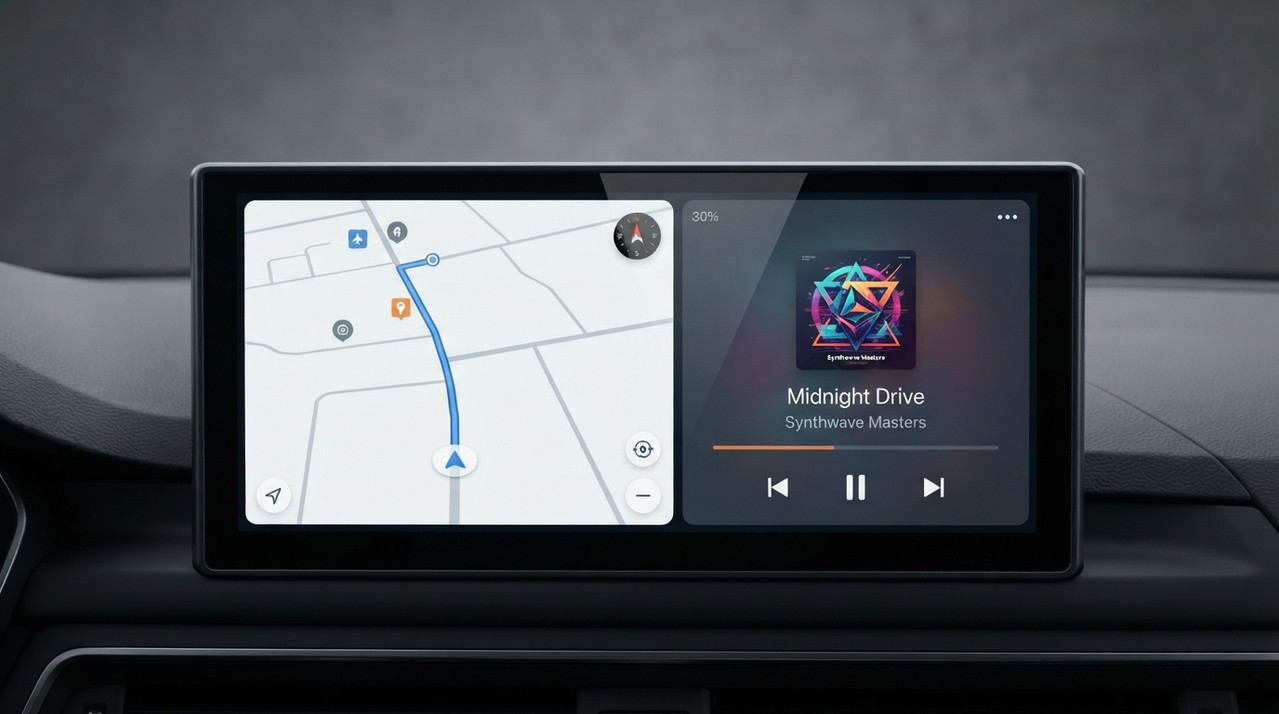
Carlinkit Ultra split screen divides your car's factory head unit display into two panels, so two apps can be visible at the same time. If you've used iPad Split View, the idea is close: one app takes the main area, another sits alongside it. On Carlinkit Ultra, the screen being split is the car's head unit.
For example, during navigation:
- one side shows the map and route
- the other side shows the current music
- navigation stays visible the whole time
- music info stays in view too
When the song changes, you can see what's now playing. When the route matters, the map is already on screen. The point is that each type of information has its own area, instead of taking turns.
What Else Can Appear Beside Navigation?
Music is the most common companion, but the second panel can hold more than playback info. Depending on your phone OS and the apps involved, the second panel can also show messages, notifications, and quick status info you'd otherwise check in a separate app.
Music and Media
Music while driving is a given for most people. During navigation, the other panel can show the current track, playback state, and related media details. That way you can check what's on without leaving the map.
Messages and Notifications
Short messages and notifications can also sit in the second panel. When your phone gets a new alert, a quick glance is enough to know something has come in. Anything that needs a proper read or reply should wait until you're safely parked.
Time, Battery, and Other Status Info
Time and battery are the sort of details you only need to confirm at a glance, so they don't need the full display. Putting them in the secondary panel means the map stays where it is while these details are also in view.
Beyond those, other apps with split screen support can share the display too, depending on your phone, your car, and the app itself.
How to Use Split Screen on Carlinkit Ultra
To use split screen, open your navigation app first and start turn-by-turn directions. Then trigger the split screen feature on Carlinkit Ultra to enter multi-window mode, keep the map in one panel, and pick what should sit in the other.
The exact controls and menu names can vary by system version, app, and head unit environment, so follow what's on your screen at the time.
Common misconception
The split screen appears on your car's factory head unit display, not on the Carlinkit Ultra device itself. Ultra just relays the signal.
Carlinkit Ultra connects to your car's existing wired CarPlay or wired Android Auto system. Once Ultra is set up, your phone connects to Ultra wirelessly, and Ultra passes the signal to the head unit through a USB cable. So the final display always lives on the head unit screen.
For drivers who used to plug the phone straight into the head unit for CarPlay or Android Auto, Ultra offers another way to connect as a wireless CarPlay & Android Auto adapter, and it also brings more Android capability to the head unit at the same time.
When Split Screen Actually Helps
Split screen makes the biggest difference on long drives, in unfamiliar cities, and on daily commutes, whenever you'd otherwise be switching between the map and another app several times per trip.
Long Drives: Navigation and Music Stay Side by Side
Long drives usually mean navigation running for hours, with music that plays from start to finish. If the map takes the whole screen, checking the current song means switching pages every time. With split screen, the map keeps running while the music details stay on the other side. For a drive that lasts a few hours, that's a small change with a real payoff.
Unfamiliar Cities: Keep the Map Visible
In a new city, navigation matters more. You may be watching for the next turn, a route change, or your current lane, and you still might want to check music or another quick detail. Split screen lets those things share the head unit, so a quick glance at the song or the time doesn't mean leaving the map.
Daily Commute: Fewer Taps for the Same Routine
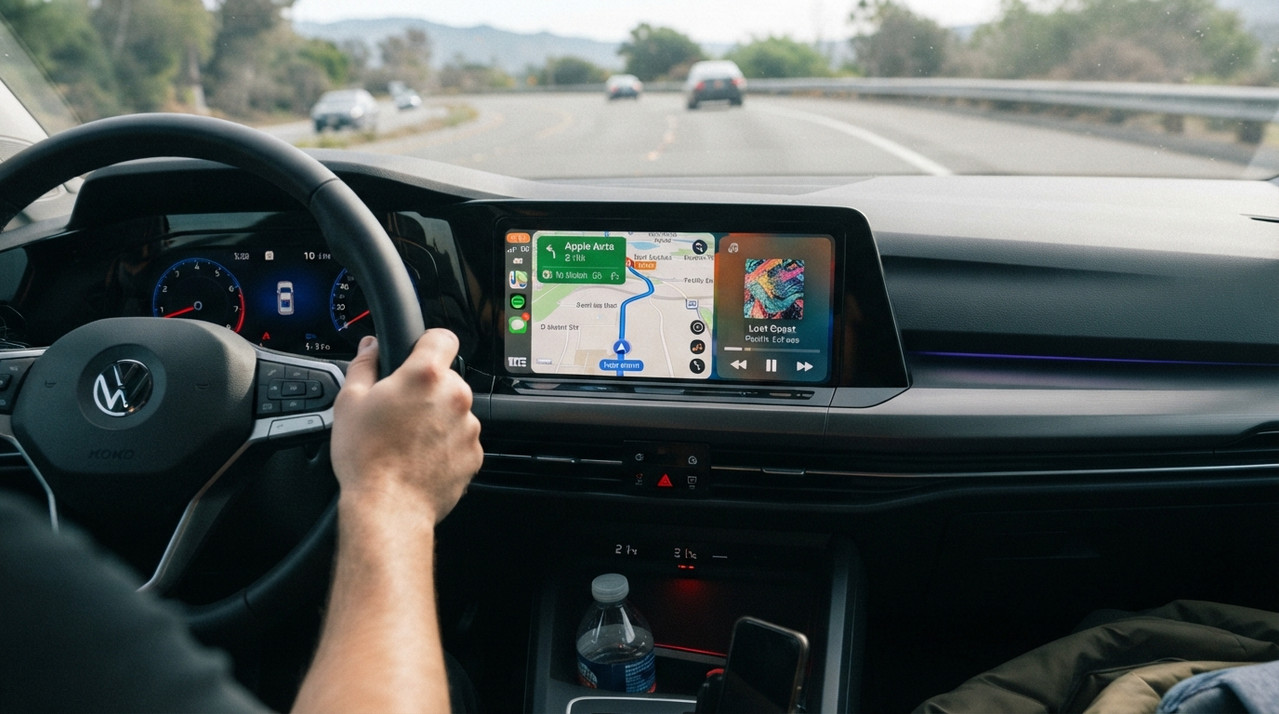
Even a familiar route can hit sudden traffic that sends you back to the map while music keeps playing. Putting both on the same screen removes some of the small switching taps that otherwise stack up trip after trip.
What About Driver Attention?
Split screen doesn't make driving safer on its own, but cutting down on how often you tap between apps helps reduce unnecessary visual and manual distraction. If the map stays on screen throughout navigation, you don't have to leave it just to check a simple side detail.
Longer messages, complex controls, and anything that needs typing are still better saved for when you're parked.
Which Carlinkit Ultra Models Support Split Screen?
Split screen is a series-wide feature on Carlinkit Ultra, not something reserved for one particular model. TBox Ultra 1, TBox Ultra 2, and TBox Ultra 3 all support it, so there's no need to compare specs across the three models purely on this feature.
Frequently Asked Questions
Does wireless CarPlay support split screen?
Carlinkit Ultra pairs with head units that have wired CarPlay, and connects to your phone wirelessly. The split screen itself appears on the head unit display, and how it performs depends on your specific car system and the apps involved.
Does Android Auto support split screen?
The Carlinkit Ultra Series works with cars that support wired Android Auto. Split screen behaviour depends on the device system, the head unit environment, and the app you're using.
Which navigation and music apps can I use with Carlinkit Ultra split screen?
Common apps like Google Maps, Apple Maps, Waze, and Spotify are the sort you'd typically use. Whether a given app can appear in split screen depends on the app itself and your current system environment.
Does split screen affect navigation performance?
Split screen is designed to keep two panels visible at once. Real-world performance depends on your device, system, apps, and head unit environment. Running several heavier apps in parallel may feel different from running them separately.
The Bottom Line
The Carlinkit Ultra split screen keeps the map running on your head unit while music, messages, time, or other quick info stays on the other side. For long drives, unfamiliar routes, and daily commutes, that means fewer taps between apps and more of your most-used information on screen at once.