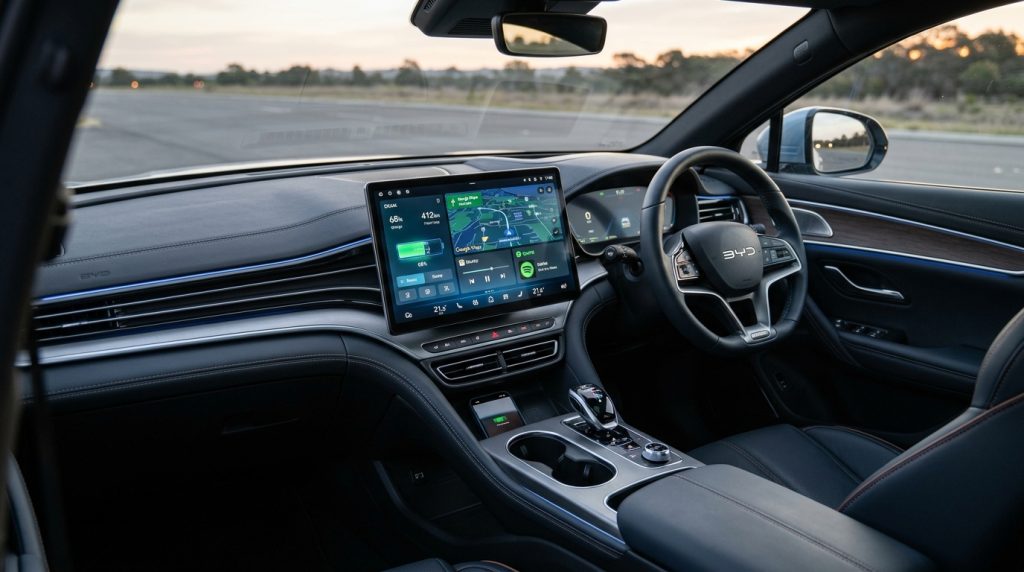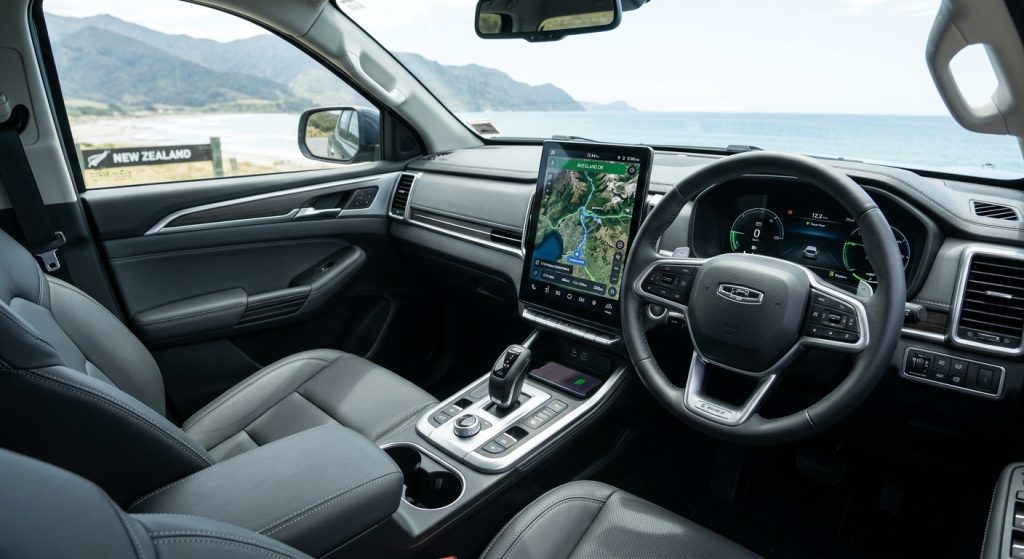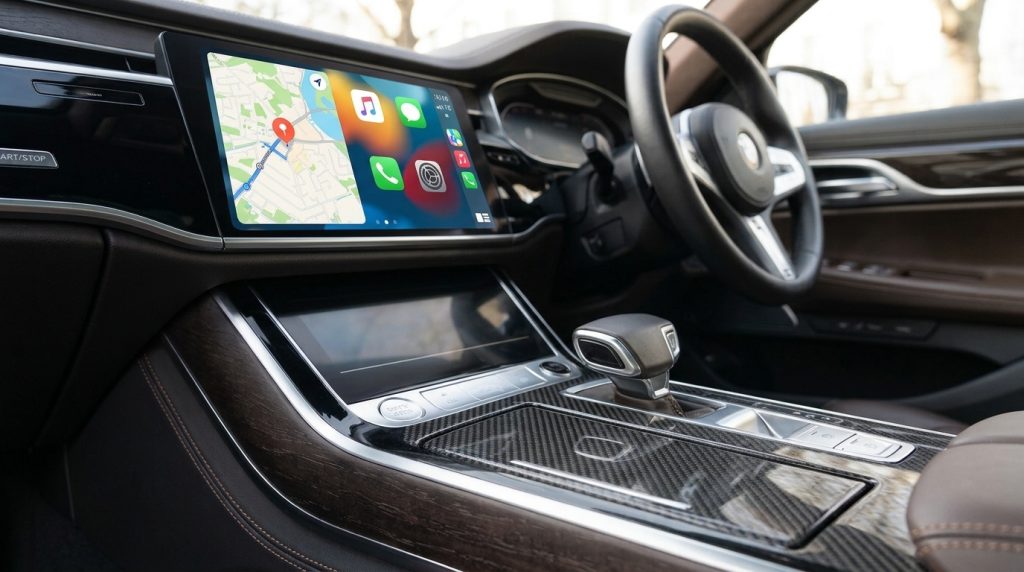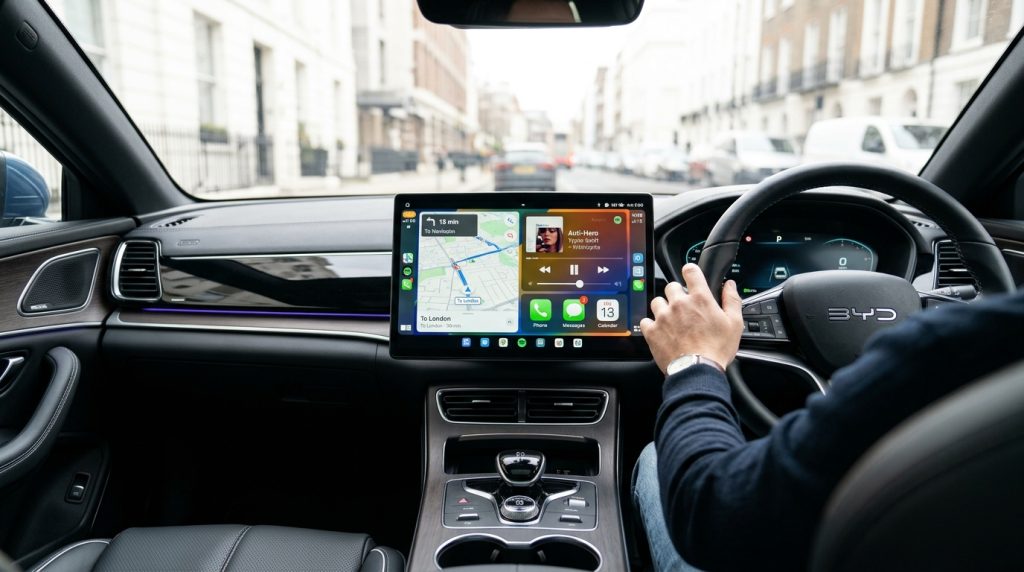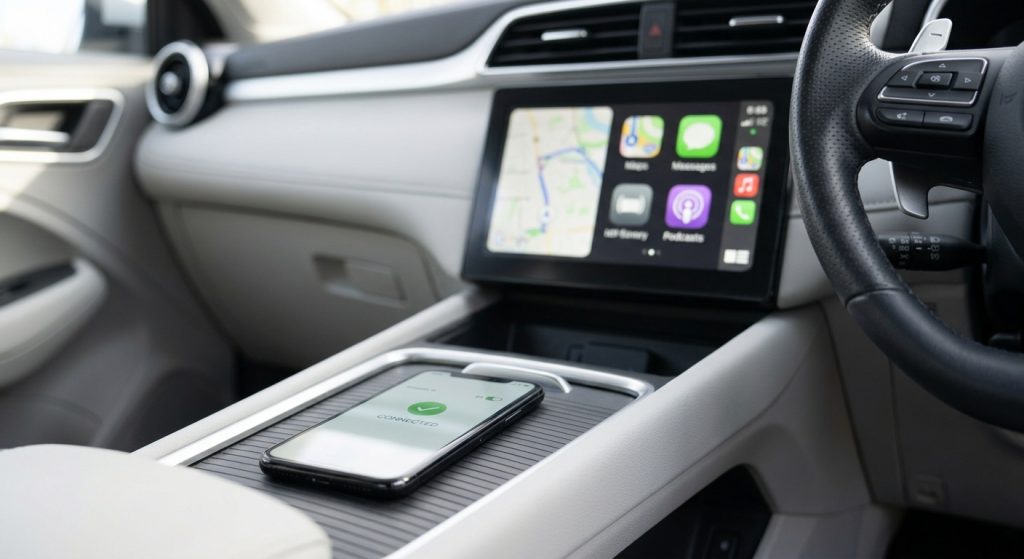
The Carlinkit 4.0 makes the most sense if your car has factory wired Apple CarPlay and you want to use an Android phone wirelessly. The 4.0 uses the car’s wired CarPlay connection to display wireless CarPlay from an iPhone or wireless Android Auto from a compatible Android phone. If your car already has wired Android Auto, the 5.0 2Air or A2A is a better starting point for your Android phone.
What the Carlinkit 4.0 does
The Carlinkit 4.0, model CPC200-CP2A, plugs into the USB data port your car uses for wired CarPlay. It pairs with your phone over Bluetooth and uses Wi-Fi for the wireless connection. With an Android phone, the adapter presents Android Auto through the car’s existing CarPlay connection. That is what makes the 4.0 useful for a household that shares one car between iPhone and Android users.
The car still needs a compatible wired CarPlay system. The Australian product page excludes BMW and Tesla. Carlinkit also excludes aftermarket Android radios in its CP2A compatibility guide. For other aftermarket units, verify the exact model before ordering. Carlinkit’s CP2A compatibility guide.
Check your car with a USB data cable
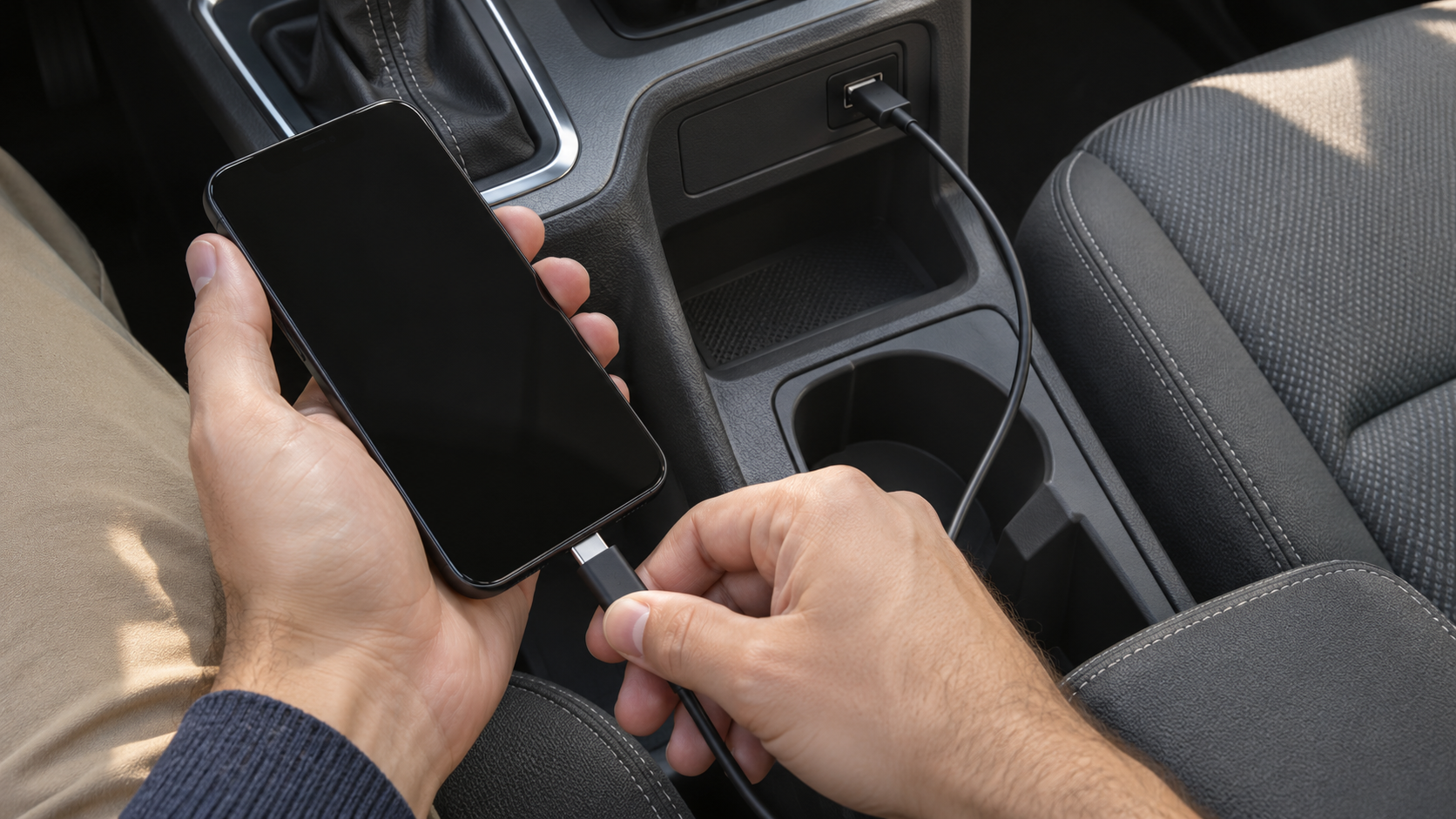
- With the car parked, plug an iPhone directly into the vehicle’s CarPlay USB data port using a cable that supports data transfer.
- If the car also connects wirelessly, disable automatic wireless pairing in the car’s menu if available. Confirm that CarPlay actually opens over USB.
- If the phone only charges, try another data cable and the USB port specified in your vehicle manual. If CarPlay works only wirelessly, the 4.0’s wired requirement has not been met.
For Android, use a phone that meets Google’s current wireless Android Auto requirements. Android 11 or later and 5 GHz Wi-Fi are the practical baseline for buyers. Check your exact phone model before relying on an older version.
How to set up the Carlinkit 4.0
- Park the car and let the infotainment system start.
- Unplug the phone cable and connect the adapter to the same USB data port.
- Turn on Bluetooth and Wi-Fi on the phone. In Bluetooth settings, select the adapter name shown by the car’s display or the adapter’s setup instructions.
- Accept the prompts to use CarPlay or Android Auto and wait for the interface to load.
For the first pairing in a two-driver household, set up one phone at a time. If the other phone keeps reconnecting first, temporarily turn off Bluetooth on that phone while you connect the intended one.
Performance in published reviews
In its 2022 review, BGR reported that connecting could take 10 seconds or longer. Its reviewer found CarPlay responsive once connected and reported no dropouts during that test.
A guest review on a Carlinkit reseller’s site described music starting within about 20 seconds of ignition in a 2019 SEAT Leon. It also reported about 1.5 seconds of delay when skipping tracks. The tests used different starting points and vehicles, so use those figures as examples. If instant audio response matters to you, keep the cable handy.
Carlinkit 4.0 settings at 192.168.50.2
Open the settings from a phone connected to the adapter’s Wi-Fi. While parked, enter http://192.168.50.2 in the browser’s address bar.
- iPhone: Connect to wireless CarPlay or join the adapter’s Wi-Fi directly, then enter the address in Safari.
- Android: If the page does not load through the normal connection, follow Carlinkit’s instructions to connect directly to the adapter’s secondary Wi-Fi network. Use the network for your unit and open the address again in your phone’s browser.
See the manufacturer’s iPhone and Android access instructions and our backend settings guide. The labels and available options can vary with firmware.
| Setting | When to use it |
|---|---|
| Auto Connect / Automatic | Try switching it off if the wrong phone keeps reconnecting when both drivers are nearby. |
| Start Delay / Startup Delay | Try a small adjustment if the head unit misses the adapter at start-up but recognises it after you reconnect it. |
| Sync Mode | Try it if the car displays incorrect track information or has trouble recognising the adapter. |
| Media Delay | Adjust only if audio stutters or arrives late. A larger buffer can reduce stutter but may make track changes feel slower. |
| GPS | If this option is present and your navigation position drifts, check whether changing the location source helps. |
| Reset | Clears saved connections. Use it when you need a fresh pairing and have noted any settings you want to restore. |
| Feedback | If the problem recurs and the settings page is reachable, submit the details and log while parked, before unplugging the adapter. |
For a setting you do not recognise, check Carlinkit’s option guide. Change one setting at a time so you can tell what helped.
Carlinkit 4.0 lights and what to do about purple
The manufacturer’s light guide lists these patterns:
| Light pattern | Meaning |
|---|---|
| Solid red | The head unit has not recognised the adapter. Check the cable and use the vehicle’s CarPlay data port. |
| Green or alternating red and green | The head unit has recognised the adapter. Check the phone’s pairing if the interface has not loaded. |
| Slow red and green flashes | The phone is connected. |
| Fast red and green flashes | Firmware update in progress. Keep the adapter powered. |
What does a purple light mean?
Carlinkit’s published chart does not define a purple light. If the adapter still works, record when the light appears and whether it is steady or flashing. If the connection fails, note whether you started an update before the light changed. If an update may still be running, leave the adapter connected and powered.
When you have ruled out an active update, restart the head unit, reconnect the adapter to the CarPlay data port and try pairing again. If the issue returns, send support a short video of the light pattern, your car make, model and year, your phone model and the firmware version if you can reach the settings page.
How to update Carlinkit 4.0 firmware
If the adapter works reliably, leave the current firmware in place. Consider an update when it addresses an issue you are experiencing or when support recommends a version for your unit.
- Park somewhere safe and make sure the adapter can stay powered for the entire update and restart.
- Connect your phone to the adapter and open
http://192.168.50.2. - Find Basic Settings → Check for updates, the path shown in Carlinkit’s guide. Some firmware versions may label the control Check Update.
- Start the update if appropriate. Leave the adapter plugged in, keep it powered and wait for it to restart and bring the interface back.
If the update fails or appears stuck, contact support before attempting a USB recovery or rollback. Provide the model number and firmware version so they can identify the correct procedure. Official online update instructions and video tutorial.
Carlinkit 4.0 vs 5.0 2Air vs A2A
| Your car and phone | Adapter | AU product-page price |
|---|---|---|
| Factory wired CarPlay only, and you want to use an Android phone | Carlinkit 4.0 | A$119.99 |
| Wired CarPlay with an iPhone, or wired Android Auto with an Android phone | Carlinkit 5.0 2Air | A$125.99 |
| Factory wired Android Auto and you only need Android Auto | Carlinkit A2A | A$117.99 |
Australian product-page prices checked 19 November 2026. Promotions and availability can change.
The 5.0 2Air makes each factory connection wireless for the matching phone. On a car with wired CarPlay only, the 2Air gives an iPhone wireless CarPlay. For Android Auto on that same screen, choose the 4.0 if your vehicle and phone are compatible. For earlier models, see our comparison of Carlinkit 3.0, 4.0 and 5.0 adapters.
Frequently asked questions
Can I use Android Auto if my car only has wired CarPlay?
Yes, on a compatible car and phone. The 4.0 uses the vehicle’s factory wired CarPlay connection to display Android Auto from your Android phone.
Why won’t 192.168.50.2 open on my phone?
Check that the phone is on the adapter’s Wi-Fi, then enter http://192.168.50.2 directly in the browser address bar. On Android, you may need to join the adapter’s secondary Wi-Fi network manually.
How do I reset my Carlinkit 4.0?
Open the settings page and select Reset if the option is available. This clears saved connections without changing the installed firmware version. Forget the old pairing on your phone before setting it up again.
Can two phones share one Carlinkit 4.0?
Two drivers can pair their phones separately and use the adapter one at a time. If the wrong phone connects first, temporarily turn off Bluetooth on that phone or try disabling Auto Connect in the adapter settings.
Where can I find the Carlinkit 4.0 manual?
Carlinkit lists an English manual under model CPC200-CP2A on its official 4.0 manual page. Check the model on your unit before following firmware instructions.
Start with the USB cable test.
If an iPhone launches CarPlay over USB and you need Android Auto on that same screen, the 4.0 is the model to check. If both CarPlay and Android Auto already work over USB, the 5.0 2Air is the more direct fit. For help, email service@carlinkitfactory.com with your car make, model, year and the result of the cable test.
Compare wireless adapters