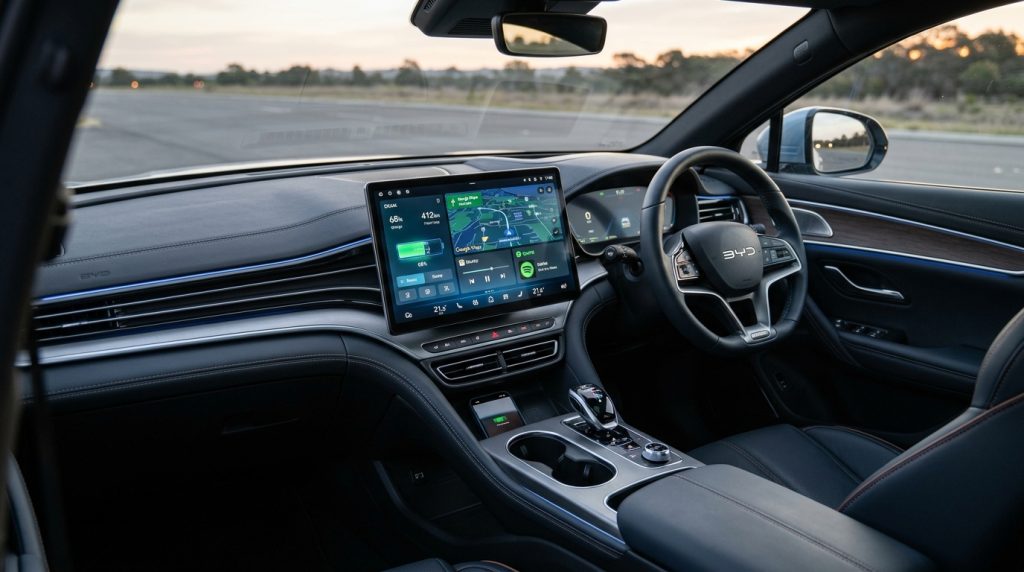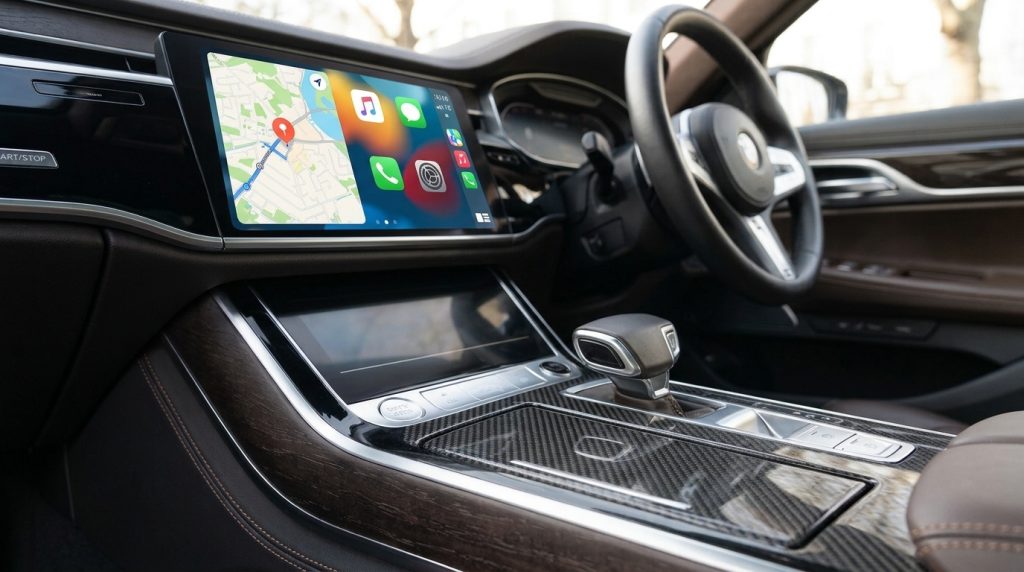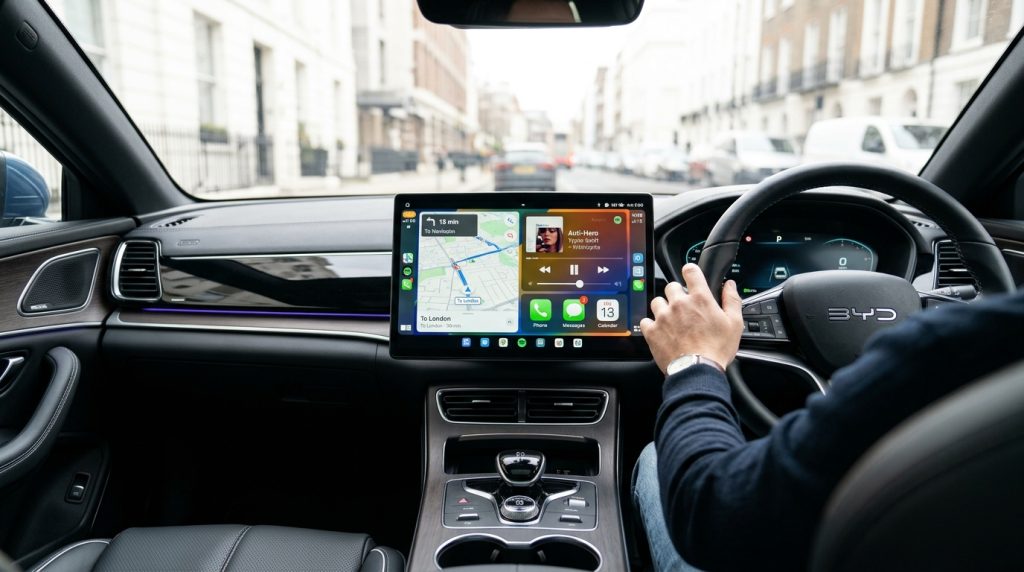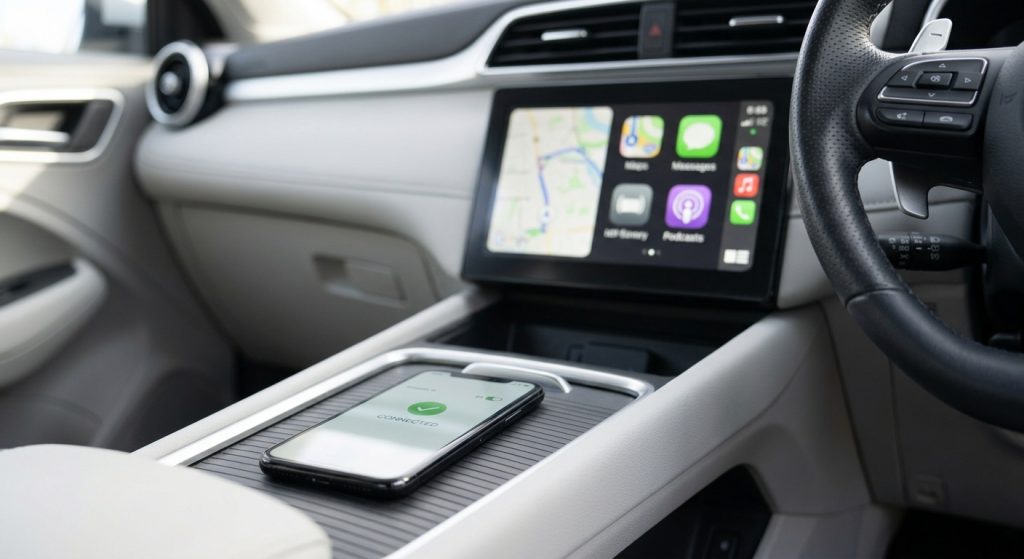
Searching "BYD Shark 6 TBox" can mean two different things. The factory T-Box is BYD's built-in telematics module: it runs connectivity, navigation, over-the-air updates and the phone app. A Carlinkit TBox (an Android AI box) is a plug-in accessory that adds Google Play apps to your Shark 6 screen through its factory wireless CarPlay. If your screen has lost features, get the factory unit checked. If you want more apps, read on.
| Your situation | What it probably means | What to do | }
|---|---|---|
| Navigation, OTA updates and phone app have stopped working | Factory T-Box fault | Book a BYD service centre inspection |
| Clocks are 20–30 minutes out and won't adjust | Symptom one owner reported with a failed T-Box | Same as above |
| Everything works, but you want YouTube or other Android apps on the big screen | Upgrade, not a fault | Plug-in AI box (needs factory wireless CarPlay) |
| You only want your phone's apps on screen | Nothing to buy | Use factory wireless CarPlay / Android Auto |
Two Different "TBoxes" in a Shark 6
It's easy to mix these up, because both get called a BYD Shark 6 TBox on forums and in shops.
The factory T-Box is part of the car. A Shark 6 owner writing for The Driven summed it up: without a working T-Box, the ute has no navigation, no over-the-air software updates and no phone app.
A Carlinkit TBox is an accessory. It's a small Android computer that plugs into a USB port. Your BYD treats it as a wireless CarPlay device, and then it shows a full Android interface on the factory screen.

Key point: an AI box does not repair or replace a faulty factory T-Box. They do different jobs. Sort out any factory fault first, then think about upgrades.
Is Your Factory T-Box Faulty? Symptoms and What to Do
Common symptoms
According to the owner's account in The Driven (November 2025), a failed T-Box showed up as:
- Missing items on the central touchscreen and no connectivity
- Two clocks running 20–30 minutes wrong that couldn't be adjusted
- No navigation, no OTA updates and no phone app
What to do
- Note the symptoms and when they started. Take photos of the screen. They help the service centre.
- Book an inspection at a BYD service centre. In that owner's case, the replacement part was only ordered after a physical inspection, and the wait was estimated at several weeks.
- Ask the service advisor whether the part is in stock before you drive a long way for the inspection.
- Don't confuse it with the recall. The 2026 Shark 6 recall covers the spare wheel lifter, not the T-Box. You can check your VIN on BYD Australia's recall page.
Shark 6 CarPlay: What the Factory Screen Already Does
Before you buy anything, check what your variant already offers. Here's what CarExpert's 2026 spec pages list:
| Variant | Centre screen | Apple CarPlay | Android Auto | Front USB data ports |
|---|---|---|---|---|
| Shark 6 Premium | 15.6" | Wireless | Wireless | 1 |
| Shark 6 Performance | 15.6" | Wireless | Wireless | 1 |
| Shark 6 Dynamic (cab-chassis) | 12.8" | Listed, wireless not stated | Wireless | 1 |
The screen can also rotate, and newer models have Google Maps built in through Google Automotive Services. That means you get navigation without even connecting your phone.
So why add anything? Shark 6 CarPlay mirrors your phone's CarPlay apps, and CarPlay is built around apps for driving: maps, music, podcasts and messages. You won't get a full Play Store, a browser or the usual video streaming apps on the 15.6" screen through it.

Driving a Dynamic? The spec sheet doesn't say whether its CarPlay is wireless. Test it: unplug every cable, open CarPlay settings on your iPhone and see if the car appears. If it only connects with a cable, a wireless-CarPlay AI box isn't the right fit.
BYD Shark 6 TBox Upgrade Options Compared
| Option | What you get | Effort | Main trade-off |
|---|---|---|---|
| Factory system only | CarPlay/Android Auto, built-in maps, OTA updates | None | No video apps or Play Store on the main screen |
| Tablet on a headrest mount | Rear-seat entertainment | A few minutes | Front screen stays the same |
| Plug-in AI box (Carlinkit TBox) | Android 13, Google Play apps, split screen, wireless CarPlay/Android Auto | Plug-in, no wiring | Needs factory wireless CarPlay; apps for parked use when it comes to video |
| Replacement head unit | Fully aftermarket system | Workshop job | Hard to justify on a new car with integrated vehicle settings |
For most owners whose factory system works fine, the choice comes down to the factory system or a plug-in AI box. A plug-in BYD Shark 6 TBox is the only option on this list that changes what the front screen can do without touching the wiring.
How to Set Up an AI Box in Your Shark 6
Setting up a BYD Shark 6 TBox takes a few checks first, then a handful of on-screen steps.
Before you buy: three quick checks
- Confirm wireless CarPlay works with your phone (see the Dynamic test above). The BYD AI box starts up through the car's factory wireless CarPlay.
- Find the USB data port. CarExpert lists two front USB charging ports but only one front USB data connection. A charge-only port won't start the box. Check your owner's manual for the exact location.
- Decide on data. The box takes a 4G data SIM (not included), or you can run it from Wi-Fi or your phone's hotspot.
Step-by-step setup
- Remove old pairings. On your phone, forget the BYD in CarPlay, Bluetooth and Wi-Fi settings. Leftover pairings can make the phone grab the car's CarPlay before the box does.
- Plug the box into the front USB data port with the car switched on.
- Turn on wireless CarPlay on the head unit and wait for the box to boot.
- Sign in to Google Play on the box and install the apps you want.
- Pair your phone with the box if you also want CarPlay or Android Auto running through it.
You control it with the BYD touchscreen, controller and steering wheel buttons. There's no coding and no wiring.

Using it legally on the road
Under the Australian Road Rules (rule 299, adopted by each state), the driver must not be able to see video on a screen while the vehicle is moving, or stopped but not parked. Navigation and camera displays are exempt. Keep video for when you're parked (handy at charging stops or camp), and check your state's road rules for the details.
Troubleshooting Common Setup Problems
Most BYD Shark 6 TBox setup problems come down to the port, old pairings or data:
- Box doesn't start: It's probably in a charge-only port. Move it to the front USB data port and restart the car.
- CarPlay keeps reconnecting to the phone instead of the box: Forget the BYD on your phone again, including Bluetooth, then reconnect the box first.
- No internet on the box: Check that the SIM has a data plan, or turn on your phone's hotspot and join it from the box's Wi-Fi settings.
- Screen features missing even without the box: That points to the factory system, not the accessory. Unplug the box and see the T-Box section above.
FAQ
What does the T-Box do on a BYD Shark 6?
The factory T-Box is the telematics module that keeps your Shark 6 connected. It supports features such as navigation, over-the-air software updates and the BYD phone app. If it fails, those features can stop working. One owner also reported clocks running 20–30 minutes out. A BYD service centre needs to inspect and replace it.
Will an AI box fix a faulty factory T-Box?
No. A plug-in AI box adds Android apps to your screen through wireless CarPlay. It doesn't replace the car's telematics module, so it won't restore OTA updates or the BYD app. If you see T-Box symptoms, have the factory unit checked first. Add an AI box once the car's own system is working normally.
Does the BYD Shark 6 have wireless Apple CarPlay?
Yes on the Premium and Performance: CarExpert's spec pages list both wireless Apple CarPlay and wireless Android Auto. For the Dynamic cab-chassis, the spec sheet lists CarPlay but doesn't say whether it's wireless. Test it with all cables unplugged, or ask your dealer, before buying a wireless-CarPlay accessory.
Can I watch YouTube or Netflix on the Shark 6 screen?
Not through factory CarPlay, which is built around driving apps such as maps, audio and messaging. A plug-in AI box runs Android with Google Play, so you can install streaming apps on it. How each app performs depends on the app itself. Australian road rules say video must only be visible to the driver when the vehicle is parked.
Do I need a SIM card in the AI box?
No. The BYD AI box has a 4G slot for a data SIM (not included), but it also works over Wi-Fi or your phone's hotspot. A SIM is handy if you stream on long trips without a hotspot. Otherwise, your phone's data is enough. Check your mobile plan's hotspot allowance before streaming video.
Your Next Step
Start with the two-minute check: unplug all cables, confirm your Shark 6 connects to wireless CarPlay, and find the front USB data port. If both check out and your factory T-Box is healthy, a BYD Shark 6 TBox upgrade is a plug-in job. See the Multimedia Android & iOS AI Box for BYD for full specs and compatibility. Not sure about your variant? Send your model and year to our support team before you order.
See the BYD AI Box